Complete Guide to Installing and Securing Tabby AI Coding Assistant on Ubuntu 20.04+
Before you start
- 7 min read
- 29 to run in terminal
Boxes marked Run in terminal are what you type; plain text explains why. Check what you need first
Are you looking for a privacy-focused alternative to GitHub Copilot? Tabby is an open-source, self-hosted AI coding assistant that lets you maintain control over your code while enjoying advanced AI assistance. This comprehensive guide will walk you through installing Tabby on Ubuntu 20.04 or newer using Docker.
What is Tabby AI Coding Assistant?#
Tabby is a powerful self-contained AI coding assistant that helps developers write code more efficiently. Unlike proprietary alternatives, Tabby operates entirely on your local infrastructure, ensuring your code remains private and secure.
Key Features:
- Self-contained operation with no external databases or cloud services
- OpenAPI interface for integration with existing systems
- Support for NVIDIA GPUs for faster performance (also works on CPU)
- Compatible with various coding models including StarCoder, Code Llama, and others
- Integrates with popular code editors (especially VS Code)
- Provides intelligent code completion and answers to coding queries
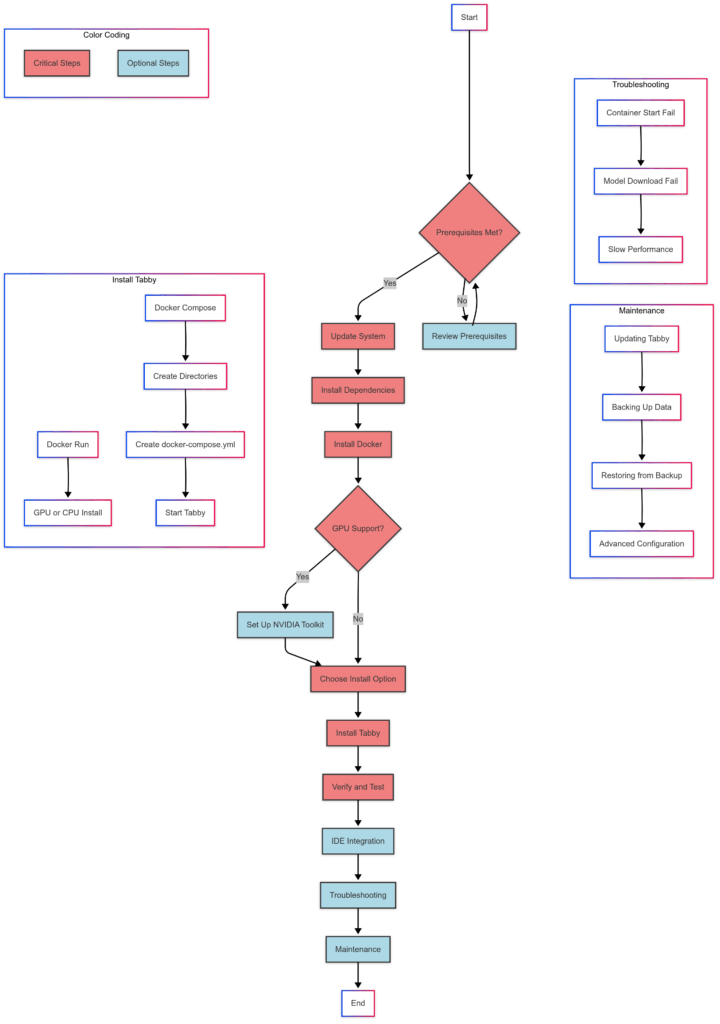
instruction layout/flow
Prerequisites#
Before we begin, make sure your system meets these requirements:
System Requirements#
- Ubuntu 20.04 LTS or newer
- Minimum 8GB RAM (16GB+ recommended)
- At least 30GB disk space for model data
- For GPU acceleration: NVIDIA GPU with 4GB+ VRAM
Update Your System#
First, let's update your Ubuntu system:
sudo apt update && sudo apt upgrade -y
This ensures all packages are current before installation.
Install Basic Dependencies#
sudo apt install -y curl wget git software-properties-common apt-transport-https ca-certificates gnupg lsb-release unzip
These are essential utilities needed for the installation process.
Install Docker#
Docker is required to run Tabby. Here's how to install it:
# Remove any old Docker installations
sudo apt remove docker docker-engine docker.io containerd runc
This removes any conflicting previous Docker installations.
# Add Docker's official GPG key
curl -fsSL https://download.docker.com/linux/ubuntu/gpg | sudo gpg --dearmor -o /usr/share/keyrings/docker-archive-keyring.gpg
This adds Docker's GPG key for package verification.
# Add Docker repository
echo "deb [arch=$(dpkg --print-architecture) signed-by=/usr/share/keyrings/docker-archive-keyring.gpg] https://download.docker.com/linux/ubuntu $(lsb_release -cs) stable" | sudo tee /etc/apt/sources.list.d/docker.list > /dev/null
This adds the Docker repository to your system.
# Update apt and install Docker
sudo apt update
sudo apt install -y docker-ce docker-ce-cli containerd.io
This installs Docker from the official repository.
# Add your user to the docker group
sudo usermod -aG docker $USER
This allows you to run Docker without sudo.
# Apply the new group membership
newgrp docker
This activates the new group membership without requiring logout.
Verify your Docker installation:
docker --version
You should see the Docker version if installation was successful.
Set Up NVIDIA Container Toolkit (For GPU Support)#
If you plan to use GPU acceleration (recommended for better performance):
# Verify your NVIDIA driver is installed
nvidia-smi
This shows your GPU information if drivers are properly installed.
# Install NVIDIA Container Toolkit
distribution=$(. /etc/os-release;echo $ID$VERSION_ID)
curl -s -L https://nvidia.github.io/nvidia-docker/gpgkey | sudo apt-key add -
curl -s -L https://nvidia.github.io/nvidia-docker/$distribution/nvidia-docker.list | sudo tee /etc/apt/sources.list.d/nvidia-docker.list
sudo apt update
sudo apt install -y nvidia-docker2
This installs the NVIDIA Container Toolkit for Docker.
# Restart Docker service
sudo systemctl restart docker
This applies the new NVIDIA configuration.
Verify the NVIDIA Container Toolkit installation:
sudo docker run --rm --gpus all nvidia/cuda:11.7.1-base-ubuntu20.04 nvidia-smi
This should display your GPU information, confirming Docker can access your GPU.
Installation Options#
Option 1: Using Docker Run (Simplest Approach)#
GPU Installation (NVIDIA)#
For systems with NVIDIA GPUs:
mkdir -p $HOME/.tabby
docker run -it --gpus all \
  -p 8080:8080 -v $HOME/.tabby:/data \
  tabbyml/tabby \
  serve --model StarCoder-1B --device cuda --chat-model Qwen2-1.5B-Instruct
This command:
- Creates a directory for Tabby data
- Runs Tabby with GPU acceleration
- Maps port 8080 for web access
- Mounts a local directory for data persistence
- Uses StarCoder-1B for code completion and Qwen2-1.5B-Instruct for chat
CPU-Only Installation#
If you don't have a GPU:
mkdir -p $HOME/.tabby
docker run --entrypoint /opt/tabby/bin/tabby-cpu -it \
  -p 8080:8080 -v $HOME/.tabby:/data \
  tabbyml/tabby \
  serve --model StarCoder-1B
This uses the CPU-optimized entry point. Note that performance will be significantly slower than with GPU acceleration.
Option 2: Using Docker Compose (Better for Production)#
Create necessary directories and files:
mkdir -p ~/docker_data/tabby/data
This creates a directory structure for your Tabby deployment.
Access Tabby at http://localhost:8080 or your configured domain.
Verification and Testing#
Verify that Tabby is running correctly:
# Check if the container is running
docker ps | grep tabby
This shows if the Tabby container is active.
# Check the logs for any errors
docker logs tabby
This displays container logs to help identify issues.
IDE Integration#
Tabby works best with code editors. For VS Code:
- Open VS Code
- Go to Extensions (Ctrl+Shift+X)
- Search for "Tabby"
- Install the TabbyML extension
- Open VS Code settings (Ctrl+,)
- Search for "Tabby"
- Set "Tabby: Server Url" to your Tabby server (e.g., http://localhost:8080)
- Restart VS Code
You should now see Tabby suggestions as you code.
Common Problems and Solutions#
Problem: Docker Container Fails to Start with GPU Support#
Symptoms: Error message containing: Error response from daemon: could not select device driver "" with capabilities: [[gpu]].
Solution: Reinstall NVIDIA Container Toolkit:
# Reinstall NVIDIA Container Toolkit
distribution=$(. /etc/os-release;echo $ID$VERSION_ID)
curl -s -L https://nvidia.github.io/nvidia-docker/gpgkey | sudo apt-key add -
curl -s -L https://nvidia.github.io/nvidia-docker/$distribution/nvidia-docker.list | sudo tee /etc/apt/sources.list.d/nvidia-docker.list
sudo apt update
sudo apt install -y nvidia-docker2

# Restart Docker
sudo systemctl restart docker
This reinstalls and reconfigures the NVIDIA Container Toolkit.
If NVIDIA driver is missing:
sudo apt install nvidia-driver-525  # Use the latest recommended version
sudo reboot
This installs NVIDIA drivers needed for GPU support.
Problem: Model Download Failures#
Symptoms: Container starts but fails during model downloading.
Solution: Check for network issues or insufficient disk space:
# Check available disk space
df -h
This shows available disk space on your system.
# If disk space is low, clear Docker unused resources
docker system prune -a
This removes unused Docker resources to free up space.
# Ensure the data directory has correct permissions
chmod -R 777 $HOME/.tabby  # Temporarily for troubleshooting
This temporarily sets permissive permissions for debugging.
Problem: Slow Performance with CPU-Only Mode#
Symptoms: Tabby is running but code completions are very slow.
Solution: CPU-only mode is significantly slower than GPU mode. Consider:
- Use a smaller model for better CPU performance:
docker run --entrypoint /opt/tabby/bin/tabby-cpu -it \
  -p 8080:8080 -v $HOME/.tabby:/data \
  tabbyml/tabby \
  serve --model TabbyML/J-350M  # Smaller model better for CPU
Smaller models run faster on CPU but may provide less accurate suggestions.
Maintenance Procedures#
Updating Tabby#
To update Tabby to the latest version:
# For Docker run method
docker pull tabbyml/tabby
# Then restart your container with the same run command

# For Docker Compose method
cd ~/docker_data/tabby
docker compose pull
docker compose up -d
This pulls the latest Tabby image and restarts your container.
Backing Up Data#
Create a backup script:
cat > ~/backup-tabby.sh << 'EOF'
#!/bin/bash
BACKUP_DIR=~/tabby-backups
mkdir -p $BACKUP_DIR
TIMESTAMP=$(date +%Y%m%d-%H%M%S)
tar -czf $BACKUP_DIR/tabby-data-$TIMESTAMP.tar.gz ~/docker_data/tabby/data
# Keep only the latest 5 backups
ls -t $BACKUP_DIR/tabby-data-*.tar.gz | tail -n +6 | xargs rm -f
EOF

chmod +x ~/backup-tabby.sh
This creates a script that makes compressed backups of your Tabby data.
Add a scheduled backup task:
(crontab -l 2>/dev/null; echo "0 2 * * * ~/backup-tabby.sh") | crontab -
This sets up daily backups at 2:00 AM.
Restoring from Backup#
# Stop the container
cd ~/docker_data/tabby && docker compose down

# Restore from backup
tar -xzf ~/tabby-backups/tabby-data-20250310-120000.tar.gz -C /

# Restart the container
cd ~/docker_data/tabby && docker compose up -d
This restores your Tabby data from a backup archive.
Advanced Configuration#
For advanced users, Tabby offers additional options:
Using Different Models#
Tabby supports various models with different capabilities:
# Example using a different code completion model
docker run -it --gpus all \
  -p 8080:8080 -v $HOME/.tabby:/data \
  tabbyml/tabby \
  serve --model TabbyML/CodeLlama-7B --device cuda
This uses the larger CodeLlama-7B model for potentially better suggestions (requires more VRAM).
Common models include:
- StarCoder-1B (default, balanced performance)
- TabbyML/J-350M (smaller, faster on CPU)
- TabbyML/CodeLlama-7B (larger, better suggestions but requires more VRAM)
Conclusion#
You now have a fully functional Tabby AI Coding Assistant installation on your Ubuntu system! This self-hosted solution gives you complete control over your code and development environment while still providing advanced AI-powered assistance.
For the best experience:
- Use GPU acceleration if available
- Choose models appropriate for your hardware
- Keep your installation updated
- Maintain regular backups
Whether you're a solo developer or working in a team, Tabby provides a privacy-focused alternative to cloud-based coding assistants that can significantly boost your productivity.