Comprehensive Guide to Self-Hosting n8n on Ubuntu 20.04+ with Docker
Before you start
- 11 min read
- 46 to run in terminal
Boxes marked Run in terminal are what you type; plain text explains why. Check what you need first

Introduction#
n8n is a powerful, free, and open-source workflow automation tool that connects various services and applications. Docker provides an optimal deployment method by creating a consistent environment for running n8n, effectively isolating the application from the host system. This isolation ensures compatibility across different operating systems and simplifies migration when changing hosts or environments.
This guide will walk you through every step of installing and configuring n8n using Docker on Ubuntu 20.04 or newer, addressing common issues and providing best practices for security and maintenance.
instruction layout/chart
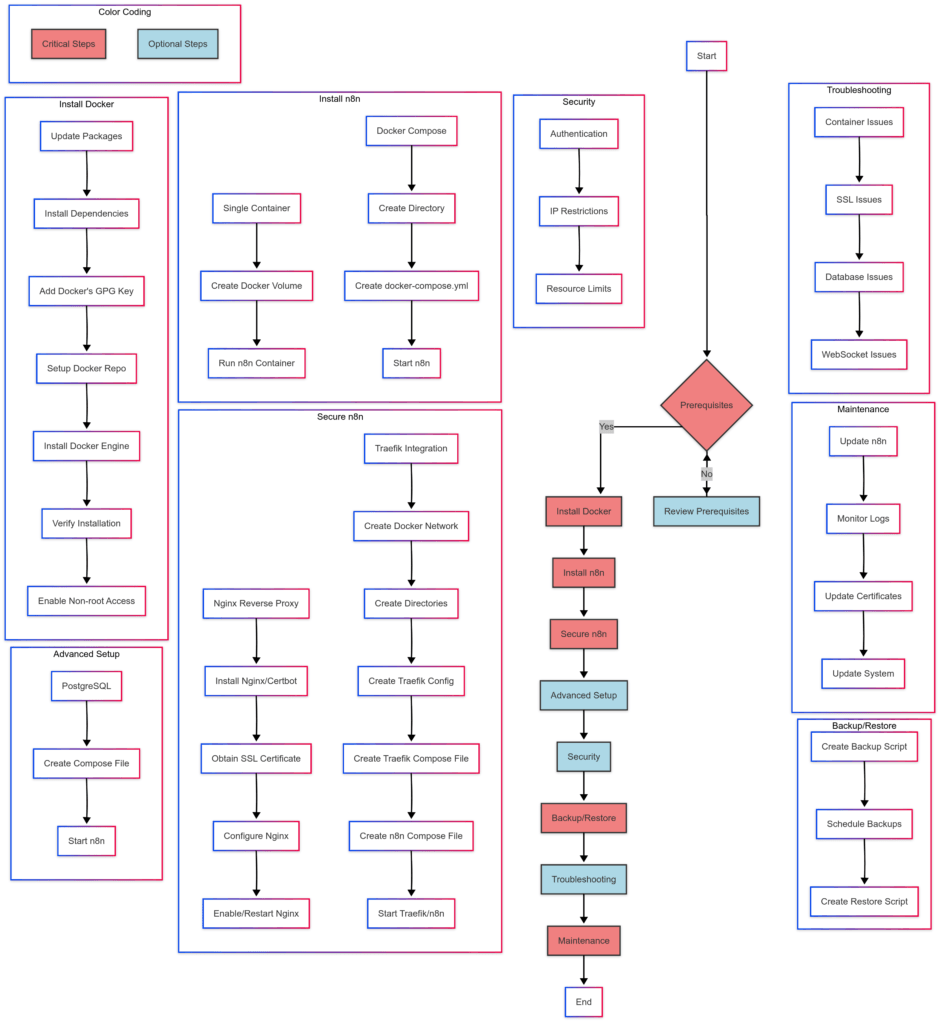
Prerequisites#
Before beginning the installation process, ensure your system meets these requirements:
- Ubuntu 20.04 or newer operating system
- Minimum 1GB RAM (2GB+ recommended for production environments)
- At least 10GB of available storage space
- Dual-core processor (more cores beneficial for complex workflows)
- Static IP address or domain name pointing to your server
- Root or sudo access to execute administrative commands
- Port 5678 available (n8n's default port)
- Basic knowledge of Linux commands, Docker concepts, and networking principles
If running n8n behind a firewall or router, ensure port 5678 is properly forwarded to your server. For custom domain setup with SSL, configure DNS records to point to your server's IP address.
Docker Installation on Ubuntu 20.04+#
Step 1: Update Package Index#
sudo apt update && sudo apt upgrade -y
This updates the package lists and upgrades existing packages to their latest versions.
Step 2: Install Docker Dependencies#
sudo apt install -y apt-transport-https ca-certificates curl software-properties-common
These packages allow apt to use repositories over HTTPS and are prerequisites for secure Docker installation.
Step 3: Add Docker's Official GPG Key#
curl -fsSL https://download.docker.com/linux/ubuntu/gpg | sudo apt-key add -
This adds Docker's GPG key to verify package authenticity during installation.
Step 4: Set Up the Docker Repository#
sudo add-apt-repository "deb [arch=amd64] https://download.docker.com/linux/ubuntu $(lsb_release -cs) stable"
This adds the appropriate Docker repository for your Ubuntu version.
Step 5: Install Docker Engine#
sudo apt update
Updates the package database with Docker packages from the newly added repository.
sudo apt install -y docker-ce docker-ce-cli containerd.io
Installs Docker Engine, CLI, and containerd, the core components needed to run Docker containers.
Step 6: Verify Docker Installation#
sudo docker run hello-world
This downloads a test image and runs it in a container. If Docker is properly installed, you'll see a confirmation message.
Step 7: Enable Non-root User Access to Docker (Optional)#
sudo usermod -aG docker $USER
Adds your user to the Docker group, allowing Docker commands without sudo.
newgrp docker
Applies the new group membership without logging out.
Installing n8n with Docker#
Single Container Setup with Docker#
This is the simplest way to get started with n8n using Docker, using SQLite as the default database.
Step 1: Create a Docker Volume for Data Persistence#
docker volume create n8n_data
Creates a Docker volume that will store all n8n data, including workflows, credentials, and execution history.
Step 2: Run n8n Container#
docker run -d --restart unless-stopped \
  --name n8n \
  -p 5678:5678 \
  -v n8n_data:/home/node/.n8n \
  n8nio/n8n
This command:
- Runs n8n in detached mode (
-d) - Configures automatic restart (
--restart unless-stopped) - Names the container for easy reference (
--name n8n) - Maps port 5678 on the host to port 5678 in the container
- Mounts the Docker volume to n8n's data directory
Docker Compose Setup#
Docker Compose allows you to define and run multi-container Docker applications, useful when running n8n alongside other services like a database.
Step 1: Create Directory Structure#
mkdir -p ~/docker_data/n8n/data
Creates directories for storing Docker Compose files and n8n data.
Step 2: Create Docker Compose Configuration#
Create a docker-compose.yml file with SQLite (default database):
cat > ~/docker_data/n8n/docker-compose.yml << 'EOF'
version: '3'

services:
  n8n:
    image: n8nio/n8n
    restart: unless-stopped
    ports:
      - "5678:5678"
    volumes:
      - ./data:/home/node/.n8n
    environment:
      - N8N_ENCRYPTION_KEY=your-random-encryption-key
      - N8N_HOST=n8n.yourdomain.com
      - N8N_PROTOCOL=https
      - N8N_PORT=5678
      - NODE_ENV=production
    networks:
      - n8n-network

networks:
  n8n-network:
EOF
This creates a basic Docker Compose configuration for n8n with SQLite as the database.
Step 3: Start n8n with Docker Compose#
cd ~/docker_data/n8n
docker compose up -d
These commands navigate to the directory containing the docker-compose.yml file and start n8n in detached mode.
Advanced Setup with PostgreSQL Database#
For production environments, using PostgreSQL is recommended for better performance and reliability.
Step 1: Create a More Advanced Docker Compose Configuration#
cat > ~/docker_data/n8n/docker-compose.yml << 'EOF'
version: '3'

services:
  n8n:
    image: n8nio/n8n
    restart: unless-stopped
    ports:
      - "5678:5678"
    volumes:
      - ./data:/home/node/.n8n
    environment:
      - DB_TYPE=postgresdb
      - DB_POSTGRESDB_HOST=postgres
      - DB_POSTGRESDB_PORT=5432
      - DB_POSTGRESDB_DATABASE=n8n
      - DB_POSTGRESDB_USER=n8n
      - DB_POSTGRESDB_PASSWORD=n8n_password
      - N8N_ENCRYPTION_KEY=your-random-encryption-key
      - N8N_HOST=n8n.yourdomain.com
      - N8N_PROTOCOL=https
      - N8N_PORT=5678
      - NODE_ENV=production
    networks:
      - n8n-network
    depends_on:
      - postgres

  postgres:
    image: postgres:13
    restart: unless-stopped
    volumes:
      - postgres_data:/var/lib/postgresql/data
    environment:
      - POSTGRES_DB=n8n
      - POSTGRES_USER=n8n
      - POSTGRES_PASSWORD=n8n_password
    networks:
      - n8n-network

volumes:
  postgres_data:

networks:
  n8n-network:
EOF
This configuration sets up n8n with PostgreSQL as the database, creating a more robust and scalable solution.
Step 2: Start n8n with PostgreSQL#
cd ~/docker_data/n8n
docker compose up -d
These commands start both n8n and PostgreSQL containers.
Securing n8n with SSL/TLS#
Method 1: Using Nginx as a Reverse Proxy with Let's Encrypt#
Step 1: Install Nginx and Certbot#
sudo apt update
sudo apt install -y nginx certbot python3-certbot-nginx
Installs Nginx web server and Certbot for obtaining Let's Encrypt SSL certificates.
Step 2: Obtain SSL Certificate#
sudo certbot --nginx -d n8n.yourdomain.com
Obtains and installs an SSL certificate for your domain. Follow the prompts to complete the certificate issuance.
Step 3: Configure Nginx as a Reverse Proxy#
sudo cat > /etc/nginx/sites-available/n8n << 'EOF'
server {
    server_name n8n.yourdomain.com;

    location / {
        proxy_pass http://localhost:5678;
        proxy_set_header Host $host;
        proxy_set_header X-Real-IP $remote_addr;
        proxy_set_header X-Forwarded-For $proxy_add_x_forwarded_for;
        proxy_set_header X-Forwarded-Proto $scheme;

        # WebSocket support
        proxy_http_version 1.1;
        proxy_set_header Upgrade $http_upgrade;
        proxy_set_header Connection "upgrade";
        proxy_read_timeout 86400;
    }

    listen 443 ssl;
    ssl_certificate /etc/letsencrypt/live/n8n.yourdomain.com/fullchain.pem;
    ssl_certificate_key /etc/letsencrypt/live/n8n.yourdomain.com/privkey.pem;
    include /etc/letsencrypt/options-ssl-nginx.conf;
    ssl_dhparam /etc/letsencrypt/ssl-dhparams.pem;
}

server {
    if ($host = n8n.yourdomain.com) {
        return 301 https://$host$request_uri;
    }
    listen 80;
    server_name n8n.yourdomain.com;
    return 404;
}
EOF
This creates an Nginx configuration that acts as a reverse proxy for n8n and includes WebSocket support.
Step 4: Enable the Configuration and Restart Nginx#
sudo ln -s /etc/nginx/sites-available/n8n /etc/nginx/sites-enabled/
sudo nginx -t
sudo systemctl restart nginx
These commands enable the Nginx configuration, test it for syntax errors, and restart Nginx to apply the changes.
Method 2: n8n with Traefik Integration#
Traefik is a modern HTTP reverse proxy and load balancer that can automatically manage SSL certificates.
Step 1: Create Docker Network for Traefik#
docker network create proxy
Creates a Docker network for communication between Traefik and n8n.
Step 2: Create Directory Structure#
mkdir -p ~/docker_data/traefik/data
mkdir -p ~/docker_data/traefik/config
mkdir -p ~/docker_data/n8n/data
Creates directories for Traefik and n8n data and configuration files.
Step 3: Create Traefik Configuration#
cat > ~/docker_data/traefik/config/traefik.yml << 'EOF'
api:
  dashboard: true
  debug: true

entryPoints:
  http:
    address: ":80"
    http:
      redirections:
        entryPoint:
          to: https
          scheme: https
  https:
    address: ":443"

providers:
  docker:
    endpoint: "unix:///var/run/docker.sock"
    exposedByDefault: false
    network: proxy

certificatesResolvers:
  letsencrypt:
    acme:
      email: [email protected]
      storage: /data/acme.json
      httpChallenge:
        entryPoint: http
EOF
This creates a Traefik configuration file with support for automatic SSL certificate generation.
Step 4: Create Traefik Docker Compose File#
cat > ~/docker_data/traefik/docker-compose.yml << 'EOF'
version: '3'

services:
  traefik:
    image: traefik:v2.5
    restart: unless-stopped
    security_opt:
      - no-new-privileges:true
    ports:
      - "80:80"
      - "443:443"
    volumes:
      - /var/run/docker.sock:/var/run/docker.sock:ro
      - ./config/traefik.yml:/traefik.yml:ro
      - ./data:/data
    networks:
      - proxy
    labels:
      - "traefik.enable=true"
      - "traefik.http.routers.traefik.entrypoints=https"
      - "traefik.http.routers.traefik.rule=Host(`traefik.yourdomain.com`)"
      - "traefik.http.routers.traefik.tls.certresolver=letsencrypt"
      - "traefik.http.routers.traefik.service=api@internal"
      - "traefik.http.routers.traefik.middlewares=auth"
      - "traefik.http.middlewares.auth.basicauth.users=admin:$$apr1$$xyz123$$aBcDeFgHiJkLmNoPqRsTuV/" # Change this

networks:
  proxy:
    external: true
EOF
This creates a Docker Compose file for Traefik with automatic SSL certificate management.
Step 5: Create n8n Docker Compose File for Traefik#
cat > ~/docker_data/n8n/docker-compose.yml << 'EOF'
version: '3'

services:
  n8n:
    image: n8nio/n8n
    restart: unless-stopped
    volumes:
      - ./data:/home/node/.n8n
    environment:
      - N8N_ENCRYPTION_KEY=your-random-encryption-key
      - N8N_HOST=n8n.yourdomain.com
      - N8N_PROTOCOL=https
      - N8N_PORT=443
      - NODE_ENV=production
    networks:
      - proxy
    labels:
      - "traefik.enable=true"
      - "traefik.http.routers.n8n.entrypoints=https"
      - "traefik.http.routers.n8n.rule=Host(`n8n.yourdomain.com`)"
      - "traefik.http.routers.n8n.tls.certresolver=letsencrypt"
      - "traefik.http.services.n8n.loadbalancer.server.port=5678"

networks:
  proxy:
    external: true
EOF
This creates a Docker Compose file for n8n that integrates with Traefik for automatic SSL certificate management.
Step 6: Start Traefik and n8n#
cd ~/docker_data/traefik
docker compose up -d

cd ~/docker_data/n8n
docker compose up -d
These commands start both Traefik and n8n containers.
Advanced Security Configuration#
Securing n8n with Authentication#
Enable basic authentication to protect your n8n instance:
cat > ~/docker_data/n8n/docker-compose.yml << 'EOF'
version: '3'

services:
  n8n:
    image: n8nio/n8n
    restart: unless-stopped
    ports:
      - "5678:5678"
    volumes:
      - ./data:/home/node/.n8n
    environment:
      - N8N_ENCRYPTION_KEY=your-random-encryption-key
      - N8N_HOST=n8n.yourdomain.com
      - N8N_PROTOCOL=https
      - N8N_PORT=5678
      - NODE_ENV=production
      - N8N_BASIC_AUTH_ACTIVE=true
      - N8N_BASIC_AUTH_USER=admin
      - N8N_BASIC_AUTH_PASSWORD=secure_password
    networks:
      - n8n-network

networks:
  n8n-network:
EOF
This configuration enables basic authentication for n8n, requiring a username and password to access the interface.
Implementing IP Restrictions#
To restrict access to n8n from specific IP addresses, update your Nginx configuration:
sudo cat > /etc/nginx/sites-available/n8n << 'EOF'
server {
    server_name n8n.yourdomain.com;

    # IP restrictions
    allow 192.168.1.0/24;  # Allow your local network
    allow 203.0.113.0/24;  # Allow your office network
    deny all;             # Deny all other IPs

    location / {
        proxy_pass http://localhost:5678;
        proxy_set_header Host $host;
        proxy_set_header X-Real-IP $remote_addr;
        proxy_set_header X-Forwarded-For $proxy_add_x_forwarded_for;
        proxy_set_header X-Forwarded-Proto $scheme;

        # WebSocket support
        proxy_http_version 1.1;
        proxy_set_header Upgrade $http_upgrade;
        proxy_set_header Connection "upgrade";
        proxy_read_timeout 86400;
    }

    listen 443 ssl;
    ssl_certificate /etc/letsencrypt/live/n8n.yourdomain.com/fullchain.pem;
    ssl_certificate_key /etc/letsencrypt/live/n8n.yourdomain.com/privkey.pem;
    include /etc/letsencrypt/options-ssl-nginx.conf;
    ssl_dhparam /etc/letsencrypt/ssl-dhparams.pem;
}
EOF
This configuration restricts access to n8n to specific IP ranges.
Setting Resource Limits#
To prevent resource exhaustion, set Docker resource limits:
cat > ~/docker_data/n8n/docker-compose.yml << 'EOF'
version: '3'

services:
  n8n:
    image: n8nio/n8n
    restart: unless-stopped
    ports:
      - "5678:5678"
    volumes:
      - ./data:/home/node/.n8n
    environment:
      - N8N_ENCRYPTION_KEY=your-random-encryption-key
      - N8N_HOST=n8n.yourdomain.com
      - N8N_PROTOCOL=https
      - N8N_PORT=5678
      - NODE_ENV=production
    deploy:
      resources:
        limits:
          cpus: '1'
          memory: 1G
        reservations:
          cpus: '0.5'
          memory: 512M
    networks:
      - n8n-network

networks:
  n8n-network:
EOF
This configuration limits the CPU and memory usage of the n8n container.
Data Persistence and Backup#
Creating a Backup Script#
cat > ~/backup-n8n.sh << 'EOF'
#!/bin/bash

TIMESTAMP=$(date +"%Y%m%d%H%M%S")
BACKUP_DIR=~/backups
BACKUP_FILE="$BACKUP_DIR/n8n_backup_$TIMESTAMP.tar.gz"

# Create backup directory if it doesn't exist
mkdir -p $BACKUP_DIR

# Backup n8n data
tar -czvf $BACKUP_FILE -C ~/docker_data/n8n data

# Keep only the last 7 backups
ls -t $BACKUP_DIR/n8n_backup_*.tar.gz | tail -n +8 | xargs -r rm

echo "Backup completed: $BACKUP_FILE"
EOF
Make the script executable:
chmod +x ~/backup-n8n.sh
This script creates a compressed backup of n8n data and retains the most recent 7 backups.
Scheduling Automated Backups#
(crontab -l 2>/dev/null; echo "0 2 * * * /home/$USER/backup-n8n.sh") | crontab -
This command adds a cron job that runs the backup script every day at 2:00 AM.
Restore Procedures#
To restore n8n data from a backup, use this restore script:
cat > ~/restore-n8n.sh << 'EOF'
#!/bin/bash

if [ -z "$1" ]; then
  echo "Usage: $0 <backup_file>"
  exit 1
fi

BACKUP_FILE="$1"

if [ ! -f "$BACKUP_FILE" ]; then
  echo "Backup file not found: $BACKUP_FILE"
  exit 1
fi

# Stop n8n container
docker stop n8n

# Create a backup of the current data (just in case)
TIMESTAMP=$(date +"%Y%m%d%H%M%S")
CURRENT_BACKUP="~/n8n_current_data_$TIMESTAMP.tar.gz"
tar -czvf $CURRENT_BACKUP -C ~/docker_data/n8n data
echo "Current data backed up to: $CURRENT_BACKUP"

# Remove current data
rm -rf ~/docker_data/n8n/data

# Restore from backup
mkdir -p ~/docker_data/n8n
tar -xzvf $BACKUP_FILE -C ~/docker_data/n8n

# Start n8n container
docker start n8n

echo "Restore completed"
EOF
Make the script executable:
chmod +x ~/restore-n8n.sh
To restore from a backup, run:
~/restore-n8n.sh /path/to/backup/file.tar.gz
Replace /path/to/backup/file.tar.gz with the actual path to your backup file.
Troubleshooting Common Issues#
Container Startup Issues#
If the n8n container fails to start, check the logs:
docker logs n8n
Common issues include:
- Incorrect environment variables
- Port conflicts
- Insufficient disk space
- Permission problems
If there's a port conflict, verify which process is using port 5678:
sudo lsof -i :5678
To check if n8n is running and listening on the expected port:
docker ps -a
This shows all containers, including stopped ones. If n8n is running, verify it's bound to 0.0.0.0:5678.
SSL Certificate Issues#
If you encounter SSL certificate errors, check:
- Certificate file existence and permissions:
ls -la /etc/letsencrypt/live/n8n.yourdomain.com/ - Certificate renewal capability:
sudo certbot renew --dry-run - Nginx configuration correctness:
sudo nginx -t
Database Connection Issues#
For PostgreSQL connection problems:
- Check if PostgreSQL container is running:
docker ps | grep postgres - Check PostgreSQL logs:
docker logs postgres - Verify environment variables:
docker exec n8n env | grep DB_
WebSocket Connection Failures#
Ensure your Nginx configuration includes WebSocket support:
sudo cat > /etc/nginx/sites-available/n8n << 'EOF'
server {
    server_name n8n.yourdomain.com;

    location / {
        proxy_pass http://localhost:5678;
        proxy_set_header Host $host;
        proxy_set_header X-Real-IP $remote_addr;
        proxy_set_header X-Forwarded-For $proxy_add_x_forwarded_for;
        proxy_set_header X-Forwarded-Proto $scheme;

        # WebSocket support
        proxy_http_version 1.1;
        proxy_set_header Upgrade $http_upgrade;
        proxy_set_header Connection "upgrade";
        proxy_read_timeout 86400;
    }

    listen 443 ssl;
    ssl_certificate /etc/letsencrypt/live/n8n.yourdomain.com/fullchain.pem;
    ssl_certificate_key /etc/letsencrypt/live/n8n.yourdomain.com/privkey.pem;
    include /etc/letsencrypt/options-ssl-nginx.conf;
    ssl_dhparam /etc/letsencrypt/ssl-dhparams.pem;
}
EOF
Reload Nginx:
sudo systemctl reload nginx
Maintenance Procedures#
Update n8n#
To update n8n to the latest version:
docker pull n8nio/n8n:latest
With Docker Compose:
cd ~/docker_data/n8n
docker compose pull
docker compose up -d
Monitor Logs#
Watch n8n logs for issues:
docker logs -f n8n
Update SSL Certificates#
Check Certbot's auto-renewal status:
sudo systemctl status certbot.timer
Manually trigger certificate renewal:
sudo certbot renew
Update System Packages#
Keep your system updated:
sudo apt update && sudo apt upgrade -y
Conclusion#
Self-hosting n8n on Ubuntu 20.04+ with Docker provides a flexible and powerful workflow automation solution that you have complete control over. The Docker deployment method offers advantages in terms of isolation, consistency, and ease of migration, making it the preferred option for most self-hosting scenarios.
Regular maintenance is essential for keeping your n8n instance secure and up-to-date. Remember to:
- Update both n8n and your underlying system regularly
- Monitor logs for any issues
- Maintain proper backups to protect your workflows and data
- Review security settings periodically
With these practices in place, your self-hosted n8n instance will provide a reliable platform for automating workflows and connecting various services.