Comprehensive Guide for Installing and Securing Meetily AI Meeting Note-Taker with Docker
Before you start
- 6 min read
- 30 to run in terminal
- 6 file contents
Boxes marked Run in terminal are what you type; plain text explains why. Check what you need first

Introduction#
Meetily is a powerful, privacy-first AI meeting assistant that captures, transcribes, and summarizes meetings in real-time. Unlike cloud-based alternatives such as Otter.ai ($8.33/month) or Granola.ai ($18/month), Meetily processes your meeting data locally, ensuring complete control over your sensitive information.
Key Benefits of Self-Hosting Meetily#
- Complete data privacy - All processing performed locally, ensuring sensitive meeting information never leaves your infrastructure
- Cost-effective - Freedom from subscription costs associated with cloud-based alternatives
- Fully customizable - Open-source nature allows you to modify or extend functionality as needed
- Cross-platform compatibility - Works with Google Meet, Zoom, Microsoft Teams, and other video conferencing platforms
Instruction layout/flow
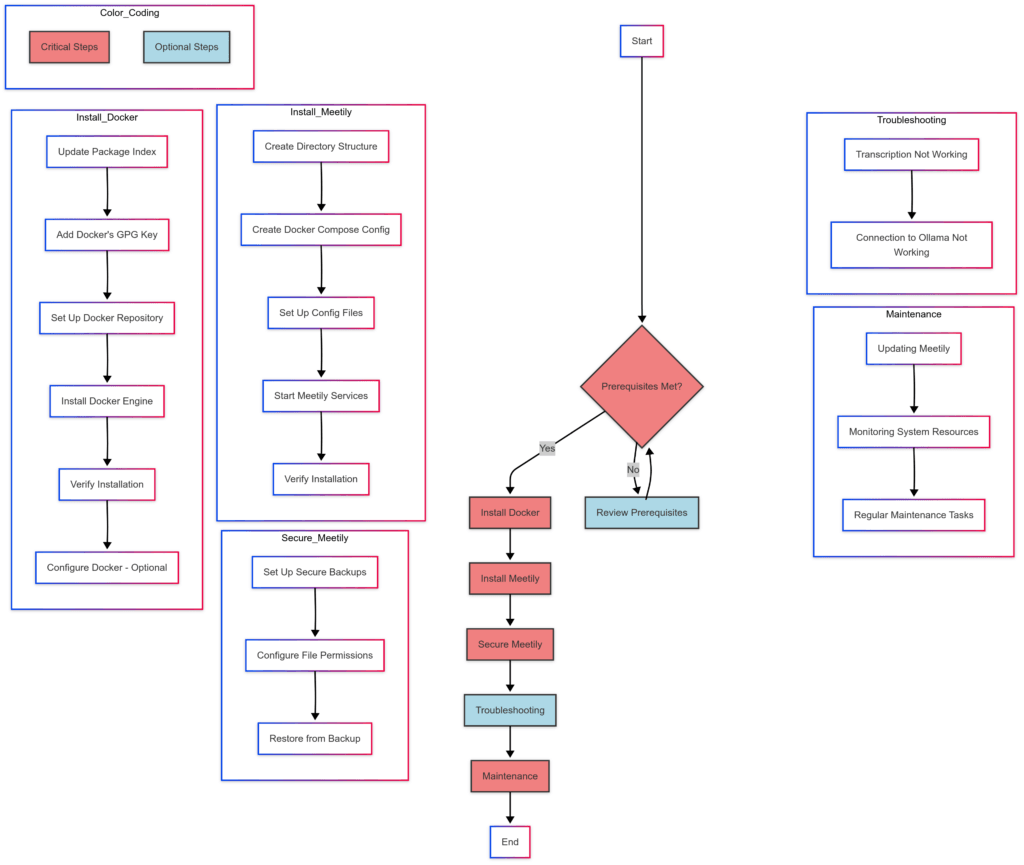
Prerequisites#
Before you begin, ensure your system meets these requirements:
Hardware Requirements#
- CPU: At least 4 cores (more cores recommended for optimal transcription performance)
- RAM: Minimum 8GB (16GB+ recommended, especially if using local LLMs)
- Storage: At least 10GB of free space (more if storing many meeting recordings)
- GPU: Optional but recommended for faster transcription processing
Software Requirements#
- Operating System: Ubuntu 20.04 LTS or newer
- Permissions: sudo privileges on your system
- Internet Connection: Required for downloading Docker images
Network Requirements#
- Ports 80 and 443: Required for web access (if exposing Meetily externally)
- Port 8000: For Meetily backend API
- Port 3000: For Meetily frontend (if not using a reverse proxy)
Docker Installation on Ubuntu 20.04+#
If you already have Docker and Docker Compose installed, you can skip to the next section. Otherwise, follow these steps to install Docker on Ubuntu:
Step 1: Update Package Index and Install Dependencies#
sudo apt update
sudo apt install -y apt-transport-https ca-certificates curl gnupg lsb-release
This updates your system's package database and installs necessary packages required for adding Docker's repository.
Step 2: Add Docker's Official GPG Key#
sudo mkdir -p /etc/apt/keyrings
curl -fsSL https://download.docker.com/linux/ubuntu/gpg | sudo gpg --dearmor -o /etc/apt/keyrings/docker.gpg
sudo chmod a+r /etc/apt/keyrings/docker.gpg
These commands download Docker's official GPG key and set appropriate permissions.
Step 3: Set Up the Docker Repository#
echo "deb [arch=$(dpkg --print-architecture) signed-by=/etc/apt/keyrings/docker.gpg] https://download.docker.com/linux/ubuntu $(lsb_release -cs) stable" | sudo tee /etc/apt/sources.list.d/docker.list > /dev/null
This adds the Docker repository to your system's sources list.
Step 4: Install Docker Engine and Docker Compose Plugin#
sudo apt update
sudo apt install -y docker-ce docker-ce-cli containerd.io docker-compose-plugin
This installs Docker Engine, CLI, containerd runtime, and the Docker Compose plugin.
Step 5: Verify Docker Installation#
sudo docker run hello-world
If successful, you'll see a message confirming that Docker is properly installed.
Step 6: Configure Docker to Run Without Sudo (Optional but Recommended)#
sudo groupadd docker
sudo usermod -aG docker $USER
Log out and log back in for the changes to take effect. This allows you to run Docker commands without prefixing them with sudo.
Installing Meetily with Docker#
Now that Docker is set up, let's install Meetily using Docker Compose for easy deployment and management.
Step 1: Create Directory Structure for Meetily#
mkdir -p ~/docker_data/meetily/{data,config,transcripts}
cd ~/docker_data/meetily
This creates a dedicated directory structure for Meetily with separate folders for different types of data.
Step 2: Create Docker Compose Configuration#
Create a docker-compose.yml file for Meetily:
nano ~/docker_data/meetily/docker-compose.yml
Paste the following content:
version: '3'

services:
  backend:
    image: zackriya/meetily-backend:latest
    container_name: meetily-backend
    restart: unless-stopped
    volumes:
      - ./data:/app/data
      - ./config:/app/config
      - ./transcripts:/app/transcripts
    ports:
      - "8000:8000"
    environment:
      - NODE_ENV=production
    networks:
      - meetily-network
      - proxy

  frontend:
    image: zackriya/meetily-frontend:latest
    container_name: meetily-frontend
    restart: unless-stopped
    depends_on:
      - backend
    ports:
      - "3000:3000"
    environment:
      - REACT_APP_API_URL=http://localhost:8000
    networks:
      - meetily-network
      - proxy
    labels:
      - "traefik.enable=true"
      - "traefik.http.routers.meetily.rule=Host(`meetily.yourdomain.com`)"
      - "traefik.http.routers.meetily.entrypoints=https"
      - "traefik.http.routers.meetily.tls=true"
      - "traefik.http.services.meetily.loadbalancer.server.port=3000"

networks:
  meetily-network:
  proxy:
    external: true
Save and exit the text editor.
Step 3: Set Up Configuration Files#
Create the transcription configuration file:
nano ~/docker_data/meetily/config/transcription.json
Paste the following content:
{
  "model": "base",
  "language": "en",
  "translate": false,
  "cpuThreads": 4,
  "batchSize": 512
}
Save and exit the text editor.
Create the LLM configuration file:
nano ~/docker_data/meetily/config/llm.json
Paste the following content:
{
  "provider": "ollama",
  "model": "llama2",
  "host": "host.docker.internal",
  "port": 11434,
  "timeout": 120
}
Save and exit the text editor.
Step 4: Start Meetily Services#
cd ~/docker_data/meetily
docker compose up -d
This starts the Meetily containers in detached mode (running in the background).
Step 5: Verify Installation#
docker ps | grep meetily
This command should show both meetily-backend and meetily-frontend containers running.
Securing Your Meetily Installation#
Set Up a Secure Backup System#
First, create a backup script:
nano ~/docker_data/meetily/backup.sh
Paste the following:
#!/bin/bash
TIMESTAMP=$(date +"%Y%m%d_%H%M%S")
BACKUP_DIR=~/meetily_backups
mkdir -p $BACKUP_DIR
tar -czf $BACKUP_DIR/meetily_backup_$TIMESTAMP.tar.gz -C ~/ docker_data/meetily
find $BACKUP_DIR -name "meetily_backup_*.tar.gz" -mtime +30 -delete
Make the script executable:
chmod +x ~/docker_data/meetily/backup.sh
Set up a daily backup schedule:
(crontab -l 2>/dev/null; echo "0 2 * * * ~/docker_data/meetily/backup.sh") | crontab -
This schedules the backup to run every day at 2 AM.
Configure Proper File Permissions#
chmod -R 750 ~/docker_data/meetily/config
chmod -R 750 ~/docker_data/meetily/data
chmod -R 750 ~/docker_data/meetily/transcripts
This restricts access to configuration and data directories, protecting sensitive information.
Restore from Backup#
If you need to restore from a backup:
# Stop Meetily containers
cd ~/docker_data/meetily
docker compose down

# Restore from backup (replace the timestamp with your actual backup file)
tar -xzf ~/meetily_backups/meetily_backup_YYYYMMDD_HHMMSS.tar.gz -C ~/

# Restart Meetily
cd ~/docker_data/meetily
docker compose up -d
Common Problems and Solutions#
Here are solutions to common issues you might encounter when running Meetily.
Problem: Transcription Not Working#
Diagnostic command:
docker logs meetily-backend | grep "transcription"
Solution:
- Check if the transcription model is properly configured:
cat ~/docker_data/meetily/config/transcription.json
- Adjust settings for your hardware:
nano ~/docker_data/meetily/config/transcription.json
{
  "model": "tiny",
  "language": "en",
  "translate": false,
  "cpuThreads": 2,
  "batchSize": 256
}
- Restart the backend service:
docker compose restart meetily-backend
Problem: Connection to Ollama (LLM) Not Working#
Diagnostic command:
docker logs meetily-backend | grep "llm"
Solution:
- Ensure Ollama is running:
docker ps | grep ollama
- Update the LLM configuration:
nano ~/docker_data/meetily/config/llm.json
Modify as needed:
{
  "provider": "ollama",
  "model": "llama2",
  "host": "host.docker.internal",
  "port": 11434,
  "timeout": 120
}
- Restart the backend service:
docker compose restart meetily-backend
Maintenance Procedures#
Updating Meetily#
To update Meetily to the latest version:
cd ~/docker_data/meetily
docker compose down
docker compose pull
docker compose up -d
Monitoring System Resources#
Set up basic monitoring of your Meetily containers:
docker stats meetily-backend meetily-frontend
Regular Maintenance Tasks#
- Clean up old meeting data:
find ~/docker_data/meetily/transcripts -type f -mtime +90 -delete
This removes transcripts older than 90 days.
- Check container logs for issues:
# View recent logs
docker logs --tail=100 meetily-backend
docker logs --tail=100 meetily-frontend

# Follow logs in real-time
docker logs -f meetily-backend
- Set up automatic weekly container restart (helps prevent memory leaks):
(crontab -l 2>/dev/null; echo "0 3 * * 0 cd ~/docker_data/meetily && docker compose restart") | crontab -
This schedules a restart every Sunday at 3 AM.
Conclusion#
You have successfully set up Meetily, a privacy-focused AI meeting assistant, using Docker on Ubuntu. This configuration provides a secure, self-hosted solution for transcribing and summarizing your meetings while maintaining complete control over your data.
By following the security practices outlined in this guide, you've ensured that your meeting data remains private and protected. The backup procedures will help safeguard against data loss, and the maintenance tasks will keep your system running smoothly.
Remember to periodically check for updates to both Meetily and your Docker environment to benefit from the latest features and security improvements. If you encounter issues not covered in this guide, consult the official Meetily documentation or reach out to the community for support.