Comprehensive Guide to Installing and Securing Nginx Proxy Manager on Ubuntu 20.04+
Before you start
- 10 min read
- 22 to run in terminal
- 3 file contents
- 1 to open in browser
Boxes marked Run in terminal are what you type; plain text explains why. Check what you need first
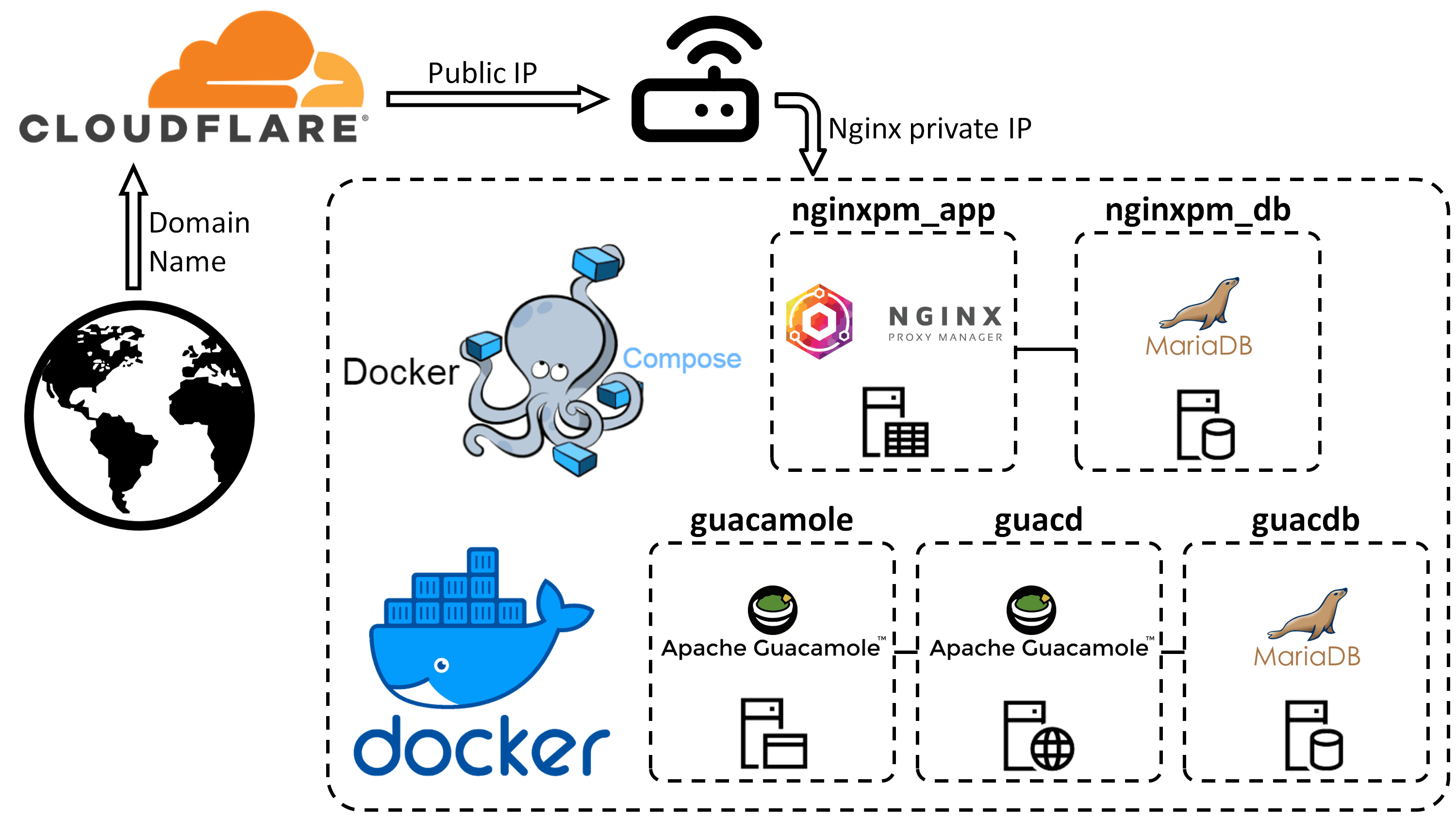
Nginx Proxy Manager offers a streamlined approach to managing your reverse proxy configurations through an intuitive web interface. This powerful tool simplifies the creation of proxy hosts, SSL certificate management, and access control rules without requiring deep knowledge of Nginx configuration syntax. In this guide, we'll walk through the complete process of installing, configuring, and securing Nginx Proxy Manager on Ubuntu 20.04 or newer using Docker.
Introduction to Nginx Proxy Manager#
Nginx Proxy Manager provides a user-friendly web interface for managing Nginx, one of the most powerful and widely used web servers and reverse proxies. It eliminates the need to manually edit complex configuration files by offering an intuitive dashboard where you can:
- Set up proxy hosts
- Manage SSL certificates
- Configure redirections
- Implement access controls
Using Docker for deployment offers several advantages, including isolation from the host system, simplified updates, and easy integration with other containerized applications.
The key benefits of using Nginx Proxy Manager include:
- Automatic SSL certificate management through Let's Encrypt
- Ability to easily manage multiple domains and services through a single interface
- Detailed access control options
- Streamlined proxy configuration process
All of this is available without sacrificing the robust performance and reliability that Nginx is known for.
Instruction layout/chart
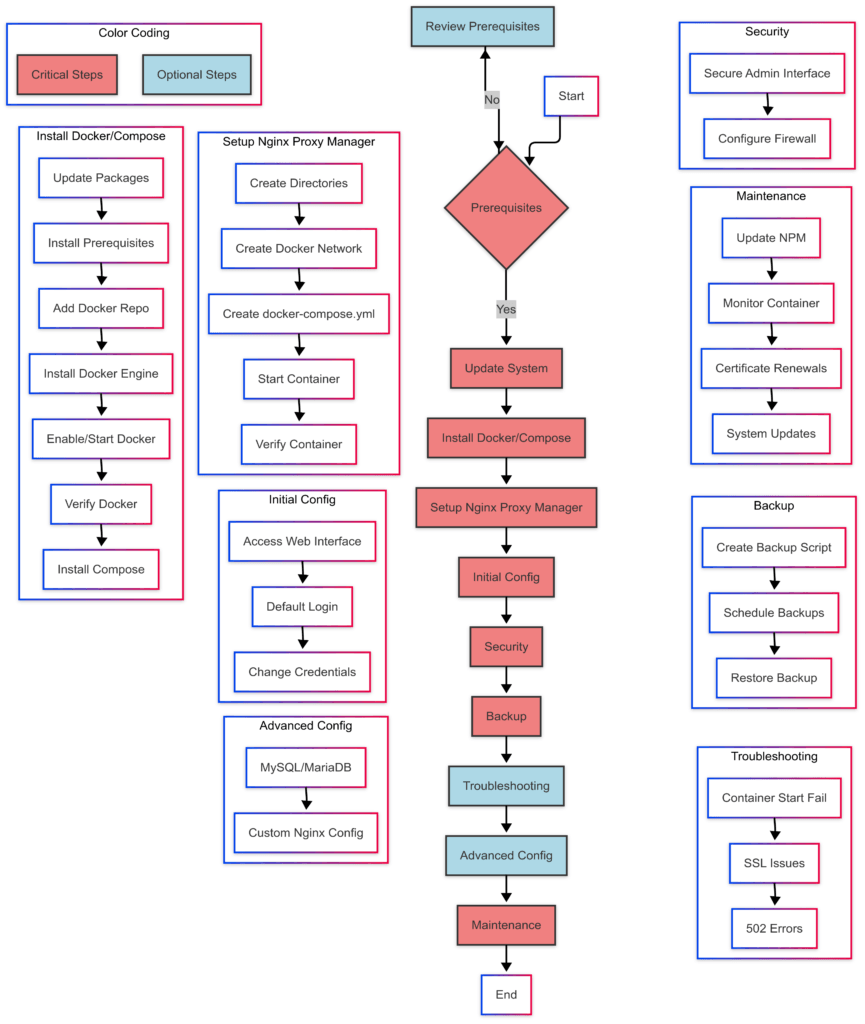
Prerequisites for Installation#
Before proceeding with the installation, ensure that your system meets these requirements:
- Ubuntu 20.04 or newer server with at least 1GB of RAM and 10GB of available storage space
- Root or sudo access for installing system packages and configuring permissions
- Open ports:
- 80 (HTTP)
- 443 (HTTPS)
- 81 (admin interface)
- A domain name (highly recommended for securing the admin interface and for Let's Encrypt SSL certificates)
- Basic familiarity with Linux command-line operations, networking concepts, and Docker fundamentals
With these prerequisites in place, you're ready to proceed with the installation.
Installing Docker and Docker Compose#
Docker provides the containerization platform that will host our Nginx Proxy Manager installation. Let's start by setting up Docker and Docker Compose on your Ubuntu server.
Update System Packages#
Begin by ensuring your system packages are up to date:
sudo apt update && sudo apt upgrade -y
This command updates your package lists and upgrades all installed packages to their latest versions.
Install Docker Prerequisites#
Next, install the necessary packages that allow apt to use repositories over HTTPS:
sudo apt install apt-transport-https ca-certificates curl software-properties-common gnupg -y
These packages provide the infrastructure needed to securely download and verify Docker installation files.
Add Docker Repository and Install Docker#
Now we'll add Docker's official GPG key and set up the Docker repository:
# Add Docker's official GPG key
curl -fsSL https://download.docker.com/linux/ubuntu/gpg | sudo gpg --dearmor -o /usr/share/keyrings/docker-archive-keyring.gpg

# Set up the stable repository
echo "deb [arch=$(dpkg --print-architecture) signed-by=/usr/share/keyrings/docker-archive-keyring.gpg] https://download.docker.com/linux/ubuntu $(lsb_release -cs) stable" | sudo tee /etc/apt/sources.list.d/docker.list > /dev/null

# Update apt package index
sudo apt update

# Install Docker Engine
sudo apt install docker-ce docker-ce-cli containerd.io -y
These commands add the Docker repository to your system, update the package index, and install the Docker engine.
Enable and Start Docker Service#
To ensure Docker starts automatically when your system boots:
sudo systemctl start docker
sudo systemctl enable docker
The first command starts Docker immediately, while the second ensures it automatically starts whenever your system boots up.
Verify Docker Installation#
Confirm that Docker was installed correctly by running a test container:
sudo docker run hello-world
If successful, you'll see a message indicating that your Docker installation is working correctly.
Install Docker Compose#
Docker Compose allows us to define and run multi-container Docker applications:
sudo curl -L "https://github.com/docker/compose/releases/download/v2.18.1/docker-compose-$(uname -s)-$(uname -m)" -o /usr/local/bin/docker-compose
sudo chmod +x /usr/local/bin/docker-compose
The first command downloads the Docker Compose binary, and the second makes it executable.
Setting Up Nginx Proxy Manager with Docker#
Now that Docker and Docker Compose are installed, we can proceed with setting up Nginx Proxy Manager.
Create Directory Structure#
First, create the directory structure for storing Nginx Proxy Manager's data and SSL certificates:
mkdir -p ~/docker_data/nginx-proxy-manager/data ~/docker_data/nginx-proxy-manager/letsencrypt
This command creates two directories: one for the application data (including the database) and another for storing SSL certificates.
Create a Custom Docker Network#
Creating a custom Docker network improves security by isolating containers:
docker network create proxy
This network will be used for communication between Nginx Proxy Manager and other services you may want to proxy.
Create Docker Compose Configuration#
Navigate to the Nginx Proxy Manager directory and create a docker-compose.yml file:
cd ~/docker_data/nginx-proxy-manager
nano docker-compose.yml
Copy and paste the following configuration into the file:
version: '3'
services:
  app:
    image: 'jc21/nginx-proxy-manager:latest'
    container_name: nginx-proxy-manager
    restart: unless-stopped
    ports:
      - '80:80'
      - '81:81'
      - '443:443'
    environment:
      DB_SQLITE_FILE: "/data/database.sqlite"
      PUID: 1000
      PGID: 1000
    volumes:
      - ./data:/data
      - ./letsencrypt:/etc/letsencrypt
    networks:
      - proxy

networks:
  proxy:
    external: true
Save and exit the file (press Ctrl+X, then Y, then Enter).
Start Nginx Proxy Manager#
Launch the Nginx Proxy Manager container:
docker compose up -d
The -d flag runs the container in detached mode, allowing it to run in the background. Docker will pull the necessary image and start the container.
Verify the Container is Running#
Check that the container started successfully:
docker ps
You should see the nginx-proxy-manager container in the list of running containers.
Initial Configuration#
Now that Nginx Proxy Manager is running, let's set up the initial configuration.
Access the Web Interface#
Open your web browser and navigate to:
http://your_server_ip:81
Replace your_server_ip with the actual IP address of your server. You should see the Nginx Proxy Manager login page.
Default Login Credentials#
For the first-time login, use these default credentials:
- Email:
[email protected] - Password:
changeme
You'll be prompted to change these credentials immediately after login.
Change Default Credentials#
Enter your own email address and a strong password. These will be your new admin credentials for logging into Nginx Proxy Manager.
Security Best Practices#
Let's implement some security best practices to protect your Nginx Proxy Manager installation.
Securing the Admin Interface#
It's recommended to secure the admin interface (port 81) by creating a proxy host with SSL:
- First, create a proxy host for a subdomain (e.g.,
npm.yourdomain.com) that points to your server's IP address - In Nginx Proxy Manager, go to "Proxy Hosts" → "Add Proxy Host"
- Enter the following details:
- Domain Names:
npm.yourdomain.com - Scheme:
http - Forward Hostname/IP:
nginx-proxy-manager - Forward Port:
81 - Enable "Block Common Exploits"
- Enable SSL with Let's Encrypt
- Domain Names:
This allows you to access the admin interface securely via https://npm.yourdomain.com rather than using the IP address and port 81.
Configure a Firewall#
Set up a basic firewall with UFW to restrict access to your server:
# Install UFW if not already installed
sudo apt install ufw -y

# Allow SSH to prevent being locked out
sudo ufw allow ssh

# Allow Nginx Proxy Manager required ports
sudo ufw allow 80
sudo ufw allow 443
sudo ufw allow 81

# Enable the firewall
sudo ufw enable
Verify the firewall status:
sudo ufw status
You should see that ports 22 (SSH), 80, 81, and 443 are allowed.
Setting Up Backup Procedures#
Regular backups are essential for any production system. Let's set up an automated backup process for Nginx Proxy Manager.
Create a Backup Script#
Create a simple backup script:
nano ~/backup-npm.sh
Copy and paste the following script:
#!/bin/bash
TIMESTAMP=$(date +"%Y%m%d-%H%M%S")
BACKUP_DIR=~/backups/nginx-proxy-manager

# Create backup directory if it doesn't exist
mkdir -p $BACKUP_DIR

# Create a compressed archive of the data
cd ~/docker_data
tar -czf $BACKUP_DIR/npm-backup-$TIMESTAMP.tar.gz nginx-proxy-manager/

# Delete backups older than 7 days
find $BACKUP_DIR -type f -name "npm-backup-*.tar.gz" -mtime +7 -delete
Make the script executable:
chmod +x ~/backup-npm.sh
Schedule Automatic Backups#
Set up a daily backup using cron:
(crontab -l 2>/dev/null; echo "0 0 * * * ~/backup-npm.sh") | crontab -
This schedules the backup script to run every day at midnight.
Restoring from Backups#
If you need to restore from a backup:
# Stop the Nginx Proxy Manager container
cd ~/docker_data/nginx-proxy-manager
docker compose down

# Remove the current data (be careful with this command!)
rm -rf data letsencrypt

# Extract the backup
tar -xzf ~/backups/nginx-proxy-manager/npm-backup-TIMESTAMP.tar.gz -C ~/docker_data/

# Start the container again
docker compose up -d
Replace TIMESTAMP with the actual timestamp of the backup you want to restore.
Common Problems and Solutions#
Even with careful installation and configuration, you may encounter issues with Nginx Proxy Manager. Here are some common problems and their solutions.
Container Fails to Start#
If the Nginx Proxy Manager container fails to start, check the logs for error messages:
docker logs nginx-proxy-manager
Common causes and solutions:
- Port conflicts: If ports 80, 81, or 443 are already in use, the container won't start. Check for other services using these ports:
sudo lsof -i :80,81,443Stop or reconfigure any services using these ports. - Permission issues: If the container can't write to the mounted volumes, it may fail. Check permissions on the data directories:
ls -la ~/docker_data/nginx-proxy-manager/Ensure the directories are owned by the user specified in the PUID/PGID environment variables.
SSL Certificate Issues#
If you're having trouble obtaining or renewing SSL certificates:
- DNS configuration: Ensure your domain correctly points to your server's IP address:
dig +short yourdomain.com - Firewall rules: Let's Encrypt needs to reach your server on ports 80 and 443 to verify domain ownership. Ensure these ports are open.
- Rate limiting: Let's Encrypt has rate limits for certificate issuance. If you've requested too many certificates recently, you might need to wait before requesting more.
502 Bad Gateway Errors#
If you're seeing 502 Bad Gateway errors when accessing proxied services:
- Service availability: Ensure the proxied service is running and accessible:
curl -I http://service-hostname:port - Network connectivity: If using Docker networks, ensure both containers are on the same network.
- Timeout settings: For services that take longer to respond, increase the proxy timeout settings in the custom Nginx configuration:
proxy_connect_timeout 600; proxy_send_timeout 600; proxy_read_timeout 600; send_timeout 600;Add these settings in the "Advanced" tab of your proxy host configuration.
Advanced Configuration Options#
For users who need more advanced features, here are some additional configuration options.
Using MySQL/MariaDB Instead of SQLite#
For larger deployments, using MySQL or MariaDB instead of SQLite can provide better performance:
version: '3.8'
services:
  app:
    image: 'jc21/nginx-proxy-manager:latest'
    # ... other settings ...
    environment:
      DB_MYSQL_HOST: "db"
      DB_MYSQL_PORT: 3306
      DB_MYSQL_USER: "npm"
      DB_MYSQL_PASSWORD: "secure_password"
      DB_MYSQL_NAME: "npm"
      PUID: 1000
      PGID: 1000
    # ... volumes and networks ...
    depends_on:
      - db

  db:
    image: 'jc21/mariadb-aria:latest'
    container_name: npm-db
    restart: unless-stopped
    environment:
      MYSQL_ROOT_PASSWORD: "secure_root_password"
      MYSQL_DATABASE: "npm"
      MYSQL_USER: "npm"
      MYSQL_PASSWORD: "secure_password"
    volumes:
      - ~/docker_data/nginx-proxy-manager/mysql:/var/lib/mysql
    networks:
      - proxy
Replace "secure_password" and "secure_root_password" with strong, unique passwords.
Custom Nginx Configurations#
Nginx Proxy Manager allows you to add custom Nginx configurations to each proxy host:
- Custom headers:
add_header X-Frame-Options "SAMEORIGIN"; add_header X-Content-Type-Options "nosniff"; add_header X-XSS-Protection "1; mode=block"; - URL rewrites:
rewrite ^/old-path$ /new-path permanent; - Advanced authentication: Implement HTTP basic authentication or more complex authentication schemes.
These custom configurations can be added in the "Advanced" tab when editing a proxy host.
Maintenance and Updates#
Regular maintenance and updates are essential for keeping your Nginx Proxy Manager installation secure and functioning correctly.
Updating Nginx Proxy Manager#
To update Nginx Proxy Manager to the latest version:
cd ~/docker_data/nginx-proxy-manager
docker compose pull
docker compose down
docker compose up -d
This process pulls the latest image, stops the current container, and starts a new container with the updated image.
Monitoring Container Health#
Regularly monitor the health of your Nginx Proxy Manager container:
# Check container status
docker ps -a | grep nginx-proxy-manager

# View recent logs
docker logs --tail 100 nginx-proxy-manager

# Monitor resource usage
docker stats nginx-proxy-manager
These commands allow you to verify that the container is running correctly and check for any error messages.
Certificate Renewals#
Let's Encrypt certificates are valid for 90 days, and Nginx Proxy Manager automatically attempts to renew them when they're 30 days from expiration. Monitor certificate renewals:
docker exec -it nginx-proxy-manager certbot certificates
This command lists all certificates managed by Let's Encrypt, along with their expiration dates.
System Updates#
Regularly update your Ubuntu server to ensure you have the latest security patches:
sudo apt update && sudo apt upgrade -y
After significant system updates, especially kernel updates, you might need to reboot your server.
Conclusion#
In this comprehensive guide, we've covered the complete process of installing, configuring, and securing Nginx Proxy Manager on Ubuntu 20.04 or newer using Docker. By following these steps, you've established a robust reverse proxy solution that provides an intuitive web interface for managing your proxy configurations and SSL certificates.
We've explored security best practices, including the use of custom Docker networks, firewall configuration, access controls, and regular backups. These measures help protect your proxy manager and the services it handles from unauthorized access and potential data loss.
Nginx Proxy Manager simplifies what would otherwise be a complex task, making it accessible to users with varying levels of technical expertise. Whether you're managing a single website or dozens of services, this tool provides a streamlined approach to proxy management without sacrificing the power and flexibility of Nginx.
Remember to regularly update both Nginx Proxy Manager and your underlying system, monitor for security issues, and maintain good backup practices. With proper care, your Nginx Proxy Manager installation will serve as a reliable gateway to your services for years to come.