Installing and Securing Jan: The Offline ChatGPT Alternative on Ubuntu 20.04 with Docker
Before you start
- 6 min read
- 26 to run in terminal
Boxes marked Run in terminal are what you type; plain text explains why. Check what you need first
Introduction#
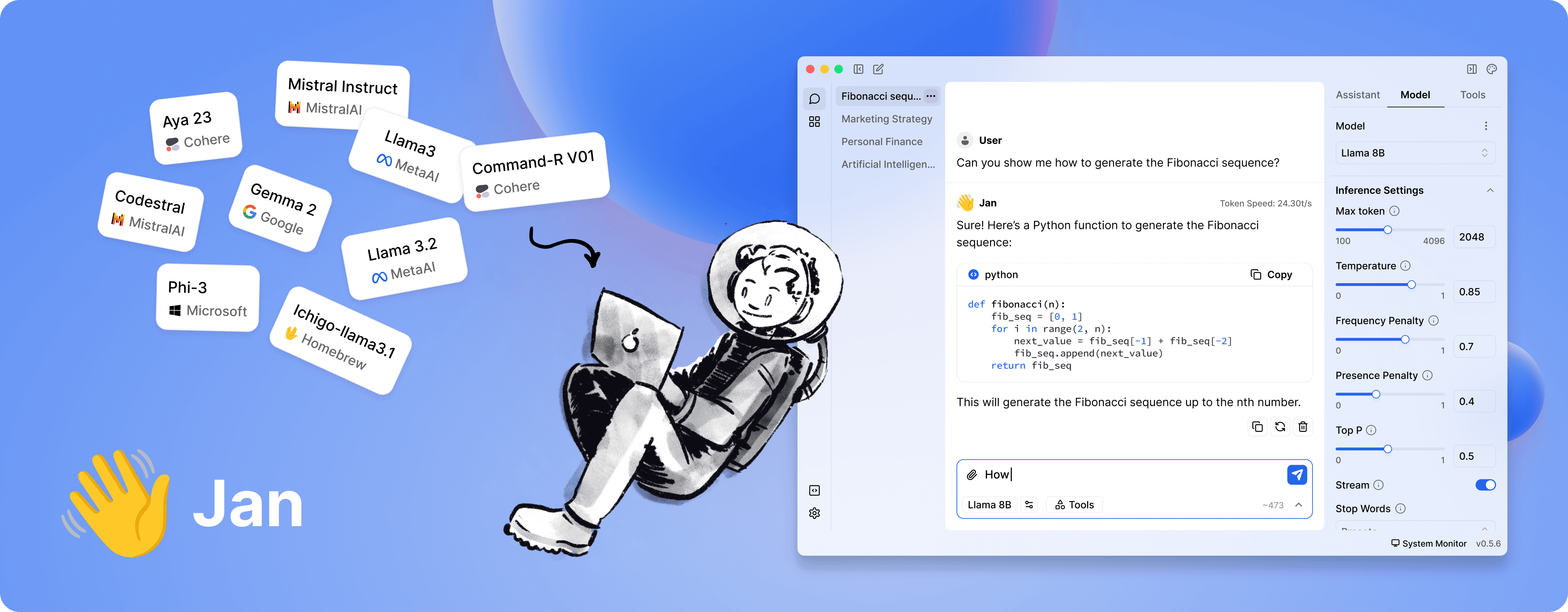
Jan is a powerful open-source alternative to ChatGPT that runs 100% offline on your computer. This privacy-focused AI assistant ensures your conversations never leave your system, giving you complete control over your data. In this guide, we'll walk through installing, configuring, and securing Jan on Ubuntu 20.04 (and newer) using Docker.
Key Benefits of Jan#
- 100% Offline Operation: All data and conversations remain on your local device
- Multiple AI Engine Support: Compatible with llama.cpp and TensorRT-LLM
- OpenAI-Compatible API: Accessible at localhost:1337
- Cross-Platform Design: Works on various hardware from personal computers to multi-GPU clusters
- Privacy-First Approach: Perfect for handling sensitive information
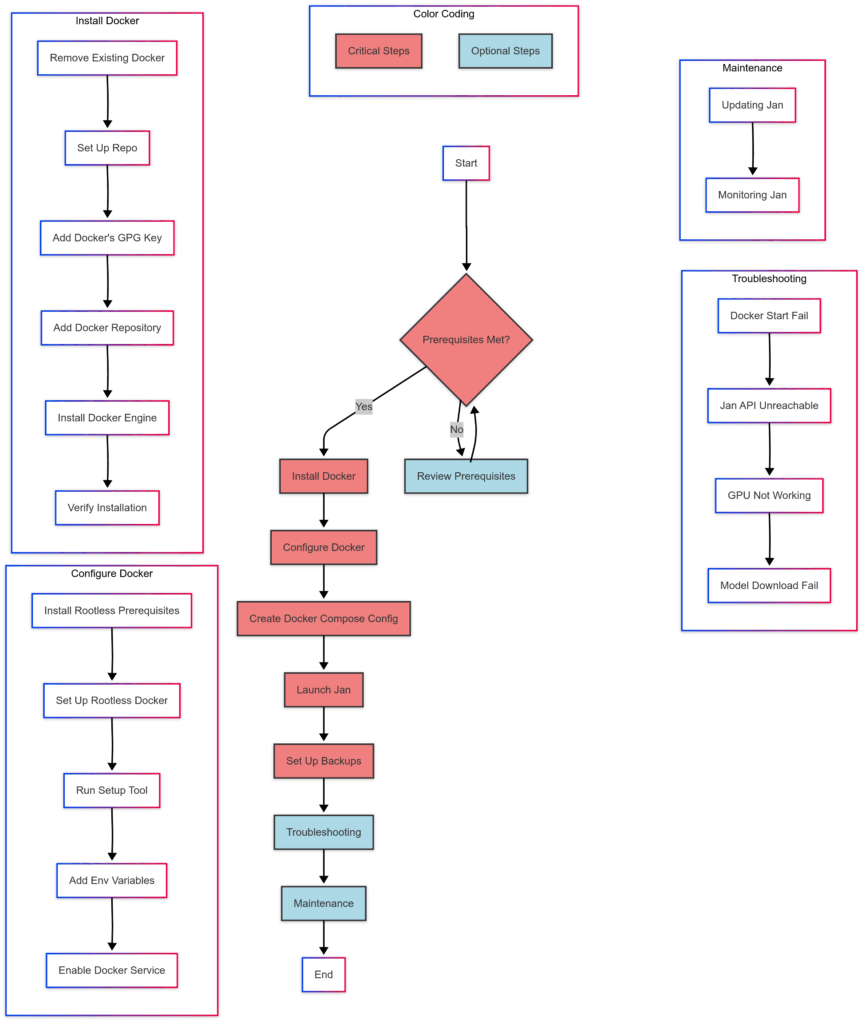
instruction layout/flow
Prerequisites#
Before we begin, make sure your system meets these requirements:
Hardware Requirements#
- At least 2 CPU cores and 2 GB of RAM (more recommended for better performance)
- For GPU acceleration (optional but recommended):
- NVIDIA GPU with CUDA Toolkit 11.7 or higher
- NVIDIA driver 470.63.01 or higher
Software Requirements#
- Ubuntu 20.04 LTS or newer
- glibc 2.27 or higher (check with
ldd --version) - gcc 11, g++ 11, cpp 11 or higher
- Docker Engine and Docker Compose
Network Requirements#
- Local port 1337 available for Jan's API server
- Internet access for initial setup and model downloads (after setup, Jan works offline)
Step 1: Install Docker on Ubuntu 20.04#
Docker is required to run Jan in container mode. Let's follow the official method to install Docker Engine.
Remove existing Docker installations#
sudo apt-get remove docker docker-engine docker.io containerd runc
This removes any previous Docker installations that might conflict with the new one.
Set up the Docker repository#
sudo apt-get update
sudo apt-get install -y apt-transport-https ca-certificates curl software-properties-common
Installs packages needed for apt to use repositories over HTTPS.
Add Docker's official GPG key#
curl -fsSL https://download.docker.com/linux/ubuntu/gpg | sudo apt-key add -
Adds Docker's GPG key to verify package integrity.
Add the Docker repository#
sudo add-apt-repository "deb [arch=amd64] https://download.docker.com/linux/ubuntu $(lsb_release -cs) stable"
Adds the Docker repository to your package sources. The command automatically detects your Ubuntu version.
Install Docker Engine#
sudo apt-get update
sudo apt-get install -y docker-ce docker-ce-cli containerd.io docker-buildx-plugin docker-compose-plugin
Updates the package index and installs Docker Engine with related tools.
Verify Docker installation#
sudo docker run hello-world
Verifies Docker is correctly installed by running a test container. You should see a success message if everything works properly.
Step 2: Configure Docker for Enhanced Security (Rootless Mode)#
For improved security, let's run Docker in rootless mode, which reduces potential risks by running the Docker daemon and containers as a non-root user.
Install rootless prerequisites#
sudo apt-get install -y uidmap dbus-user-session
Installs packages needed for rootless Docker operation.
Set up rootless Docker#
sudo systemctl disable --now docker.service docker.socket
sudo apt-get install -y docker-ce-rootless-extras
Disables the system-wide Docker service and installs rootless extras.
Run the rootless setup tool#
dockerd-rootless-setuptool.sh install
Configures Docker to run in rootless mode.
Add environment variables to your shell profile#
echo 'export PATH=/usr/bin:$PATH' >> ~/.bashrc
echo 'export DOCKER_HOST=unix:///run/user/1000/docker.sock' >> ~/.bashrc
source ~/.bashrc
Sets required environment variables for rootless Docker. Note: Replace 1000 with your actual user ID if different.
Enable Docker service at startup#
systemctl --user enable docker
sudo loginctl enable-linger $(whoami)
Configures Docker to start automatically with your system.
Step 3: Create a Docker Compose Configuration for Jan#
Now that Docker is installed and configured securely, let's set up Jan using Docker Compose.
Create a directory structure for Jan#
mkdir -p ~/docker_data/jan/data ~/docker_data/jan/config
Creates directories for Jan's data and configuration files.
Create a Docker Compose file#
cat > ~/docker_data/jan/docker-compose.yml << 'EOF'
version: '3'

services:
  jan:
    container_name: jan
    image: janhq/jan:latest
    restart: unless-stopped
    ports:
      - "1337:1337"
    volumes:
      - ./data:/data
      - ./config:/root/.jan
    environment:
      - JAN_HOST=0.0.0.0
      - JAN_PORT=1337
    # Uncomment the following lines for GPU support
    # deploy:
    #   resources:
    #     reservations:
    #       devices:
    #         - driver: nvidia
    #           count: all
    #           capabilities: [gpu]
EOF
Creates a Docker Compose configuration file for Jan.
Launch Jan#
cd ~/docker_data/jan
docker compose up -d
Starts the Jan container in detached mode.
Access Jan API#
curl http://localhost:1337/v1/models
Verifies that Jan's API is accessible. You should see a response listing available models.
Step 4: Set Up Automatic Backups#
Let's create a backup script to ensure your data is safe.
Create a backup script#
cat > ~/docker_data/jan/backup-jan.sh << 'EOF'
#!/bin/bash

TIMESTAMP=$(date +%Y%m%d_%H%M%S)
BACKUP_DIR=~/jan_backups

mkdir -p $BACKUP_DIR
cd ~/docker_data/jan

# Ensure Jan is running
docker compose ps | grep jan || docker compose up -d

# Create backup archive
tar -czf $BACKUP_DIR/jan_backup_$TIMESTAMP.tar.gz data config

# Remove backups older than 30 days
find $BACKUP_DIR -name "jan_backup_*.tar.gz" -type f -mtime +30 -delete

echo "Backup completed: $BACKUP_DIR/jan_backup_$TIMESTAMP.tar.gz"
EOF

chmod +x ~/docker_data/jan/backup-jan.sh
Creates a backup script that archives Jan's data and configuration files.
Schedule automatic backups#
(crontab -l 2>/dev/null; echo "0 2 * * * ~/docker_data/jan/backup-jan.sh") | crontab -
Schedules a backup every day at 2 AM.
Common Problems and Troubleshooting#
Here are solutions for issues you might encounter:
Issue: Docker fails to start#
Diagnostic command:
systemctl --user status docker
Solution:
systemctl --user restart docker
sudo loginctl enable-linger $(whoami)
Restarts the Docker service and ensures it's configured to start automatically.
Issue: Jan API is unreachable#
Diagnostic command:
curl -v http://localhost:1337/v1/models
Solution:
cd ~/docker_data/jan && docker compose down
cd ~/docker_data/jan && docker compose up -d
Restarts the Jan container to resolve connectivity issues.
Issue: GPU acceleration not working#
Diagnostic command:
docker exec -it jan nvidia-smi
Solution: If you get an error, ensure NVIDIA Docker support is installed:
distribution=$(. /etc/os-release;echo $ID$VERSION_ID)
curl -s -L https://nvidia.github.io/nvidia-docker/gpgkey | sudo apt-key add -
curl -s -L https://nvidia.github.io/nvidia-docker/$distribution/nvidia-docker.list | sudo tee /etc/apt/sources.list.d/nvidia-docker.list
sudo apt-get update && sudo apt-get install -y nvidia-container-toolkit
systemctl --user restart docker
Installs the NVIDIA Container Toolkit and restarts Docker to enable GPU support.
Issue: Model download failures#
Solution:
docker exec -it jan /bin/bash -c "mkdir -p /data/models && chmod 777 /data/models"
Ensures the models directory exists and has proper permissions.
Maintenance Procedures#
Updating Jan#
To update Jan to the latest version:
cd ~/docker_data/jan
docker compose pull
docker compose down
docker compose up -d
Pulls the latest Jan image, stops the current container, and starts a new one with the updated image.
Monitoring Jan#
Set up basic monitoring for Jan:
cat > ~/docker_data/jan/monitor-jan.sh << 'EOF'
#!/bin/bash

API_URL="http://localhost:1337/v1/models"
LOG_FILE=~/jan_monitor.log

echo "$(date) - Checking Jan service..." >> $LOG_FILE

# Check if API is responding
if curl -s -f $API_URL > /dev/null; then
    echo "$(date) - Jan is running correctly." >> $LOG_FILE
else
    echo "$(date) - ERROR: Jan is not responding. Attempting restart..." >> $LOG_FILE
    cd ~/docker_data/jan
    docker compose restart

    # Check if restart fixed the issue
    if curl -s -f $API_URL > /dev/null; then
        echo "$(date) - Jan successfully restarted." >> $LOG_FILE
    else
        echo "$(date) - CRITICAL: Jan failed to restart. Manual intervention required." >> $LOG_FILE
        # Optionally send an email alert here
    fi
fi
EOF

chmod +x ~/docker_data/jan/monitor-jan.sh
(crontab -l 2>/dev/null; echo "*/10 * * * * ~/docker_data/jan/monitor-jan.sh") | crontab -
Creates a monitoring script that checks Jan's status every 10 minutes and attempts to restart it if issues are detected.
Conclusion#
By following this guide, you've successfully installed, secured, and configured Jan on Ubuntu 20.04 using Docker. You now have access to a powerful AI assistant that runs completely offline, respecting your privacy and giving you full control over your data.
The Docker-based deployment provides a clean, isolated environment for Jan, while security measures like rootless Docker help protect your system. The automatic backup and monitoring solutions ensure your setup remains reliable over time.
Remember that Jan is actively developed, with new features and improvements being added regularly. Keep an eye on the official documentation and GitHub repository for updates and additional configuration options.