Comprehensive Guide to Installing and Securing Tabby AI Coding Assistant on Windows with WSL2 and Docker
Before you start
- 7 min read
- 16 to run in terminal
- 1 file content
Boxes marked Run in terminal are what you type; plain text explains why. Check what you need first

Tabby is a self-hosted AI coding assistant that serves as a free, open-source alternative to GitHub Copilot. This guide will walk you through installing and configuring Tabby on Windows using WSL2 and Docker - the most efficient setup method that ensures your code stays private and secure.
Introduction to Tabby AI Coding Assistant#
Tabby stands out as a powerful self-hosted AI coding assistant with several key advantages:
- Runs completely locally - your code never leaves your machine
- No external databases or cloud services needed
- OpenAPI interface for easy integration with coding environments
- Support for consumer-grade GPUs (especially NVIDIA) for better performance
- Compatible with various coding language models
- Works offline and gives you complete control over your data
instruction layout/flow
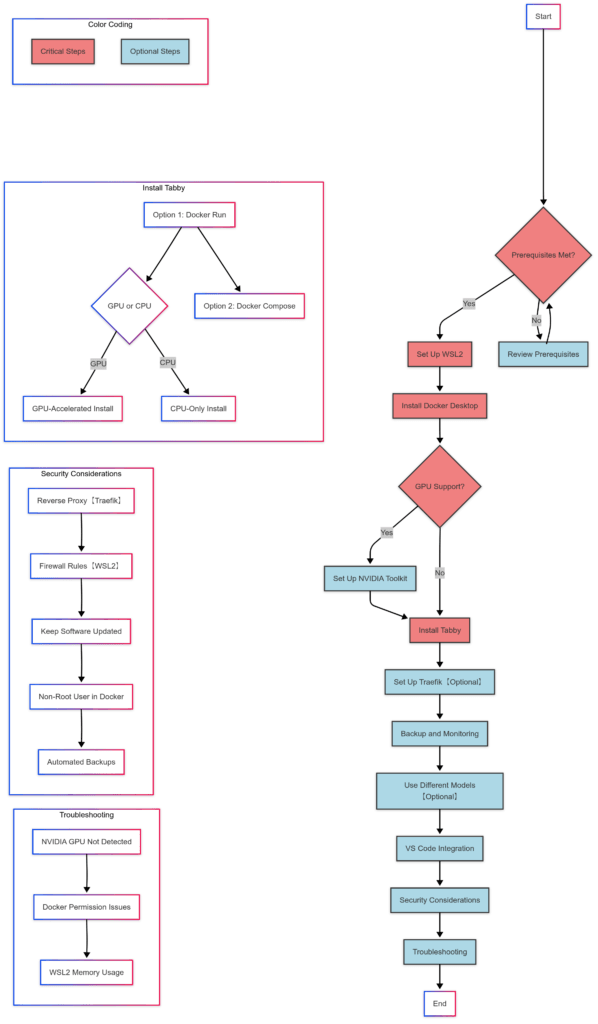
Prerequisites#
Before we start, make sure your system meets these requirements:
Hardware Requirements#
# Verify your hardware meets these minimum specifications:
# - CPU: Modern multi-core processor (i5/i7/i9 or AMD equivalent)
# - RAM: 8GB minimum, 16GB or more recommended
# - Storage: At least 50GB free space for Docker images and models
# - GPU: NVIDIA GPU with 4GB+ VRAM for GPU acceleration (optional but recommended)
The hardware needs depend on which AI models you'll use. For CPU-only operation, a modern processor with 8GB RAM works, but performance will be slower. For best results, an NVIDIA GPU with at least 4GB VRAM is recommended.
Software Requirements#
# Required software components:
# - Windows 10 version 2004+ or Windows 11
# - WSL2 (Windows Subsystem for Linux)
# - Ubuntu 20.04 or newer on WSL2
# - Docker Desktop with WSL2 integration
# - NVIDIA GPU drivers (if using GPU acceleration)
Step 1: Setting Up WSL2 on Windows#
First, let's set up WSL2:
# Open PowerShell as Administrator and run:
wsl --install
This installs WSL2 with Ubuntu as the default distribution. Reboot your system when prompted.
To verify your WSL version or update to WSL2:
# Check WSL version
wsl -l -v

# If not version 2, update with:
wsl --set-version Ubuntu 2
After installation and reboot, open Ubuntu from the Start menu to complete setup. You'll create a username and password for your Ubuntu environment.
Step 2: Installing Docker Desktop with WSL2 Integration#
Docker Desktop provides the easiest way to run Docker on Windows with WSL2:
# Download Docker Desktop from the official website
# https://www.docker.com/products/docker-desktop/

# During installation:
# 1. Ensure "Use WSL 2 instead of Hyper-V" is selected
# 2. Check "Enable WSL 2 Windows Features" if prompted
After installation, configure WSL2 integration:
# In Docker Desktop:
# 1. Go to Settings > Resources > WSL Integration
# 2. Enable integration with your Ubuntu distribution
# 3. Apply and restart Docker Desktop
Verify Docker is working in your WSL2 Ubuntu:
# Open Ubuntu terminal and run:
docker run hello-world
You should see a message confirming Docker is working correctly.
Step 3: Setting Up NVIDIA Container Toolkit (For GPU Support)#
If you have an NVIDIA GPU and want better performance, install the NVIDIA Container Toolkit:
# Open your Ubuntu WSL terminal and run:
# Verify your NVIDIA drivers are installed and working
nvidia-smi

# Add NVIDIA package repositories
distribution=$(. /etc/os-release;echo $ID$VERSION_ID)
curl -s -L https://nvidia.github.io/nvidia-docker/gpgkey | sudo apt-key add -
curl -s -L https://nvidia.github.io/nvidia-docker/$distribution/nvidia-docker.list | sudo tee /etc/apt/sources.list.d/nvidia-docker.list

# Update package lists
sudo apt update

# Install NVIDIA Container Toolkit
sudo apt install -y nvidia-docker2

# Restart Docker service
sudo systemctl restart docker
Verify the NVIDIA Container Toolkit is working:
# Test NVIDIA GPU access within a Docker container
docker run --rm --gpus all nvidia/cuda:11.7.1-base-ubuntu20.04 nvidia-smi
If successful, you'll see your GPU information, similar to running nvidia-smi directly.
Step 4: Installing Tabby with Docker#
You have two options for installing Tabby:
Option 1: Using Docker Run (Simple Approach)#
This method is straightforward and perfect for testing:
For GPU-Accelerated Installation#
# Create a directory for Tabby data
mkdir -p $HOME/.tabby

# Run Tabby with GPU acceleration
docker run -it --gpus all \
  -p 8080:8080 -v $HOME/.tabby:/data \
  tabbyml/tabby \
  serve --model StarCoder-1B --device cuda --chat-model Qwen2-1.5B-Instruct
This downloads the Tabby Docker image, maps port 8080 for web access, creates a persistent volume for data, and uses StarCoder-1B as the code completion model with GPU acceleration.
For CPU-Only Installation#
# Create a directory for Tabby data
mkdir -p $HOME/.tabby

# Run Tabby on CPU
docker run --entrypoint /opt/tabby/bin/tabby-cpu -it \
  -p 8080:8080 -v $HOME/.tabby:/data \
  tabbyml/tabby \
  serve --model StarCoder-1B --chat-model Qwen2-1.5B-Instruct
The CPU version will be significantly slower but works without an NVIDIA GPU.
Option 2: Using Docker Compose with Traefik Integration#
For a more production-ready setup with proper networking and security:
# Create required directories
mkdir -p ~/docker_data/tabby/data

# Create docker-compose.yml file
cat > ~/docker_data/tabby/docker-compose.yml << 'EOF'
version: '3'

services:
  tabby:
    image: tabbyml/tabby
    command: serve --model StarCoder-1B --device cuda --chat-model Qwen2-1.5B-Instruct
    restart: unless-stopped
    volumes:
      - ./data:/data
    deploy:
      resources:
        reservations:
          devices:
            - driver: nvidia
              count: 1
              capabilities: [gpu]
    labels:
      - "traefik.enable=true"
      - "traefik.http.routers.tabby.rule=Host(`tabby.yourdomain.com`)"
      - "traefik.http.routers.tabby.entrypoints=websecure"
      - "traefik.http.routers.tabby.tls.certresolver=letsencrypt"
      - "traefik.http.services.tabby.loadbalancer.server.port=8080"
    networks:
      - traefik_network

networks:
  traefik_network:
    external: true
EOF

# Start Tabby
cd ~/docker_data/tabby && docker compose up -d
This sets up Tabby with Traefik as a reverse proxy for HTTPS support. Replace tabby.yourdomain.com with your actual domain.
Step 5: Setting Up Traefik for Secure Access#
Traefik provides HTTPS and authentication for secure access:
# Create directories for Traefik
mkdir -p ~/docker_data/traefik/config ~/docker_data/traefik/letsencrypt

# Create Traefik's docker-compose.yml
cat > ~/docker_data/traefik/docker-compose.yml << 'EOF'
version: '3'

services:
  traefik:
    image: traefik:v2.10
    restart: unless-stopped
    ports:
      - "80:80"
      - "443:443"
    volumes:
      - /var/run/docker.sock:/var/run/docker.sock:ro
      - ./config:/etc/traefik
      - ./letsencrypt:/letsencrypt
    networks:
      - traefik_network

networks:
  traefik_network:
    name: traefik_network
EOF

# Create Traefik configuration file
cat > ~/docker_data/traefik/config/traefik.yml << 'EOF'
entryPoints:
  web:
    address: ":80"
    http:
      redirections:
        entryPoint:
          to: websecure
          scheme: https
  websecure:
    address: ":443"

providers:
  docker:
    endpoint: "unix:///var/run/docker.sock"
    exposedByDefault: false
    network: traefik_network

certificatesResolvers:
  letsencrypt:
    acme:
      email: [email protected]
      storage: /letsencrypt/acme.json
      httpChallenge:
        entryPoint: web

api:
  dashboard: true
  insecure: false
EOF

# Start Traefik
cd ~/docker_data/traefik && docker compose up -d
Replace [email protected] with your actual email for Let's Encrypt notifications.
Step 6: Backup and Monitoring#
Set up regular backups for your Tabby data:
# Create a backup script
cat > ~/backup-tabby.sh << 'EOF'
#!/bin/bash
BACKUP_DIR=~/tabby-backups
mkdir -p $BACKUP_DIR
TIMESTAMP=$(date +%Y%m%d-%H%M%S)
tar -czf $BACKUP_DIR/tabby-data-$TIMESTAMP.tar.gz ~/docker_data/tabby/data
find $BACKUP_DIR -type f -mtime +30 -delete  # Keep 30 days of backups
EOF

chmod +x ~/backup-tabby.sh

# Add to crontab to run daily
(crontab -l 2>/dev/null; echo "0 2 * * * ~/backup-tabby.sh") | crontab -
Create a monitoring script to ensure Tabby stays running:
# Create a monitoring script
cat > ~/monitor-tabby.sh << 'EOF'
#!/bin/bash
if ! docker ps | grep -q tabbyml/tabby; then
  cd ~/docker_data/tabby && docker compose up -d
  echo "Tabby was down, restarting at $(date)" >> ~/tabby-monitor.log
fi
EOF

chmod +x ~/monitor-tabby.sh

# Add to crontab to run every 5 minutes
(crontab -l 2>/dev/null; echo "*/5 * * * * ~/monitor-tabby.sh") | crontab -
Step 7: Using Different Models#
Tabby supports various models with different performance characteristics:
# Example using a different code completion model
docker run -it --gpus all \
  -p 8080:8080 -v $HOME/.tabby:/data \
  tabbyml/tabby \
  serve --model TabbyML/CodeLlama-7B --device cuda
Common models include:
- StarCoder-1B (default, balanced performance)
- TabbyML/J-350M (smaller, faster on CPU)
- TabbyML/CodeLlama-7B (larger, better suggestions but requires more VRAM)
Choose based on your hardware capabilities and performance needs.
Step 8: VS Code Integration#
To use Tabby with VS Code:
- Install the Tabby extension from the VS Code marketplace
- Configure the server URL:
- Local: http://localhost:8080
- Domain: https://tabby.yourdomain.com (if using Traefik)
Security Considerations for Production Use#
For production deployments, implement these additional security measures:
# 1. Never expose Tabby directly to the internet; always use a reverse proxy like Traefik

# 2. Implement proper firewall rules in WSL2
sudo ufw allow ssh
sudo ufw allow 8080/tcp
sudo ufw enable

# 3. Keep all software updated
sudo apt update && sudo apt upgrade -y

# 4. Use a non-root user in Docker
# Add this to your docker-compose.yml:
user: "1000:1000"

# 5. Implement automated backup solutions as shown earlier
Troubleshooting Common Issues#
NVIDIA GPU Not Detected#
# Verify virtualization is enabled in BIOS
# Verify NVIDIA drivers match in both Windows and WSL2
nvidia-smi
Docker Permission Issues#
# Add your user to the docker group
sudo usermod -aG docker $USER
# Log out and back in for changes to take effect
WSL2 Memory Usage Too High#
Edit or create %UserProfile%\.wslconfig in Windows with:
[wsl2]
memory=8GB
processors=4
Restart WSL2 with wsl --shutdown in PowerShell.
Stopping or Removing Tabby#
If you need to stop or completely remove Tabby:
# For docker run method
docker stop $(docker ps -q --filter ancestor=tabbyml/tabby)
docker rm $(docker ps -aq --filter ancestor=tabbyml/tabby)

# For docker-compose method
cd ~/docker_data/tabby && docker compose down
docker image rm tabbyml/tabby traefik:v2.10
Conclusion#
You now have a comprehensive setup for Tabby AI Coding Assistant on Windows using WSL2 and Docker. This configuration provides:
- A self-hosted AI coding assistant that keeps your code private
- GPU acceleration for better performance (if available)
- Secure access via HTTPS with Traefik
- Regular backups and monitoring
- Flexibility to use different AI models
Whether you're using Tabby for personal projects or in a team environment, this setup provides a robust foundation that can be customized to your specific needs.