The Complete Guide to Installing and Securing Uptime Kuma on Ubuntu 20.04 and Later
Before you start
- 11 min read
- 37 to run in terminal
- 3 file contents
- 2 to open in browser
Boxes marked Run in terminal are what you type; plain text explains why. Check what you need first
Uptime Kuma is a powerful, open-source, self-hosted monitoring tool that allows you to track the availability and performance of your websites, services, and applications. This comprehensive guide covers multiple deployment methods for Ubuntu 20.04 and newer, with a primary focus on Docker as the recommended approach for most users.
Understanding Uptime Kuma#
Uptime Kuma provides a sleek, modern web interface for monitoring the uptime of your digital assets. Unlike proprietary solutions, Uptime Kuma gives you complete control over your monitoring data while offering features such as:
- Status pages
- Comprehensive notification options (including Telegram, Discord, Slack, email)
- Detailed metrics about response times and availability
The application is based on Node.js and uses WebSocket for real-time updates, ensuring you receive immediate notifications when a service goes down. It offers monitoring via multiple methods including HTTP/HTTPS, TCP, Ping, DNS, and more, making it versatile for different types of services. The interface is intuitive and responsive, making it accessible even to users with minimal technical experience.
Prerequisites#
Before beginning the installation, ensure your system meets the following requirements:
Hardware Requirements#
- CPU: At least 1 vCPU
- RAM: Minimum 512 MB (1 GB or more recommended)
- Storage: At least 10 GB of available disk space
- A stable internet connection
Software Requirements#
- Ubuntu 20.04 or newer (instructions also work for Ubuntu 22.04 and later)
- SSH access with sudo privileges
- Basic familiarity with terminal commands
Network Requirements#
- Open port 3001 for initial access (can be changed later)
- If using a reverse proxy (recommended): open ports 80 and 443
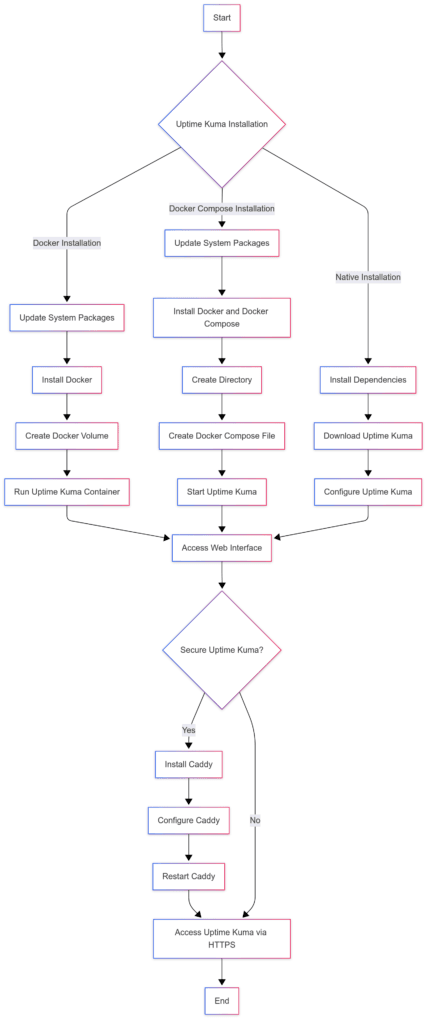
Instruction Layout Graph:
Installation Method Comparison#
There are multiple ways to install Uptime Kuma on Ubuntu, each with its own benefits:
Docker Installation (Recommended)#
Docker provides the simplest installation method with excellent isolation and easier updates. This is the recommended approach for most users as it requires minimal system configuration and offers the most straightforward upgrade path.
Docker Compose Installation#
Similar to Docker but offers better management for multi-container applications. Ideal if you're already using Docker Compose for other services.
Native Installation#
Installing directly on the host system. More resource-efficient but requires more system configuration and dependency management.
For most users, the Docker installation provides the best balance of simplicity, security, and maintainability. We'll focus primarily on this method while also providing instructions for alternatives.
Docker Installation Method#
This section covers installing Uptime Kuma using Docker, which is the recommended method for most users.
Step 1: Update System Packages#
First, update your system packages to ensure you have the latest security updates and package information:
sudo apt update && sudo apt upgrade -y
This updates your package lists and upgrades all installed packages to their latest versions.
Step 2: Install Docker#
If Docker is not already installed on your system, install it using the following commands:
sudo apt install apt-transport-https ca-certificates curl software-properties-common -y
This installs prerequisite packages needed for the Docker installation.
curl -fsSL https://download.docker.com/linux/ubuntu/gpg | sudo apt-key add -
This adds Docker's official GPG key. If you get a warning about apt-key being deprecated, you can ignore it for now.
sudo add-apt-repository "deb [arch=amd64] https://download.docker.com/linux/ubuntu $(lsb_release -cs) stable"
This adds the Docker repository for your specific Ubuntu version.
sudo apt update
This updates package information from the newly added repository.
sudo apt install docker-ce docker-ce-cli containerd.io -y
This installs Docker Community Edition, the CLI, and containerd.
sudo systemctl status docker
This verifies Docker is running properly. You should see "active (running)" in the output. Press Q to exit this view.
Step 3: Set Up Docker for Non-Root Use (Optional but Recommended)#
To avoid having to use sudo for every Docker command, add your user to the Docker group:
sudo usermod -aG docker $USER
This adds your current user to the Docker group. You'll need to log out and back in for this change to take effect.
Step 4: Create a Docker Volume for Uptime Kuma#
Create a Docker volume to store Uptime Kuma's data persistently:
docker volume create uptime-kuma
This creates a named volume that will persist even if the container is removed.
Step 5: Run the Uptime Kuma Container#
Now, deploy the Uptime Kuma container:
docker run -d --restart=always -p 3001:3001 -v uptime-kuma:/app/data --name uptime-kuma louislam/uptime-kuma:1
This command:
- Runs the container in detached mode (
-d) - Sets it to always restart if it fails or after a system reboot (
--restart=always) - Maps port 3001 on your host to port 3001 in the container (
-p 3001:3001) - Mounts the volume we created to store data (
-v uptime-kuma:/app/data) - Names the container "uptime-kuma" for easy reference (
--name uptime-kuma) - Uses the "louislam/uptime-kuma:1" image, which is the stable version (
louislam/uptime-kuma:1)
Step 6: Verify the Container is Running#
Check if the container is running correctly:
docker ps | grep uptime-kuma
You should see the uptime-kuma container in the list. If not, check for errors using:
docker logs uptime-kuma
This shows the container logs, which can help identify any startup issues.
Step 7: Access the Uptime Kuma Web Interface#
Open a web browser and navigate to:
http://YOUR_SERVER_IP:3001
Replace YOUR_SERVER_IP with your server's actual IP address.
You'll be presented with the initial setup screen where you can:
- Select your preferred language
- Create an administrator username and password
- Complete the setup
Docker Compose Installation Method#
If you prefer using Docker Compose for container management, follow these steps instead of the Docker method above.
Step 1: Update System Packages#
sudo apt update && sudo apt upgrade -y
This ensures your system is up to date.
Step 2: Install Docker and Docker Compose#
If not already installed:
sudo apt install apt-transport-https ca-certificates curl software-properties-common -y
curl -fsSL https://download.docker.com/linux/ubuntu/gpg | sudo apt-key add -
sudo add-apt-repository "deb [arch=amd64] https://download.docker.com/linux/ubuntu $(lsb_release -cs) stable"
sudo apt update
sudo apt install docker-ce docker-ce-cli containerd.io docker-compose-plugin -y
Step 3: Create a Directory for Uptime Kuma#
mkdir -p ~/uptime-kuma
cd ~/uptime-kuma
This creates a directory to store your Docker Compose configuration.
Step 4: Create the Docker Compose File#
Create a docker-compose.yml file:
nano docker-compose.yml
Paste the following content:
version: '3'
services:
  uptime-kuma:
    image: louislam/uptime-kuma:1
    container_name: uptime-kuma
    restart: always
    ports:
      - "3001:3001"
    volumes:
      - uptime-kuma:/app/data
    security_opt:
      - no-new-privileges:true
volumes:
  uptime-kuma:
Save and exit by pressing Ctrl+X, then Y, then Enter.
Step 5: Start Uptime Kuma with Docker Compose#
docker compose up -d
This starts the container in detached mode. Note: in newer versions of Docker, the command is docker compose (without a hyphen) rather than docker-compose.
Step 6: Verify Uptime Kuma is Running#
docker ps | grep uptime-kuma
Step 7: Access the Web Interface#
Access Uptime Kuma at http://YOUR_SERVER_IP:3001
Securing Uptime Kuma with a Reverse Proxy#
Running Uptime Kuma behind a reverse proxy with SSL encryption is highly recommended for production environments. This section covers setting up Caddy as a reverse proxy, which automatically handles SSL certificate provisioning.
Step 1: Install Caddy#
sudo apt install -y debian-keyring debian-archive-keyring apt-transport-https
curl -1sLf 'https://dl.cloudsmith.io/public/caddy/stable/gpg.key' | sudo gpg --dearmor -o /usr/share/keyrings/caddy-stable-archive-keyring.gpg
curl -1sLf 'https://dl.cloudsmith.io/public/caddy/stable/debian.deb.txt' | sudo tee /etc/apt/sources.list.d/caddy-stable.list
sudo apt update
sudo apt install caddy
Step 2: Configure Caddy#
Edit the Caddy configuration file:
sudo nano /etc/caddy/Caddyfile
Replace the content with:
your-domain.com {
    reverse_proxy localhost:3001
}
Replace your-domain.com with your actual domain name that points to your server.
Save and exit by pressing Ctrl+X, then Y, then Enter.
Step 3: Restart Caddy#
sudo systemctl restart caddy
Step 4: Configure Firewall (if enabled)#
If you're using UFW (Ubuntu's default firewall):
sudo ufw allow 80/tcp
sudo ufw allow 443/tcp
This allows HTTP and HTTPS traffic.
Step 5: Access Uptime Kuma Securely#
Now you can access Uptime Kuma via HTTPS:
https://your-domain.com
Caddy automatically provisions and renews SSL certificates from Let's Encrypt.
Configuration and Usage#
After successfully installing Uptime Kuma, you'll need to configure it to monitor your services.
Initial Setup#
- Upon first access, select your preferred language
- Create an administrator account with a strong password
- Click "Create" to finalize the setup
Adding Monitors#
- From the dashboard, click "Add New Monitor"
- Enter a name for your monitor
- Select the type of monitoring (HTTP(s), Ping, TCP, etc.)
- Enter the URL or IP address to monitor
- Configure the check interval (how often to check)
- Configure notification settings if desired
- Click "Save" to create the monitor
Setting Up Notifications#
Uptime Kuma supports various notification methods:
- Click "Settings" in the sidebar
- Go to "Notification" tab
- Click "Setup Notification"
- Select your preferred notification method
- Fill in the required information
- Test the notification
- Save the configuration
Data Persistence and Backups#
Understanding Docker Volume Persistence#
The Docker installation uses a volume named uptime-kuma to store data. This volume persists even if the container is removed, ensuring your configuration and monitoring history remain intact during updates or container recreation.
Creating Backups#
To back up your Uptime Kuma data:
# Find the volume's mount point
docker volume inspect uptime-kuma
Look for the "Mountpoint" value in the output.
# Create a backup (run as root or with sudo)
sudo tar -czvf uptime-kuma-backup-$(date +%Y%m%d).tar.gz -C /var/lib/docker/volumes/uptime-kuma/_data .
This creates a compressed backup of your data with the current date in the filename.
Restoring from Backup#
To restore from a backup:
# Stop the container
docker stop uptime-kuma

# Remove the container (data volume remains intact)
docker rm uptime-kuma

# Extract backup to the volume (run as root or with sudo)
sudo tar -xzvf uptime-kuma-backup-YYYYMMDD.tar.gz -C /var/lib/docker/volumes/uptime-kuma/_data

# Start a new container using the same volume
docker run -d --restart=always -p 3001:3001 -v uptime-kuma:/app/data --name uptime-kuma louislam/uptime-kuma:1
Replace YYYYMMDD with the date of your backup file.
Updating Uptime Kuma#
Updating Docker Installation#
# Pull the latest image
docker pull louislam/uptime-kuma:1

# Stop and remove the current container
docker stop uptime-kuma
docker rm uptime-kuma

# Create a new container with the updated image
docker run -d --restart=always -p 3001:3001 -v uptime-kuma:/app/data --name uptime-kuma louislam/uptime-kuma:1
Updating Docker Compose Installation#
# Navigate to your compose directory
cd ~/uptime-kuma

# Pull the latest image
docker compose pull

# Restart the container with the new image
docker compose up -d
Common Issues and Troubleshooting#
Container Fails to Start#
If the container doesn't start:
docker logs uptime-kuma
Look for error messages in the output. Common issues include:
- Port conflicts: If port 3001 is already in use, change the port mapping in your docker run command, e.g.,
-p 3002:3001 - Insufficient permissions: Ensure your user has the correct Docker permissions
Cannot Access Web Interface#
If you cannot access the web interface:
- Verify the container is running:
docker ps | grep uptime-kuma - Check if the port is accessible:
curl -v localhost:3001 - Verify firewall settings:
sudo ufw statusEnsure port 3001 is allowed (or 80/443 if using a reverse proxy)
Notifications Not Working#
If notifications aren't being sent:
- Test notification settings from the Uptime Kuma interface
- Check outbound connectivity from your server
- Verify service-specific configuration (e.g., correct API keys, tokens)
Monitor Shows False Positives#
If monitors are incorrectly reporting services as down:
- Check the monitor settings for appropriate timeouts
- Verify connectivity between your Uptime Kuma server and the monitored service
- Consider adding retry settings to monitors to reduce false positives
Known Issues and Workarounds#
Docker Alpine Version Issues#
The Alpine-based Docker image has known DNS resolution issues. Use the Debian-based image instead by specifying "louislam/uptime-kuma:1" or "louislam/uptime-kuma:1-debian".
WebSocket Connection Issues with Reverse Proxy#
When using a reverse proxy, WebSocket connections may fail if not properly configured. Ensure your reverse proxy configuration includes the appropriate WebSocket headers:
For Nginx:
proxy_set_header Upgrade $http_upgrade;
proxy_set_header Connection "upgrade";
For Apache:
RewriteEngine On
RewriteCond %{HTTP:Upgrade} =websocket [NC]
RewriteRule /(.*) ws://localhost:3001/$1 [P,L]
Caddy handles WebSocket correctly by default with the simple configuration provided earlier.
Security Best Practices#
Use a Strong Admin Password#
Create a secure, unique password for your Uptime Kuma admin account.
Implement a Reverse Proxy with SSL#
As described in the Caddy setup section, always use HTTPS in production environments.
Limit Access with Firewall Rules#
Only open the necessary ports on your server:
- Port 3001 if accessing Uptime Kuma directly (development only)
- Ports 80 and 443 if using a reverse proxy (recommended)
Consider IP Restrictions#
If using Nginx or Apache as a reverse proxy, consider implementing IP restrictions to limit administrative access.
Maintenance Tasks#
Regular Updates#
Check for updates regularly and follow the update procedure provided earlier. Uptime Kuma development is active, and updates often include security fixes and new features.
Log Monitoring#
Check container logs periodically for warnings or errors:
docker logs uptime-kuma
Database Maintenance#
Uptime Kuma uses SQLite for data storage. No regular database maintenance is typically required, but creating periodic backups is recommended.
Conclusion#
You've successfully installed, secured, and configured Uptime Kuma on Ubuntu 20.04 or newer. By following the Docker or Docker Compose installation method and implementing a reverse proxy with SSL, you now have a robust monitoring solution for your websites and services.
With proper maintenance, backup procedures, and security practices, your Uptime Kuma installation will provide reliable uptime monitoring for your infrastructure. Remember to check for updates regularly and implement the additional security measures recommended in this guide to ensure your monitoring system remains secure and effective.