Complete Guide to Installing and Securing Mastodon with Docker on Ubuntu
Before you start
- 12 min read
- 76 to run in terminal
- 10 file contents
Boxes marked Run in terminal are what you type; plain text explains why. Check what you need first

Introduction#
Mastodon is an open-source, decentralized social network that gives users control over their data and content. Unlike centralized platforms such as Twitter, Mastodon operates on a federated model where independent servers (instances) connect to form a larger network.
Docker provides an excellent deployment method for Mastodon because it offers:
- Isolation between components
- Consistency across environments
- Simplified management and maintenance
- Easier upgrades and backups
- Enhanced security through containerization
This comprehensive guide will walk you through setting up your own Mastodon instance using Docker on Ubuntu 20.04 or newer.
Instruction Layout
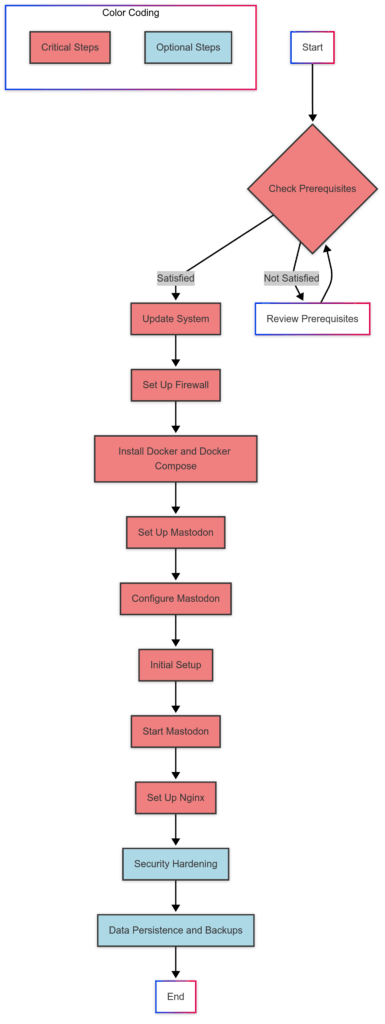
Prerequisites#
Before beginning installation, ensure you have:
- A server running Ubuntu 20.04 or newer
- At least 2GB of RAM and 2 CPU cores (4GB+ recommended for production)
- At least 20GB of free storage space (more for a growing instance)
- A registered domain name pointing to your server
- Basic familiarity with Linux command line
- Root or sudo access to your server
- An SMTP provider for sending emails (required for account verification)
- Ports 80 and 443 open on your firewall for HTTP/HTTPS traffic
Hardware Recommendations#
For optimal performance, consider these resource guidelines:
- Minimum: 2GB RAM, 2 CPU cores, 20GB storage
- Recommended: 4GB RAM, 2-4 CPU cores, 40GB+ storage
- For larger instances: 8GB+ RAM, 4+ CPU cores, 100GB+ storage with separate database server
Networking Requirements#
Your server must have these ports accessible:
- Port 22: SSH access (restrict to your IP if possible)
- Port 80: HTTP (for initial setup and redirecting to HTTPS)
- Port 443: HTTPS (for secure access to your instance)
System Preparation#
Let's start by updating your system and installing essential utilities.
sudo apt update && sudo apt upgrade -y
This updates your package lists and upgrades installed packages to their latest versions.
sudo apt install -y ca-certificates curl gnupg lsb-release apt-transport-https software-properties-common
This installs necessary utilities for adding repositories and downloading packages securely.
Setting Up Firewall (UFW)#
Configure a basic firewall to protect your server:
sudo ufw status
Checks if the firewall is active. If the output shows "inactive," proceed with the following steps.
sudo ufw allow OpenSSH
Allows SSH connections so you don't get locked out of your server.
sudo ufw allow 80/tcp
Opens HTTP port for initial setup and Let's Encrypt verification.
sudo ufw allow 443/tcp
Opens HTTPS port for secure web traffic.
sudo ufw enable
Activates the firewall. You'll be prompted to confirm with 'y' - this might disconnect your SSH session if you haven't allowed OpenSSH first.
sudo ufw status
Verifies the firewall is active and shows the allowed services.
Installing Docker and Docker Compose#
Docker allows us to run Mastodon and its dependencies in isolated containers.
Install Docker#
sudo apt remove docker docker-engine docker.io containerd runc
Removes any old Docker versions that might conflict with the installation.
curl -fsSL https://download.docker.com/linux/ubuntu/gpg | sudo gpg --dearmor -o /usr/share/keyrings/docker-archive-keyring.gpg
Downloads and installs Docker's official GPG key for package verification.
echo "deb [arch=$(dpkg --print-architecture) signed-by=/usr/share/keyrings/docker-archive-keyring.gpg] https://download.docker.com/linux/ubuntu $(lsb_release -cs) stable" | sudo tee /etc/apt/sources.list.d/docker.list > /dev/null
Adds Docker's official repository to your system.
sudo apt update
Updates package lists to include Docker packages.
sudo apt install -y docker-ce docker-ce-cli containerd.io
Installs Docker Engine and related packages.
sudo systemctl status docker
Verifies Docker is running. You should see "active (running)" in the output.
Install Docker Compose Plugin#
sudo apt install -y docker-compose-plugin
Installs the Docker Compose plugin through apt.
docker compose version
Verifies Docker Compose is installed properly. You should see version information.
Add Your User to Docker Group (Optional)#
This step allows you to run Docker commands without sudo.
sudo usermod -aG docker $USER
Adds your current user to the Docker group. You'll need to log out and back in for this to take effect.
Setting Up Mastodon#
Now let's create the directory structure and download Mastodon.
sudo mkdir -p /opt/mastodon
Creates a directory for Mastodon files.
sudo chown $USER:$USER /opt/mastodon
Gives your user ownership of the Mastodon directory.
cd /opt/mastodon
Changes to the Mastodon directory.
Create Directory Structure#
mkdir -p public/system
Creates a directory for user uploads and other files.
mkdir -p postgres
Creates a directory to store PostgreSQL data.
mkdir -p redis
Creates a directory to store Redis data.
Download Mastodon Docker Configuration#
curl -L https://raw.githubusercontent.com/mastodon/mastodon/main/docker-compose.yml -o docker-compose.yml
Downloads the official Mastodon docker-compose.yml file.
curl -L https://raw.githubusercontent.com/mastodon/mastodon/main/.env.production.sample -o .env.production
Downloads the sample environment configuration file.
Configure Docker Compose#
Now we need to modify the docker-compose.yml file to use prebuilt images instead of building locally.
sed -i 's/^ build: .$/ # build: /' docker-compose.yml
Comments out the build directive for each service.
sed -i 's/^ image: tootsuite\/mastodon$/ image: tootsuite\/mastodon:latest/' docker-compose.yml
Changes the image reference to use the latest prebuilt image. For production, you might want to specify a specific version.
Setting File Permissions#
sudo chown -R 991:991 public
Sets the correct permissions for the public directory. 991 is the default user ID for Mastodon in the Docker container.
Configuring Mastodon#
Now we'll set up the configuration file for Mastodon.
Generate Secrets#
docker compose run --rm web rake secret
Generates a random string for the SECRET_KEY_BASE. Copy this output.
docker compose run --rm web rake secret
Run this command again to generate a random string for OTP_SECRET. Copy this output.
docker compose run --rm web bundle exec rake mastodon:webpush:generate_vapid_key
Generates VAPID keys for Web Push notifications. Copy both the private and public keys.
Edit the Environment Configuration#
Now you need to edit the .env.production file to configure your Mastodon instance:
nano .env.production
Opens the environment file for editing. You'll need to update the following settings:
- LOCAL_DOMAIN: Set to your domain name
- DB_HOST: Set to "db"
- DB_USER: Set to "postgres"
- DB_NAME: Set to "postgres"
- DB_PASS: Leave empty for this setup
- REDIS_HOST: Set to "redis"
- SECRET_KEY_BASE: Paste the first secret generated earlier
- OTP_SECRET: Paste the second secret generated earlier
- VAPID_PRIVATE_KEY and VAPID_PUBLIC_KEY: Paste the VAPID keys generated earlier
- SMTP settings: Fill in with your email provider's details
SMTP Configuration Example#
Here's an example SMTP configuration using Gmail (you should use an application-specific password):
SMTP_SERVER=smtp.gmail.com
SMTP_PORT=587
[email protected]
SMTP_PASSWORD=your_app_password
SMTP_FROM_ADDRESS=Mastodon
SMTP_AUTH_METHOD=plain
SMTP_OPENSSL_VERIFY_MODE=none
SMTP_ENABLE_STARTTLS=auto
Initial Setup#
Now that we have the configuration in place, let's set up the database and create an admin account.
docker compose run --rm web bundle exec rake mastodon:setup
This interactive command will verify your configuration, set up the database, and prompt you to create an admin user.
When prompted:
- Confirm your configuration settings
- Choose to create an admin user when asked
- Enter your desired username, email, and password for the admin account
- For other prompts, accept the default values by pressing Enter
Starting Mastodon#
Now we're ready to start Mastodon:
docker compose up -d
Starts all Mastodon services in detached mode. This may take a few minutes the first time.
docker compose ps
Checks that all services are running. All containers should show "Up" status.
Setting Up Nginx as a Reverse Proxy#
To expose Mastodon securely to the internet, we'll set up Nginx as a reverse proxy with HTTPS.
Install Nginx and Certbot#
sudo apt install -y nginx certbot python3-certbot-nginx
Installs Nginx web server and Certbot for obtaining SSL certificates.
Create Nginx Configuration#
sudo nano /etc/nginx/sites-available/mastodon
Creates a new Nginx configuration file for Mastodon.
Paste the following configuration, replacing yourdomain.com with your actual domain:
server {
    listen 80;
    listen [::]:80;
    server_name yourdomain.com;

    location /.well-known/acme-challenge/ {
        root /var/www/html;
    }

    location / {
        return 301 https://$host$request_uri;
    }
}
Save and exit (Ctrl+X, then Y, then Enter).
sudo ln -s /etc/nginx/sites-available/mastodon /etc/nginx/sites-enabled/
Enables the Nginx configuration by creating a symbolic link.
sudo nginx -t
Tests the Nginx configuration for syntax errors.
sudo systemctl reload nginx
Reloads Nginx to apply the new configuration.
Obtain SSL Certificate#
sudo certbot --nginx -d yourdomain.com
Runs Certbot to obtain an SSL certificate for your domain. Follow the prompts to complete the process.
After Certbot completes, it will update your Nginx configuration with SSL settings. Verify that the configuration was updated correctly:
sudo nano /etc/nginx/sites-available/mastodon
The file should now include SSL settings and a server block for HTTPS. If needed, adjust the configuration to include proper proxy settings:
server {
    listen 443 ssl http2;
    listen [::]:443 ssl http2;
    server_name yourdomain.com;

    # SSL settings added by Certbot

    # Mastodon proxy settings
    location / {
        proxy_pass http://127.0.0.1:3000;
        proxy_set_header Host $host;
        proxy_set_header X-Real-IP $remote_addr;
        proxy_set_header X-Forwarded-For $proxy_add_x_forwarded_for;
        proxy_set_header X-Forwarded-Proto https;
        proxy_set_header Proxy "";

        proxy_buffering off;
        proxy_redirect off;
        proxy_http_version 1.1;
        proxy_set_header Upgrade $http_upgrade;
        proxy_set_header Connection "upgrade";

        client_max_body_size 16m;
    }

    location /api/v1/streaming {
        proxy_pass http://127.0.0.1:4000;
        proxy_set_header Host $host;
        proxy_set_header X-Real-IP $remote_addr;
        proxy_set_header X-Forwarded-For $proxy_add_x_forwarded_for;
        proxy_set_header X-Forwarded-Proto https;
        proxy_set_header Proxy "";

        proxy_buffering off;
        proxy_redirect off;
        proxy_http_version 1.1;
        proxy_set_header Upgrade $http_upgrade;
        proxy_set_header Connection "upgrade";
    }
}
Save and exit.
sudo nginx -t
Tests the updated Nginx configuration.
sudo systemctl reload nginx
Reloads Nginx to apply the changes.
Security Hardening#
Let's add additional security measures to protect your Mastodon instance.
Configure Docker Container Security#
Edit the docker-compose.yml file to improve container security:
nano docker-compose.yml
Add the following security options to each service:
security_opt:
  - no-new-privileges:true
This prevents processes in the container from gaining additional privileges.
Set Up Fail2ban to Protect Against Brute Force Attacks#
sudo apt install -y fail2ban
Installs Fail2ban, which helps protect against brute force login attempts.
sudo nano /etc/fail2ban/jail.local
Creates a configuration file for Fail2ban.
Add the following content:
[sshd]
enabled = true
maxretry = 3
findtime = 1h
bantime = 24h

[nginx-http-auth]
enabled = true
Save and exit.
sudo systemctl restart fail2ban
Restarts Fail2ban to apply the configuration.
Data Persistence and Backups#
Ensuring data persistence and regular backups is crucial for any production service.
Create a Backup Script#
nano /opt/mastodon/backup.sh
Creates a backup script.
Add the following content:
#!/bin/bash
# Mastodon backup script
BACKUP_DIR="/opt/mastodon/backups"
DATE=$(date +%Y%m%d_%H%M%S)
BACKUP_FILE="mastodon_backup_$DATE.tar.gz"

# Create backup directory if it doesn't exist
mkdir -p $BACKUP_DIR

# Go to Mastodon directory
cd /opt/mastodon

# Create database backup
docker compose exec -T db pg_dump -U postgres postgres > $BACKUP_DIR/mastodon_db_$DATE.sql

# Backup configuration files
cp .env.production $BACKUP_DIR/.env.production_$DATE

# Backup public uploads
tar -czf $BACKUP_DIR/$BACKUP_FILE public/system

# Keep only the last 7 backups
find $BACKUP_DIR -name "mastodon_backup_*" -type f -mtime +7 -delete
find $BACKUP_DIR -name "mastodon_db_*" -type f -mtime +7 -delete
find $BACKUP_DIR -name ".env.production_*" -type f -mtime +7 -delete

echo "Backup completed: $BACKUP_FILE"
Save and exit.
chmod +x /opt/mastodon/backup.sh
Makes the backup script executable.
Set Up a Cron Job for Regular Backups#
sudo crontab -e
Opens the root crontab file.
Add the following line to run backups daily at 2 AM:
0 2 * * * /opt/mastodon/backup.sh > /var/log/mastodon_backup.log 2>&1
Save and exit.
Common Issues and Troubleshooting#
Here are the most frequent issues users encounter and their solutions.
Checking Logs#
To check logs for troubleshooting:
docker compose logs
Shows logs from all services.
docker compose logs web
Shows logs from the web service only.
docker compose logs -f
Shows logs and follows them in real-time (press Ctrl+C to exit).
Common Issues and Solutions#
Database Connection Issues#
Issue: Mastodon cannot connect to the database.
Diagnosis:
docker compose logs web | grep "PG::ConnectionBad"
Solution: Check DB_HOST, DB_USER, and DB_PASS in .env.production. Ensure they match the configuration in docker-compose.yml.
Redis Connection Issues#
Issue: Mastodon cannot connect to Redis.
Diagnosis:
docker compose logs web | grep "Redis::CannotConnectError"
Solution: Verify REDIS_HOST in .env.production is set to "redis".
Email Not Working#
Issue: Registration emails and notifications aren't being sent.
Diagnosis:
docker compose logs sidekiq | grep "SMTP"
Solution: Check your SMTP configuration in .env.production. Some providers may require enabling less secure apps or generating app-specific passwords.
Insufficient Disk Space#
Issue: Docker operations fail due to low disk space.
Diagnosis:
df -h
Solution: Clean unused Docker resources:
docker system prune -a
Web Push Not Working#
Issue: Push notifications don't work.
Diagnosis: Check if VAPID keys are properly configured:
grep VAPID .env.production
Solution: If keys are missing or invalid, regenerate them:
docker compose run --rm web bundle exec rake mastodon:webpush:generate_vapid_key
Update the values in .env.production and restart Mastodon.
Maintenance Tasks#
Regular maintenance ensures your Mastodon instance stays healthy and secure.
Updating Mastodon#
cd /opt/mastodon
Changes to the Mastodon directory.
docker compose pull
Pulls the latest container images.
docker compose down
Stops all containers.
docker compose up -d
Starts containers with updated images.
docker compose run --rm web rails db:migrate
Runs database migrations after updating.
docker compose run --rm web rails assets:precompile
Recompiles static assets after updating.
Monitoring Server Health#
htop
Monitors system resource usage in real-time. (Install with sudo apt install htop if not available)
docker stats
Shows resource usage of Docker containers.
df -h
Checks disk space usage.
User Management#
To create a new administrator account:
docker compose run --rm web bin/tootctl accounts create username [email protected] --confirmed --role=admin
Creates a new admin user with the specified username and email.
To moderate content:
docker compose run --rm web bin/tootctl media remove
Removes remote media that's no longer referenced.
Known Issues and Workarounds#
High Memory Usage#
Issue: Mastodon services, especially Sidekiq, can use a lot of memory on low-spec servers.
Workaround: Adjust the concurrency in docker-compose.yml for the Sidekiq service:
nano docker-compose.yml
Find the Sidekiq section and add an environment variable:
environment:
  - SIDEKIQ_CONCURRENCY=5
Save and restart:
docker compose restart sidekiq
Slow Initial Load Times#
Issue: Initial page loads can be slow.
Workaround: Enable caching by adding these to .env.production:
CACHE_REDIS_HOST=redis
CACHE_REDIS_PORT=6379
CACHE_REDIS_DB=0
File Upload Size Limitations#
Issue: Users cannot upload large files.
Workaround: Adjust Nginx client_max_body_size:
sudo nano /etc/nginx/sites-available/mastodon
Find and modify the client_max_body_size directive:
client_max_body_size 40m;
Save and reload Nginx:
sudo systemctl reload nginx
Conclusion#
Congratulations! You now have a fully functioning Mastodon instance running on Docker with security best practices in place. This setup provides a solid foundation for running your own social media server while maintaining control over your data and user experience.
Remember to:
- Regularly update your system and Mastodon
- Monitor server resources
- Keep backups of your data
- Stay informed about security advisories
By following these practices, you'll ensure a stable, secure, and reliable Mastodon experience for you and your users.