Comprehensive Guide to Hosting and Securing Jellyfin on Ubuntu 20.04+ with Docker
Before you start
- 8 min read
- 39 to run in terminal
Boxes marked Run in terminal are what you type; plain text explains why. Check what you need first
Introduction:#
Jellyfin is a free and open-source media server that allows you to manage and stream your media collection to any device. Unlike proprietary alternatives like Plex or Emby, Jellyfin is completely free, has no premium features locked behind paywalls, and doesn't collect user data. This guide will walk you through every step of setting up a secure, well-configured Jellyfin instance on Ubuntu 20.04 or newer using Docker.
Why Use Docker for Jellyfin?#
Docker deployment offers several key advantages:
- Simplified installation process
- Consistent environments across different systems
- Easy updates without dependency conflicts
- Enhanced security through container isolation
- Simplified backup and restore procedures
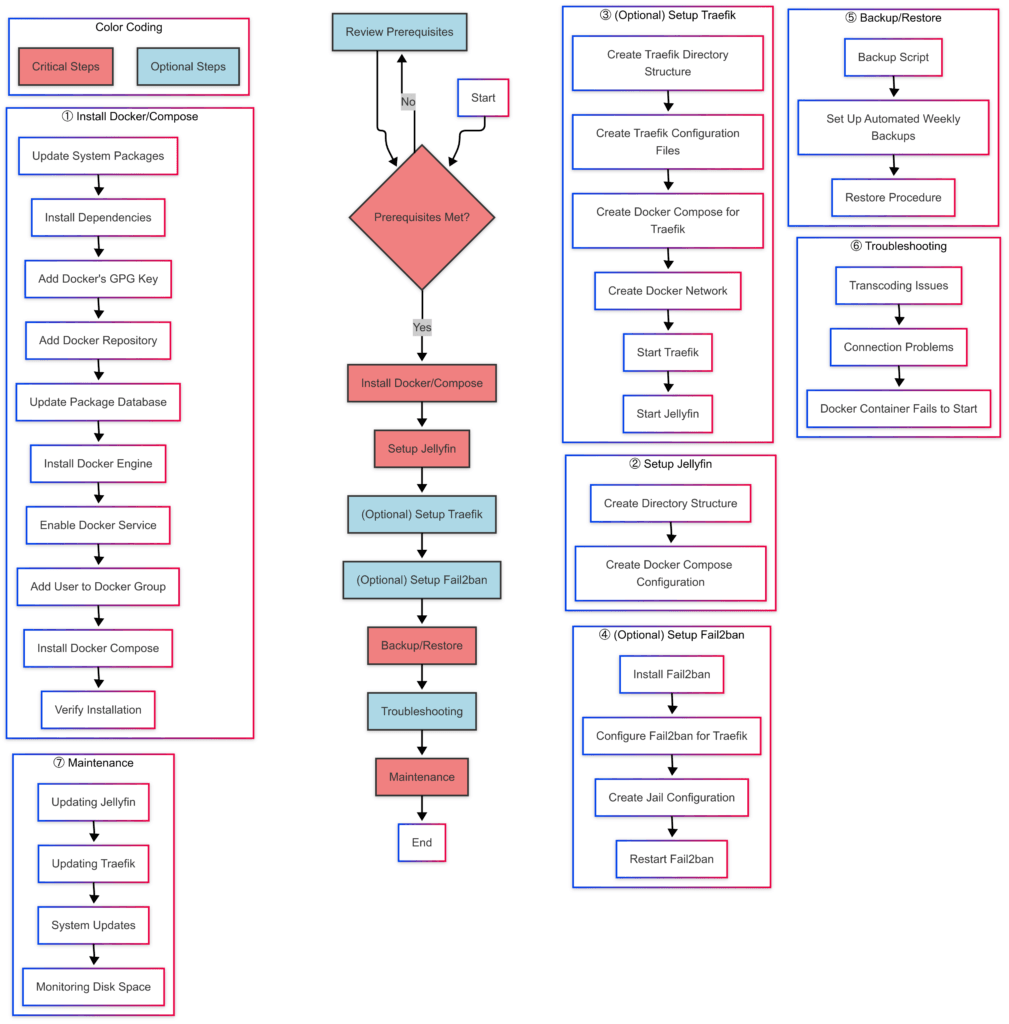
Instruction layout/flow
Prerequisites#
Before proceeding with installation, ensure your system meets these requirements:
System Requirements#
- Ubuntu 20.04 LTS or newer
- 2GB RAM minimum (4GB recommended for transcoding)
- Dual-core CPU minimum (quad-core recommended for transcoding)
- Sufficient storage for your media library
- Network connectivity (port forwarding required for remote access)
You can check your Ubuntu version with:
lsb_release -a
Software Requirements#
- Docker Engine
- Docker Compose
- Git (optional, for cloning configuration files)
Required Permissions#
You'll need:
- Sudo access for installation
- User added to docker group for non-root Docker access
Check your current user ID and group ID (needed for Docker configuration):
#command is: id
id
Installing Docker and Docker Compose#
Follow these steps to install Docker and Docker Compose on your Ubuntu system:
Step 1: Update System Packages#
sudo apt update && sudo apt upgrade -y
This ensures your system has the latest security updates before proceeding.
Step 2: Install Required Dependencies#
sudo apt install apt-transport-https ca-certificates curl software-properties-common gnupg -y
These packages are necessary for adding Docker's repository and securely downloading packages.
Step 3: Add Docker's Official GPG Key#
curl -fsSL https://download.docker.com/linux/ubuntu/gpg | sudo gpg --dearmor -o /usr/share/keyrings/docker-archive-keyring.gpg
This adds Docker's official GPG key to verify package integrity.
Step 4: Add Docker Repository#
echo "deb [arch=$(dpkg --print-architecture) signed-by=/usr/share/keyrings/docker-archive-keyring.gpg] https://download.docker.com/linux/ubuntu $(lsb_release -cs) stable" | sudo tee /etc/apt/sources.list.d/docker.list > /dev/null
This adds Docker's official repository to your system's package sources.
Step 5: Update Package Database#
sudo apt update
This refreshes your package database to include Docker packages.
Step 6: Install Docker Engine#
sudo apt install docker-ce docker-ce-cli containerd.io -y
This installs Docker Engine, CLI, and containerd.
Step 7: Enable Docker Service#
sudo systemctl enable --now docker
This starts Docker and configures it to launch at system boot.
Step 8: Add User to Docker Group#
sudo usermod -aG docker $USER
This allows running Docker commands without sudo. Important: You'll need to log out and back in for changes to take effect.
Step 9: Install Docker Compose#
sudo curl -L "https://github.com/docker/compose/releases/latest/download/docker-compose-$(uname -s)-$(uname -m)" -o /usr/local/bin/docker-compose
sudo chmod +x /usr/local/bin/docker-compose
This downloads the latest Docker Compose binary and makes it executable.
Step 10: Verify Installation#
docker --version
docker-compose --version
This confirms that both Docker and Docker Compose are correctly installed.
Setting Up Jellyfin with Docker Compose#
Now that Docker is installed, we'll set up Jellyfin using Docker Compose for easier management of container configurations.
Step 1: Create Directory Structure#
mkdir -p ~/docker_data/jellyfin/{config,cache,media}
This creates directories for Jellyfin's configuration, cache, and media files.
Step 2: Create Docker Compose Configuration#
Create a new file at ~/docker_data/jellyfin/docker-compose.yml with the following content:
cat > ~/docker_data/jellyfin/docker-compose.yml << 'EOF'
version: '3'

services:
  jellyfin:
    image: jellyfin/jellyfin:latest
    container_name: jellyfin
    user: 1000:1000  # Replace with your user ID and group ID from 'id' command
    restart: unless-stopped
    volumes:
      - ./config:/config
      - ./cache:/cache
      - ./media:/media
      # Optional: mount additional media locations
      # - /path/to/media:/media2:ro
    ports:
      - 8096:8096  # HTTP port (remove for Traefik-only access)
    environment:
      - TZ=Etc/UTC  # Set to your timezone
    networks:
      - proxy  # For Traefik integration
    #devices:  # Uncomment for hardware acceleration
    #  - /dev/dri:/dev/dri  # Intel GPU
    #  - /dev/video10:/dev/video10  # VAAPI rendering node
    #  - /dev/video11:/dev/video11  # VAAPI DRM node
    #  - /dev/nvidia0:/dev/nvidia0  # Nvidia GPU
    #  - /dev/nvidiactl:/dev/nvidiactl
    #  - /dev/nvidia-modeset:/dev/nvidia-modeset
    #  - /dev/nvidia-uvm:/dev/nvidia-uvm
    labels:
      - "traefik.enable=true"
      - "traefik.http.routers.jellyfin.rule=Host(`jellyfin.your-domain.com`)"
      - "traefik.http.routers.jellyfin.entrypoints=websecure"
      - "traefik.http.routers.jellyfin.tls.certresolver=letsencrypt"
      - "traefik.http.services.jellyfin.loadbalancer.server.port=8096"

networks:
  proxy:
    external: true
EOF
Important: Replace 1000:1000 with your actual user ID and group ID from the id command, and jellyfin.your-domain.com with your actual domain.
Setting Up Traefik as a Reverse Proxy (Optional but Recommended)#
Traefik provides secure access to Jellyfin from the internet with automatic SSL certificate management.
Step 1: Create Traefik Directory Structure#
mkdir -p ~/docker_data/traefik/{config,letsencrypt}
touch ~/docker_data/traefik/acme.json
chmod 600 ~/docker_data/traefik/acme.json
This creates directories for Traefik configuration and Let's Encrypt certificates.
Step 2: Create Traefik Configuration Files#
Create the main configuration file:
cat > ~/docker_data/traefik/config/traefik.toml << 'EOF'
[entryPoints]
  [entryPoints.web]
    address = ":80"
    [entryPoints.web.http.redirections.entryPoint]
      to = "websecure"
      scheme = "https"

  [entryPoints.websecure]
    address = ":443"
    [entryPoints.websecure.http.tls]
      certResolver = "letsencrypt"
    [entryPoints.websecure.http.middlewares]
      middlewares = ["securityHeaders@file"]

[providers]
  [providers.docker]
    endpoint = "unix:///var/run/docker.sock"
    exposedByDefault = false
    network = "proxy"

  [providers.file]
    filename = "/etc/traefik/dynamic.toml"

[certificatesResolvers]
  [certificatesResolvers.letsencrypt]
    [certificatesResolvers.letsencrypt.acme]
      email = "[email protected]"  # Replace with your email
      storage = "/letsencrypt/acme.json"
      [certificatesResolvers.letsencrypt.acme.tlsChallenge]

[api]
  dashboard = true

[log]
  level = "INFO"
EOF
Create dynamic configuration file:
cat > ~/docker_data/traefik/config/dynamic.toml << 'EOF'
[http.middlewares]
  [http.middlewares.securityHeaders.headers]
    browserXssFilter = true
    contentTypeNosniff = true
    frameDeny = true
    sslRedirect = true
    [http.middlewares.securityHeaders.headers.customResponseHeaders]
      X-Robots-Tag = "noindex,nofollow,nosnippet,noarchive,notranslate,noimageindex"
      Server = ""
    [http.middlewares.securityHeaders.headers.referrerPolicy]
      policy = "strict-origin-when-cross-origin"
    [http.middlewares.securityHeaders.headers.contentSecurityPolicy]
      policy = "default-src 'self'; script-src 'self' 'unsafe-inline'; style-src 'self' 'unsafe-inline'; img-src 'self' data: blob:; font-src 'self' data:; media-src 'self' blob:; connect-src 'self' wss:; frame-src 'self'; base-uri 'self'; form-action 'self'"

[http.routers]
  [http.routers.dashboard]
    rule = "Host(`traefik.your-domain.com`)"
    service = "api@internal"
    entryPoints = ["websecure"]
    middlewares = ["securityHeaders", "traefik-auth"]
    [http.routers.dashboard.tls]
      certResolver = "letsencrypt"

[http.middlewares.traefik-auth.basicAuth]
  # Generate with: echo $(htpasswd -nb username password) | sed -e s/\\$/\\$\\$/g
  users = ["admin:$apr1$randomhash"]  # Replace with your own credentials
EOF
Important: Replace [email protected], traefik.your-domain.com, and the basic auth credentials with your own.
Step 3: Create Docker Compose for Traefik#
cat > ~/docker_data/traefik/docker-compose.yml << 'EOF'
version: '3'

services:
  traefik:
    image: traefik:latest
    container_name: traefik
    restart: unless-stopped
    ports:
      - 80:80
      - 443:443
    volumes:
      - /var/run/docker.sock:/var/run/docker.sock:ro
      - ./config/traefik.toml:/etc/traefik/traefik.toml:ro
      - ./config/dynamic.toml:/etc/traefik/dynamic.toml:ro
      - ./letsencrypt:/letsencrypt
    networks:
      - proxy
    labels:
      - "traefik.enable=true"

networks:
  proxy:
    external: true
    name: proxy
EOF
Step 4: Create Docker Network#
docker network create proxy
This creates the network that both Traefik and Jellyfin will use.
Step 5: Start Traefik#
cd ~/docker_data/traefik && docker-compose up -d
This starts Traefik in the background.
Step 6: Start Jellyfin#
cd ~/docker_data/jellyfin && docker-compose up -d
This starts Jellyfin in the background.
Setting Up Fail2ban for Additional Security (Optional)#
Fail2ban can protect against brute force attacks by temporarily banning IP addresses that show malicious behavior.
Step 1: Install Fail2ban#
sudo apt install fail2ban -y
Step 2: Configure Fail2ban for Traefik#
sudo tee /etc/fail2ban/filter.d/traefik-auth.conf > /dev/null << 'EOF'
[Definition]
failregex = ^.*\s"(GET|POST|HEAD).*401\s.*remote_ip=<HOST>\s.*$
ignoreregex =
EOF
Step 3: Create Jail Configuration#
sudo tee /etc/fail2ban/jail.d/traefik.conf > /dev/null << 'EOF'
[traefik-auth]
enabled = true
port = http,https
filter = traefik-auth
logpath = /var/log/traefik/access.log
maxretry = 3
bantime = 3600
EOF
Step 4: Restart Fail2ban#
sudo systemctl restart fail2ban
Backup and Restore Procedures#
Regular backups are essential for data safety. Here's how to set up automated backups for Jellyfin.
Backup Script#
Create a backup script:
cat > ~/backup-jellyfin.sh << 'EOF'
#!/bin/bash
# Jellyfin backup script

# Set backup directory
BACKUP_DIR="/path/to/backups/jellyfin"
mkdir -p "$BACKUP_DIR"

# Set date format for backup files
DATE=$(date +"%Y-%m-%d")

# Backup Jellyfin configuration
tar -czf "$BACKUP_DIR/jellyfin-config-$DATE.tar.gz" -C ~/docker_data jellyfin/config

# Keep only the last 5 backups
ls -t "$BACKUP_DIR"/*.tar.gz | tail -n +6 | xargs rm -f

echo "Backup completed: $BACKUP_DIR/jellyfin-config-$DATE.tar.gz"
EOF

chmod +x ~/backup-jellyfin.sh
Set Up Automated Weekly Backups#
(crontab -l 2>/dev/null; echo "0 2 * * 0 ~/backup-jellyfin.sh") | crontab -
This schedules the backup script to run every Sunday at 2 AM.
Restore Procedure#
If you need to restore from a backup:
# Stop containers
cd ~/docker_data/jellyfin && docker-compose down

# Restore from backup
tar -xzf /path/to/backups/jellyfin/jellyfin-config-YYYY-MM-DD.tar.gz -C ~/docker_data/jellyfin

# Start containers
cd ~/docker_data/jellyfin && docker-compose up -d
Common Problems and Solutions#
Here are some common issues you might encounter and their solutions.
Transcoding Issues#
Problem: Video transcoding is slow or failing.
Diagnosis:
docker logs jellyfin | grep -i transcode
Solution: Enable hardware acceleration if available.
For Intel GPUs:
# Install required packages on host
sudo apt install intel-media-va-driver-non-free -y

# Update docker-compose.yml
# Uncomment the devices section for /dev/dri
Restart Jellyfin:
cd ~/docker_data/jellyfin && docker-compose down && docker-compose up -d
Connection Problems#
Problem: Cannot access Jellyfin through domain.
Diagnosis:
# Check if Traefik is running
docker ps | grep traefik

# Check Traefik logs
docker logs traefik
Solution:
# Verify DNS resolution
nslookup jellyfin.your-domain.com

# Check if ports are forwarded correctly
curl -I http://your-domain.com
Docker Container Fails to Start#
Problem: Jellyfin container won't start.
Diagnosis:
docker logs jellyfin
Solution:
# Check permissions
sudo chown -R $(id -u):$(id -g) ~/docker_data/jellyfin

# Verify ports are not in use
sudo netstat -tuln | grep 8096
Maintenance Procedures#
Regular maintenance ensures your Jellyfin server remains secure and performs optimally.
Updating Jellyfin#
cd ~/docker_data/jellyfin
docker-compose pull
docker-compose down
docker-compose up -d
This pulls the latest image, stops the current container, and starts a new one with the updated image.
Updating Traefik#
cd ~/docker_data/traefik
docker-compose pull
docker-compose down
docker-compose up -d
System Updates#
sudo apt update && sudo apt upgrade -y
Periodic system updates are essential for security.
Monitoring Disk Space#
df -h
Regularly check disk space to ensure sufficient storage for media and container operations.
Conclusion#
You now have a fully functional, secure Jellyfin media server running on Ubuntu 20.04 using Docker. The configuration provides:
- Isolated container environment for enhanced security
- Automatic SSL certificate management with Let's Encrypt
- Reverse proxy with Traefik for secure internet access
- Hardened TLS configuration to protect against common vulnerabilities
- Backup and restore procedures to prevent data loss
- Maintenance instructions for keeping the system updated and secure
By following this guide, you've implemented industry best practices for securing a self-hosted media server while maintaining convenient access for authorized users. Remember to regularly update all components and monitor for security advisories related to Docker, Ubuntu, Traefik, and Jellyfin to maintain the security of your system.