Complete Guide to Hosting Mermaid Charts Locally
Before you start
- 4 min read
- 12 to run in terminal
- 4 file contents
- Updated March 9, 2025
Boxes marked Run in terminal are what you type; plain text explains why. Check what you need first
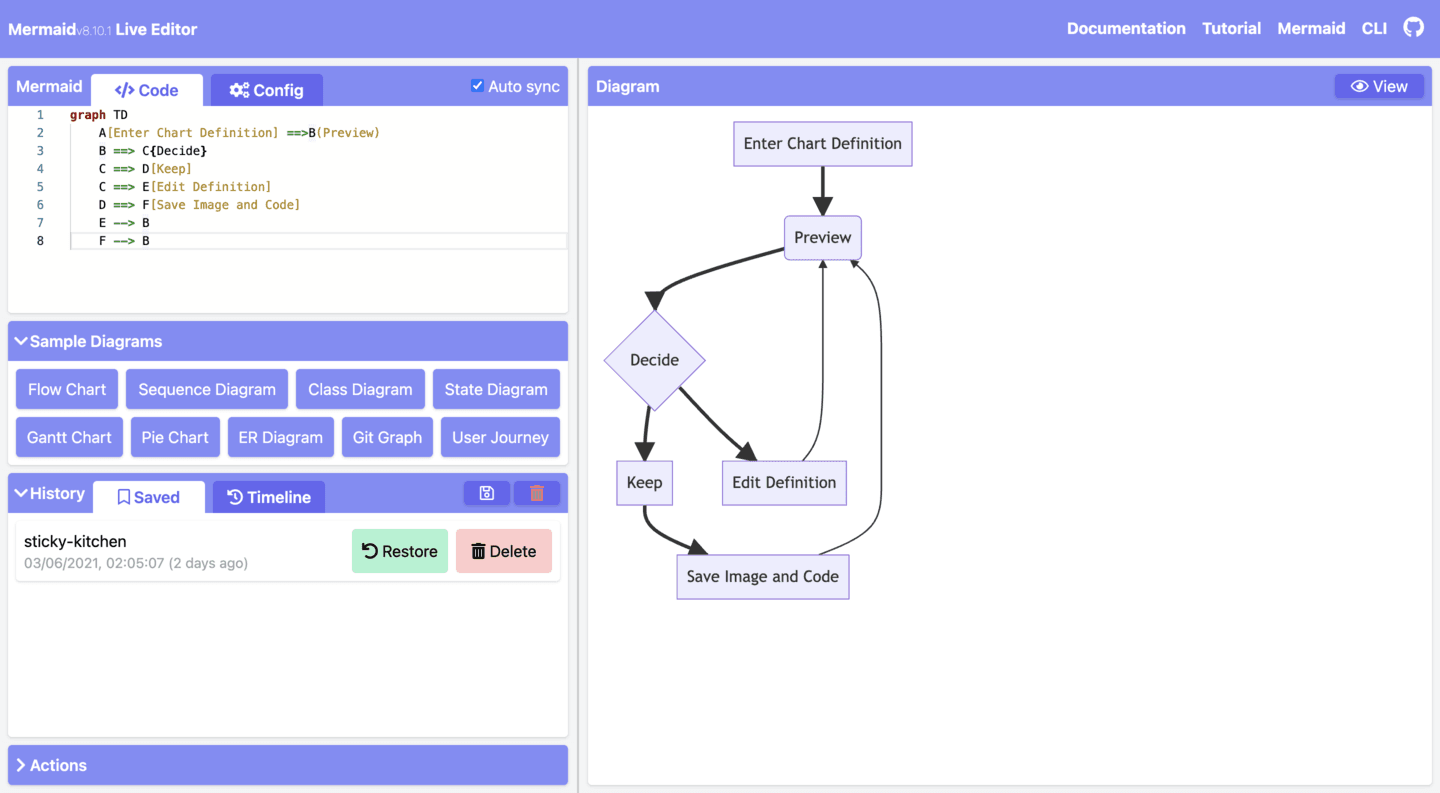
Introduction#
Mermaid.js is a powerful JavaScript library designed to create visually appealing diagrams from simple text-based definitions. It supports various diagram types such as flowcharts, sequence diagrams, Gantt charts, class diagrams, and more. Hosting Mermaid locally allows you to quickly visualize documentation, software architectures, or processes without relying on external services, ensuring privacy, security, and offline availability.
This guide covers all available options for hosting Mermaid charts locally, including direct HTML embedding, using local servers (Node.js), Docker setups, and configuration customizations. It also includes security best practices, troubleshooting steps, common issues with solutions, and maintenance procedures.
Prerequisites#
Required Software Versions:#
- Node.js v16 or higher
- npm or yarn or pnpm (latest stable versions)
- Docker (Optional for containerized deployment)
Minimum Hardware Specifications:#
- CPU: 1 Core
- RAM: 512MB minimum
- Storage: 500MB free space minimum
Network Requirements:#
- Ports: Default ports 9000 (for local dev server), 3333 (for docs server)
User Permissions:#
- Standard user with sudo privileges for installations
- Avoid running as root unless necessary
Installation Methods#
You can host Mermaid locally using one of the following methods:
Option 1: Simple HTML File (No server required)#
Create an HTML file (mermaid.html) with the following content:
<!DOCTYPE html>
<html>
<head>
    <meta charset="utf-8">
    <title>Mermaid Chart Local</title>
</head>
<body>
    <div class="mermaid">
        graph LR
        A[Client] --> B[Server]
    </div>

    <script type="module">
        import mermaid from 'https://cdn.jsdelivr.net/npm/mermaid@11/dist/mermaid.esm.min.mjs';
        mermaid.initialize({ startOnLoad: true });
    </script>
</body>
</html>
Explanation: Loads Mermaid directly from CDN and renders diagrams in-browser.
Diagnostic: Open this file in your browser. If diagrams don't render:
- Check browser console (F12) for JavaScript errors.
- Ensure internet connection to access CDN.
Option 2: Local Node.js Setup#
Install Mermaid via npm/yarn/pnpm:
npm install mermaid
or
yarn add mermaid
or
pnpm add mermaid
Explanation: Installs Mermaid as a local dependency.
Diagnostic: Verify installation by checking node_modules/mermaid.
Create an HTML file referencing local Mermaid:
<!DOCTYPE html>
<html>
<head>
    <meta charset="utf-8">
    <title>Mermaid Chart Local</title>
</head>
<body>
    <div class="mermaid">
        graph TD;
        A --> B;
        B --> C;
    </div>

    <script type="module">
        import mermaid from './node_modules/mermaid/dist/mermaid.esm.min.mjs';
        mermaid.initialize({ startOnLoad: true });
    </script>
</body>
</html>
Open this file locally in browser. If diagrams fail:
- Ensure correct path to
mermaid.esm.mjs. - Check browser console for errors.
Option 3: Using Docker (Recommended for consistency)#
Install Docker first if not installed:
sudo apt update && sudo apt install docker.io -y
Explanation: Installs Docker on Ubuntu/Debian systems.
Diagnostic command:
docker --version
Create a Dockerfile:
FROM nginx:alpine
COPY . /usr/share/nginx/html
EXPOSE 80
Build and run your container:
docker run -d -p 8080:80 -v $(pwd):/usr/share/nginx/html nginx:latest
Explanation: Serves your current directory via Nginx web server.
Diagnostic: Visit http://localhost:8080 in browser. If page doesn't load:
- Run
docker logs [container_id]to check errors. - Verify port 8080 is open (
sudo lsof -i :8080).
Configuration Options#
Mermaid supports multiple configuration sources:
Global Configuration (Recommended):#
Set global diagram configuration by modifying your initialization script:
mermaid.initialize({
  theme: 'forest',
  securityLevel: 'strict', // options: strict(default), antiscript, loose, sandbox(beta)
  flowchart: {
    useMaxWidth: true,
    htmlLabels: true,
  }
});
Explanation: Customizes global diagram rendering settings.
Diagnostic: If diagrams fail after customization:
- Reset configuration by removing custom settings temporarily.
Security Considerations#
- Avoid Running as Root: Always run Mermaid under standard user permissions.
- Network Access Restriction: Limit access via firewall if hosted publicly.
- File Permissions: Set restrictive permissions on diagram files:
chmod 644 /path/to/your/diagrams/*.html
Explanation: Prevents unauthorized file modifications.
Data Persistence & Backup Procedures#
For Docker setups, ensure data persistence by mounting volumes:
docker run -d -p 8080:80 -v /path/to/data:/usr/share/nginx/html nginx:latest
Explanation: Ensures your Mermaid files persist after container restarts.
Backup regularly using:
tar czvf mermaid_backup_$(date +%F).tar.gz /path/to/data/
Restore data easily with:
tar xzvf backup.tar.gz -C /path/to/data/
Common Issues & Solutions#
| Issue | Diagnostic | Solution |
|---|---|---|
| Diagrams not rendering | Browser console errors | Ensure correct Mermaid import paths; verify CDN availability |
| Labels out of bounds | Check font loading issues | Initialize Mermaid after DOM load completes |
| Security restrictions blocking clicks | Check securityLevel setting | Adjust securityLevel to "loose" or "antiscript" |
Example fix for labels out of bounds issue:
document.addEventListener('DOMContentLoaded', () => {
    mermaid.initialize({ startOnLoad:true });
});
Known Open Bugs & Workarounds#
- Cookiebot Interference Bug (#6045): Diagrams not rendering due to Cookiebot scripts interference. Workaround: Delay Mermaid initialization until after Cookiebot consent scripts have completed loading or disable Cookiebot temporarily during debugging.
Maintenance Guide#
Update Installation Safely:#
Update Mermaid regularly using npm/yarn/pnpm commands:
npm update mermaid # or yarn upgrade mermaid or pnpm update mermaid
Explanation: Keeps Mermaid up-to-date with latest fixes/features.
Monitor for Issues:#
Check logs regularly (docker logs) and browser console logs periodically.
Backup Configurations & Data Regularly:#
Copy your HTML and diagram definition files periodically to a secure location:
cp /path/to/your/files/*.html /backup/location/
This comprehensive guide ensures you can host Mermaid charts locally with ease, troubleshoot common issues effectively, maintain security best practices, and keep your data safe through regular backups and updates.