Complete Guide to Setting Up Automatic1111 Stable Diffusion WebUI on Docker
Before you start
- 10 min read
- 44 to run in terminal
- 3 file contents
Boxes marked Run in terminal are what you type; plain text explains why. Check what you need first
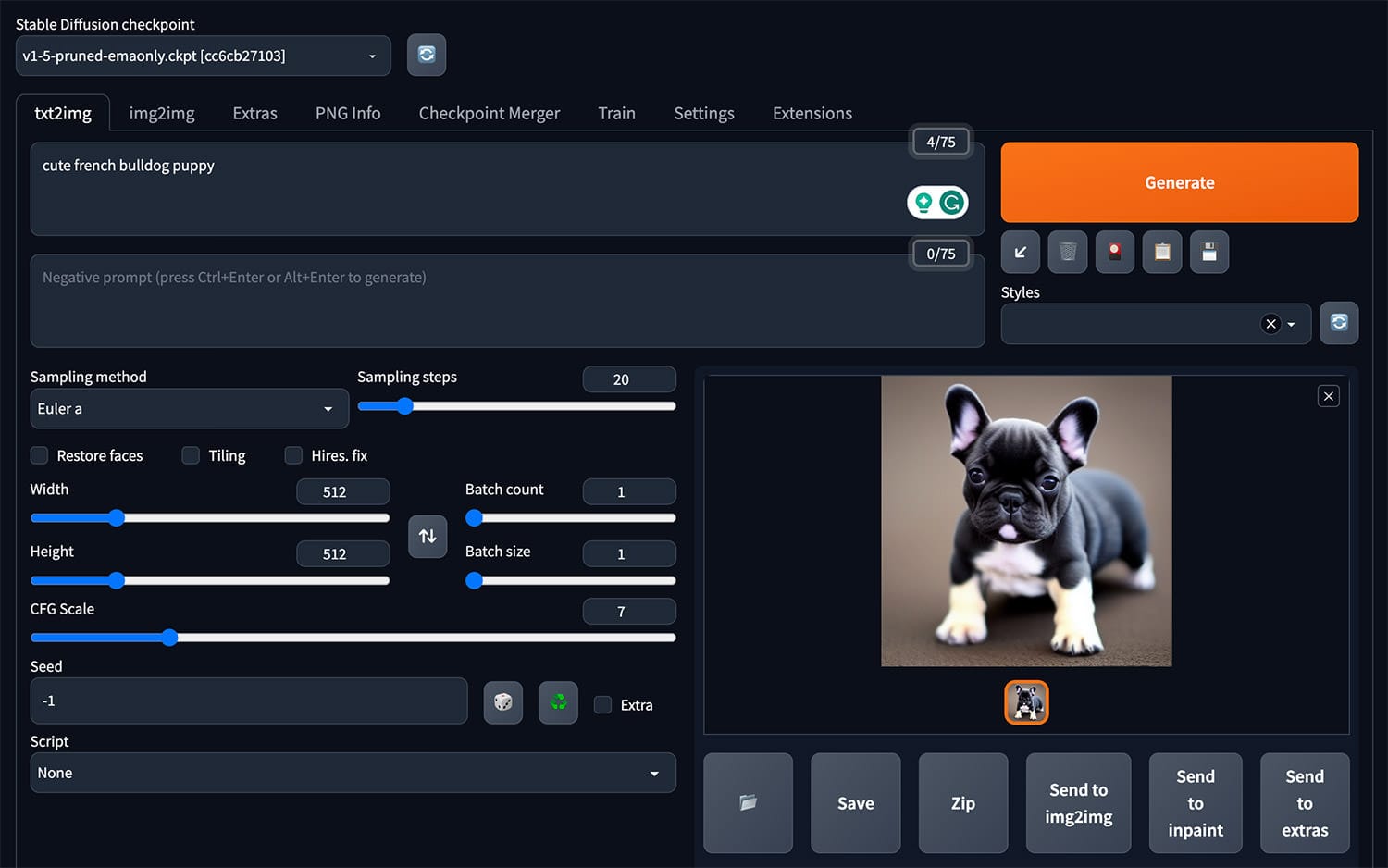
This guide provides a comprehensive walkthrough for deploying Automatic1111's Stable Diffusion WebUI using Docker on Ubuntu 22.04 (recommended) or newer. By the end, you'll have a secure, accessible installation that can be reached from your local network, WSL, and integrated with Pi-hole or other DNS servers.
Introduction: Understanding Automatic1111 and Docker Deployment#
Automatic1111's Stable Diffusion WebUI is a powerful, feature-rich interface for Stable Diffusion, allowing you to generate images from text prompts, perform inpainting, outpainting, and utilize various other AI image generation techniques. Using Docker for deployment offers several advantages:
- Consistent environment across different systems
- Simplified dependency management
- Easy updates and rollbacks
- Isolation from the host system
- Portable configuration
Docker containers encapsulate the application and its dependencies, making installation and maintenance significantly easier while ensuring the application runs identically across different environments.
Directory Structure: This guide uses ~/docker_data in your home directory. We'll create subdirectories within ~/docker_data for each service (e.g., ~/docker_data/automatic1111, ~/docker_data/traefik). All commands use relative paths within this structure, making them easy to copy and paste.
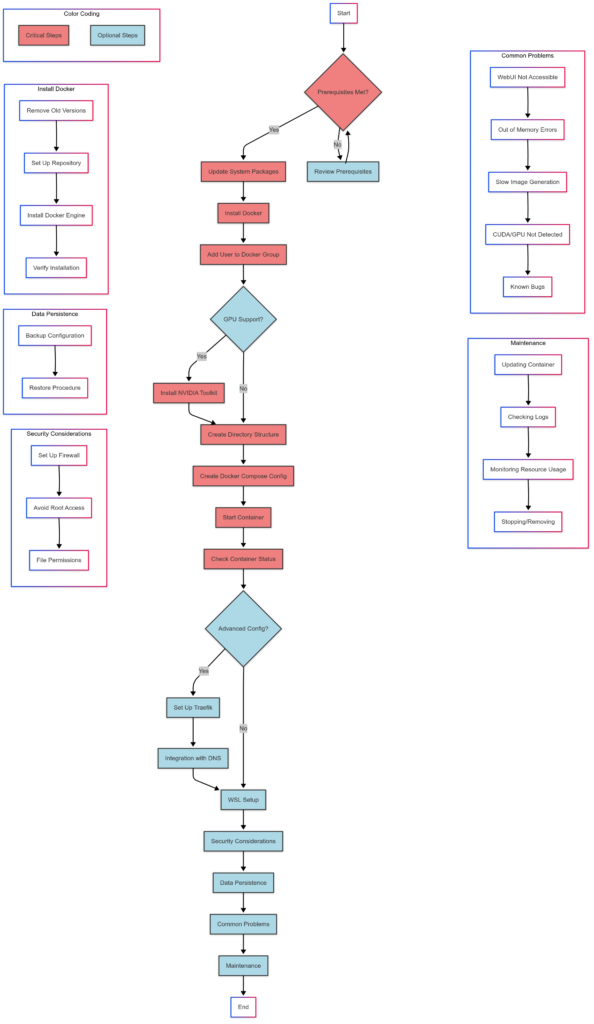
Instruction layout/flow
Prerequisites#
Software Requirements#
- Ubuntu 22.04 (recommended) or newer
- Docker Engine 20.10.0 or newer
- Docker Compose v2.0.0 or newer
- NVIDIA GPU drivers (for GPU acceleration)
- Git
Hardware Requirements#
- CPU: 4+ cores recommended
- RAM: 8GB minimum, 16GB+ recommended
- Storage: 20GB+ free space
- GPU: NVIDIA GPU with 6GB+ VRAM (for optimal performance)
Network Requirements#
- Port 7860 available (default for Stable Diffusion WebUI)
- Local network access (if planning to access from other devices)
Required Permissions#
- sudo access (for Docker installation and configuration)
- User added to the docker group
Installation Process#
Step 1: Update System Packages#
sudo apt update && sudo apt upgrade -y
This ensures your system is up-to-date with the latest security patches and package versions.
Step 2: Install Docker#
# Remove any old versions (if present)
sudo apt remove -y docker docker-engine docker.io containerd runc

# Set up the repository
sudo apt update
sudo apt install -y ca-certificates curl gnupg lsb-release
sudo mkdir -p /etc/apt/keyrings
curl -fsSL https://download.docker.com/linux/ubuntu/gpg | sudo gpg --dearmor -o /etc/apt/keyrings/docker.gpg
echo \
  "deb [arch=$(dpkg --print-architecture) signed-by=/etc/apt/keyrings/docker.gpg] https://download.docker.com/linux/ubuntu \
  $(lsb_release -cs) stable" | sudo tee /etc/apt/sources.list.d/docker.list > /dev/null

# Install Docker Engine
sudo apt update
sudo apt install -y docker-ce docker-ce-cli containerd.io docker-buildx-plugin docker-compose-plugin
Verify Docker installation:
sudo docker run hello-world
You should see a "Hello from Docker!" message indicating successful installation.
Step 3: Add Your User to the Docker Group#
sudo usermod -aG docker $USER
Important: Log out and log back in for the group changes to take effect (or run newgrp docker). You can verify with:
groups
You should see "docker" in the list of groups.
Step 4: Install NVIDIA Container Toolkit (for GPU Support)#
# Add the NVIDIA Container Toolkit repository
distribution=$(lsb_release -cs)
curl -s -L https://nvidia.github.io/nvidia-docker/$distribution/nvidia-docker.list | sudo tee /etc/apt/sources.list.d/nvidia-docker.list
curl -s -L https://nvidia.github.io/nvidia-docker/gpgkey | sudo apt-key add -

# Update package database
sudo apt update

# Install the NVIDIA Container Toolkit
sudo apt install -y nvidia-docker2

# Restart Docker
sudo systemctl restart docker
Verify NVIDIA Docker support:
docker run --rm --gpus all nvidia/cuda:11.8.0-base-ubuntu22.04 nvidia-smi
This should display your GPU information, confirming that Docker can access your GPU.
Step 5: Create Directory Structure#
mkdir -p ~/docker_data/automatic1111
cd ~/docker_data/automatic1111
mkdir -p data config models extensions outputs
This creates a consistent directory structure for your Stable Diffusion setup.
Step 6: Create Docker Compose Configuration#
cat > docker-compose.yml << 'EOF'
version: '3'
services:
  automatic1111:
    container_name: automatic1111
    image: abhitronix/stable-diffusion-webui:latest-ubuntu22.04
    restart: unless-stopped
    ports:
      - "127.0.0.1:7860:7860"  # Expose port 7860 only on localhost
    volumes:
      - ./data:/data
      - ./config:/data/config
      - ./models:/data/models
      - ./extensions:/data/config/auto/extensions
      - ./outputs:/data/outputs
    command: >
      python -u webui.py
      --listen  # Listen on all interfaces (0.0.0.0)
      --port 7860  # Use port 7860
      --xformers  # Enable xformers for performance
      --enable-insecure-extension-access  # Allow installing extensions
      --api  # Enable the API
    deploy:
      resources:
        limits:
          cpus: '4'  # Adjust based on your system
          memory: 16G  # Adjust based on your system
        reservations:
          devices:
            - driver: nvidia
              count: 1
              capabilities: [gpu]
    networks:
      - proxy
      - default

networks:
  proxy:
    name: proxy
    external: false
EOF
This creates a Docker Compose file that configures the Automatic1111 container with appropriate volumes, ports, and GPU access.
Step 7: Start the Container#
docker compose up -d
The container will start in detached mode. The first run will take some time as it downloads required files and configurations.
Step 8: Check Container Status#
docker ps
You should see the automatic1111 container running. You can check logs with:
docker logs -f automatic1111
Look for the line: Running on local URL: http://0.0.0.0:7860 which indicates the WebUI is running.
Advanced Configuration#
Setting Up Traefik for Secure Access#
For more secure access with HTTPS support, we can use Traefik as a reverse proxy:
mkdir -p ~/docker_data/traefik/{config,data}
cd ~/docker_data/traefik
mkdir -p config/dynamic data/acme
Install apache2-utils for htpasswd:
sudo apt install -y apache2-utils

# Generate a hashed password for basic authentication. Replace 'myuser' and 'mypassword'.
htpasswd -nb myuser mypassword
# Copy the ENTIRE output and paste it into the configuration below.
Create the Traefik configuration file:
cat > config/traefik.yml << 'EOF'
global:
  checkNewVersion: true
  sendAnonymousUsage: false

api:
  dashboard: true
  insecure: false

entryPoints:
  http:
    address: ":80"
    http:
      redirections:
        entryPoint:
          to: https
          scheme: https
  https:
    address: ":443"

certificatesResolvers:
  default:
    acme:
      email: [email protected]
      storage: /etc/traefik/acme/acme.json
      tlsChallenge: {}

providers:
  docker:
    endpoint: "unix:///var/run/docker.sock"
    exposedByDefault: false
    network: proxy
  file:
    directory: /etc/traefik/dynamic
    watch: true
EOF
Create dynamic configuration for basic auth:
cat > config/dynamic/config.yml << 'EOF'
http:
  middlewares:
    basic-auth:  # Define the basic auth middleware
      basicAuth:
        users:
          - "admin:$apr1$ruca84Hq$mbjdMZBAG.KWn7vfN/SNK/"  # Replace with your generated hash!

  routers:
    traefik:  # Router for the Traefik dashboard
      rule: "Host(`traefik.local`)"  # Replace with your desired domain for the dashboard
      entryPoints:
        - "https"
      service: "api@internal"  # Use Traefik's internal API service
      tls: {}  # Enable TLS
      middlewares:
        - basic-auth  # Apply the basic auth middleware
EOF
Create Docker Compose file for Traefik:
cat > docker-compose.yml << 'EOF'
version: '3'
services:
  traefik:
    container_name: traefik
    image: traefik:v2.10
    restart: unless-stopped
    security_opt:
      - no-new-privileges:true
    ports:
      - "80:80"
      - "443:443"
    volumes:
      - /var/run/docker.sock:/var/run/docker.sock:ro
      - ./config/traefik.yml:/etc/traefik/traefik.yml:ro
      - ./config/dynamic:/etc/traefik/dynamic:ro
      - ./data/acme:/etc/traefik/acme
    networks:
      - proxy
    labels:
      - "traefik.enable=true"

networks:
  proxy:
    external: true
EOF
Now update the Automatic1111 Docker Compose file:
cd ~/docker_data/automatic1111
cat > docker-compose.yml << 'EOF'
version: '3'
services:
  automatic1111:
    container_name: automatic1111
    image: abhitronix/stable-diffusion-webui:latest-ubuntu22.04
    restart: unless-stopped
    volumes:
      - ./data:/data
      - ./config:/data/config
      - ./models:/data/models
      - ./extensions:/data/config/auto/extensions
      - ./outputs:/data/outputs
    command: >
      python -u webui.py
      --listen
      --port 7860
      --xformers
      --enable-insecure-extension-access
      --api
    deploy:
      resources:
        limits:
          cpus: '4'
          memory: 16G
        reservations:
          devices:
            - driver: nvidia
              count: 1
              capabilities: [gpu]
    networks:
      - proxy
    labels:
      - "traefik.enable=true"
      - "traefik.http.routers.automatic1111.rule=Host(`sd.local`)"
      - "traefik.http.routers.automatic1111.entrypoints=https"
      - "traefik.http.routers.automatic1111.tls=true"
      - "traefik.http.services.automatic1111.loadbalancer.server.port=7860"
      - "traefik.http.routers.automatic1111.middlewares=basic-auth"

networks:
  proxy:
    external: true
EOF
Create the external network and start Traefik:
docker network create proxy
cd ~/docker_data/traefik
docker compose up -d
Then start (or restart) Automatic1111:
cd ~/docker_data/automatic1111
docker compose up -d
Add entries to your hosts file:
sudo sh -c 'echo "127.0.0.1 sd.local traefik.local" >> /etc/hosts'
Now you can access:
- Stable Diffusion WebUI at https://sd.local
- Traefik dashboard at https://traefik.local
Integration with Pi-hole or Other DNS Servers#
To make Automatic1111 accessible through Pi-hole's DNS:
- If Pi-hole is running in Docker, make sure it's on the same Docker network:
cd ~/docker_data/pihole
Add the proxy network to your Pi-hole docker-compose.yml:
networks:
  - proxy
  - default

networks:
  proxy:
    external: true
  default:
- Restart Pi-hole:
docker compose down && docker compose up -d
- Add a Local DNS record in Pi-hole:
- Access the Pi-hole admin interface
- Go to Local DNS > DNS Records
- Add a new record with:
- Domain: sd.local
- IP Address: [Your server's IP address]
Now all devices using Pi-hole as their DNS server can access Stable Diffusion WebUI at http://sd.local.
This same approach works with any DNS server - just add the appropriate A record pointing to your server.
WSL Setup for Windows Users#
For Windows users who want to access the Automatic1111 installation from WSL:
- Install WSL if you haven't already:
wsl --install -d Ubuntu
- In your WSL Ubuntu instance, add an entry to the hosts file:
echo "127.0.0.1 sd.local" | sudo tee -a /etc/hosts
- For direct connection to the Automatic1111 WebUI from Windows, add to Windows hosts file:
# Add to C:\Windows\System32\drivers\etc\hosts
127.0.0.1 sd.local
- Alternatively, set up an SSH tunnel from WSL to access a remote Automatic1111 instance:
ssh -L 7860:localhost:7860 username@remote-server
Then access via http://localhost:7860 in your Windows browser.
Security Considerations#
Setting Up a Firewall#
Set up a firewall before starting any services:
sudo apt install -y ufw
sudo ufw default deny incoming
sudo ufw default allow outgoing
sudo ufw allow ssh
sudo ufw allow 80/tcp
sudo ufw allow 443/tcp
# Optional: allow access from your local network
sudo ufw allow from 192.168.1.0/24 to any port 80,443
sudo ufw enable
Replace 192.168.1.0/24 with your actual local network address range.
Avoiding Root Access#
The Docker Compose configuration already handles this, but ensure the container is not running as root:
docker exec -it automatic1111 whoami
File Permissions#
Set proper permissions for the data directories:
chmod -R 755 ~/docker_data/automatic1111
Data Persistence#
Backup Configuration#
Create a backup script:
cat > ~/docker_data/automatic1111/backup.sh << 'EOF'
#!/bin/bash
BACKUP_DIR=~/backups/automatic1111
TIMESTAMP=$(date +%Y%m%d_%H%M%S)
mkdir -p $BACKUP_DIR

# Create backup archive
tar -czf $BACKUP_DIR/automatic1111_$TIMESTAMP.tar.gz -C ~/docker_data automatic1111

# Keep only the last 7 backups
find "$BACKUP_DIR" -name "automatic1111_*.tar.gz" -type f -mtime +7 -delete

echo "Backup created at $BACKUP_DIR/automatic1111_$TIMESTAMP.tar.gz"
EOF
chmod +x ~/docker_data/automatic1111/backup.sh
Restore Procedure#
mkdir -p ~/docker_data
tar -xzf ~/backups/automatic1111/automatic1111_TIMESTAMP.tar.gz -C ~/docker_data
cd ~/docker_data/automatic1111
docker compose up -d
Common Problems and Solutions#
Problem: WebUI not accessible outside localhost#
Solution:
# Ensure the --listen argument is in the docker-compose.yml
# Restart the container
docker compose down && docker compose up -d
Problem: Out of memory errors#
Solution:
# Adjust memory limits in docker-compose.yml
limits:
  memory: 24G  # Increase as needed
Problem: Slow image generation#
Diagnostic command:
# Check if xformers is enabled
docker exec -it automatic1111 python -c "import xformers; print('xformers is installed')"
Solution:
# Ensure --xformers is in the command arguments
# Or try different samplers in the WebUI settings
If xformers isn't installed, you may need to rebuild the container or install it manually:
docker exec -it automatic1111 pip install xformers
Problem: CUDA/GPU not detected#
Diagnostic command:
docker exec -it automatic1111 nvidia-smi
Solutions:
# Reinstall NVIDIA Container Toolkit
sudo apt purge -y nvidia-container-toolkit
sudo apt install -y nvidia-docker2
sudo systemctl restart docker

# Verify Docker GPU access
docker run --rm --gpus all nvidia/cuda:11.8.0-base-ubuntu22.04 nvidia-smi
Known Bugs and Workarounds#
Issue: Docker attaching gets stuck with "Attaching to webui-docker-auto-1"#
Workaround:
# Use Docker Compose version 2.17.2 or newer
pip install docker-compose==2.17.2
Issue: Model downloads fail during container startup#
Workaround:
# Manually download models and place them in the models directory
cd ~/docker_data/automatic1111/models/Stable-diffusion
wget https://huggingface.co/stabilityai/stable-diffusion-2-1-base/resolve/main/v2-1_512-ema-pruned.safetensors
Maintenance Procedures#
Updating the Container#
cd ~/docker_data/automatic1111
docker compose pull
docker compose down
docker compose up -d
Checking Logs#
# View real-time logs
docker logs -f automatic1111

# View last 100 lines
docker logs --tail 100 automatic1111
Monitoring Resource Usage#
docker stats automatic1111
Stopping and Removing#
# Stop the container
docker compose down

# Remove container, images, and volumes
# WARNING: This command will delete your Stable Diffusion models, configurations, and generated images!
# Make sure you have a backup if you need to keep this data.
docker compose down --rmi all -v
To remove Traefik data:
cd ~/docker_data/traefik
docker compose down --rmi all -v
Conclusion#
You now have a complete, secure setup of Automatic1111's Stable Diffusion WebUI running in Docker on Ubuntu. This setup provides flexibility for access from your local network, integration with Pi-hole for easy access across devices, and compatibility with WSL for Windows users.
By following the security recommendations, your installation should be reasonably protected against unauthorized access. The data persistence configuration ensures that your models, configurations, and generated images are safely stored and can be backed up.
For the latest updates and enhancements, regularly check the official Automatic1111 repository and consider contributing to the open-source community that makes these incredible AI tools accessible to everyone.