Comprehensive Guide to Installing AccVideo: Accelerating Video Diffusion Models
Before you start
- 3 min read
- 19 to run in terminal
- 3 file contents
Boxes marked Run in terminal are what you type; plain text explains why. Check what you need first
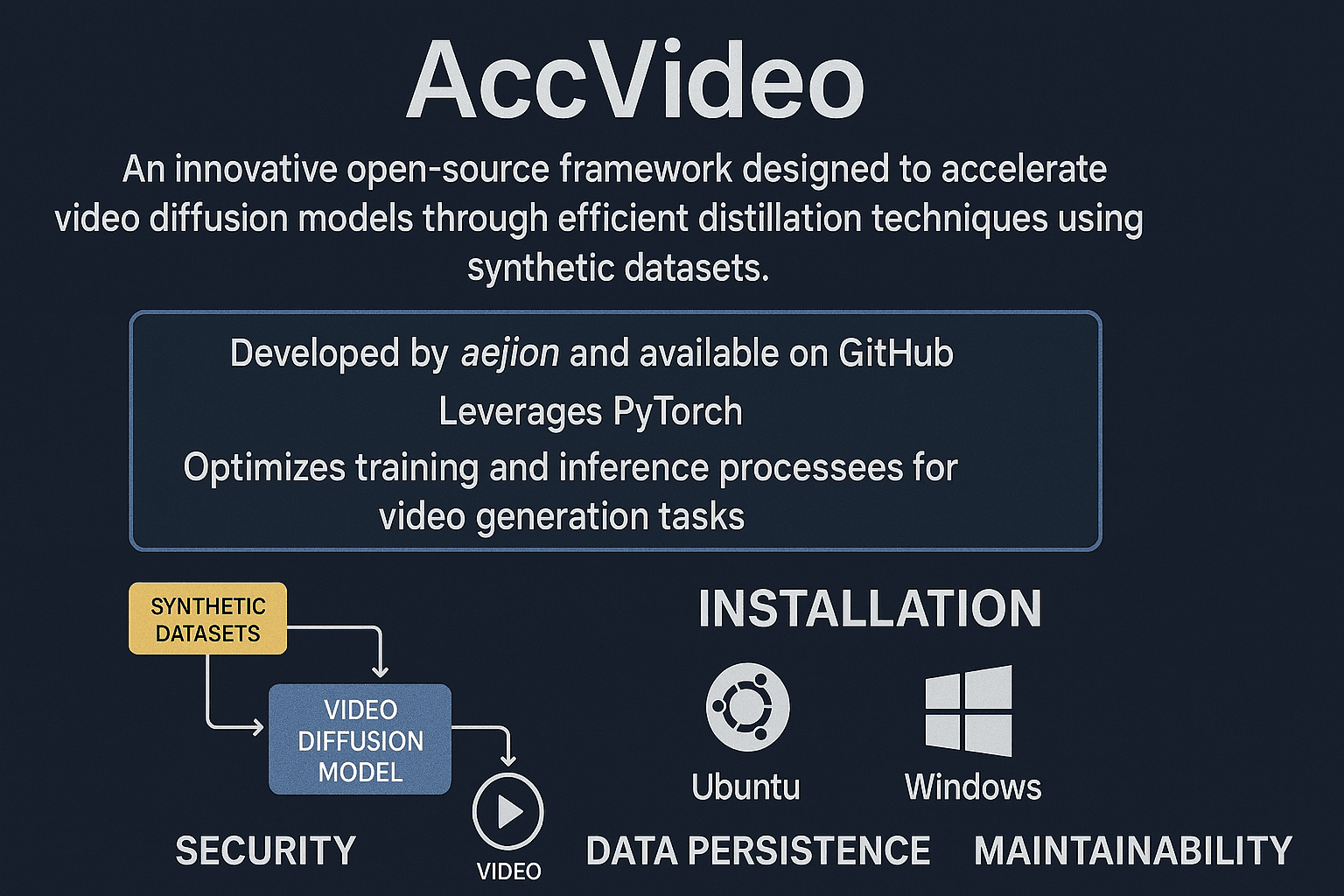
AccVideo is an innovative open-source framework designed to accelerate video diffusion models through efficient distillation techniques using synthetic datasets. Developed by aejion and available on GitHub, this tool leverages PyTorch to optimize the training and inference processes for video generation tasks. This guide provides detailed installation instructions for Ubuntu, Windows, and Docker environments, adhering to best practices for security, data persistence, and maintainability.
Prerequisites#
Hardware Requirements#
- CPU: x86_64/AMD64 or ARM64 architecture (4+ cores recommended)
- RAM: 8GB minimum (16GB+ for large-scale training)
- GPU: NVIDIA GPU with 8GB+ VRAM (RTX 3080 or equivalent recommended)
- Storage: 50GB+ free space (NVMe SSD preferred for dataset handling)
Software Requirements#
- Ubuntu: 22.04 LTS or 20.04 LTS
- Windows: Windows 10/11 with WSL2 enabled
- Docker: 24.0+ with Compose Plugin v2.21+
- NVIDIA Drivers: 535+ with CUDA 12.2 toolkit
- Python: 3.10+ with pip package manager
Network Requirements#
- Minimum 10Mbps internet connection for model downloads
- Open ports 8000-8010 for local development
- HTTPS access to PyPI and GitHub repositories
Ubuntu Installation#
Step 1: System Preparation#
sudo apt update && sudo apt upgrade -y
sudo apt install -y build-essential cmake ninja-build git libssl-dev python3-dev python3-venv
Potential Issues:
- Missing
lsb_release:
sudo apt install -y lsb-release
Step 2: CUDA Toolkit Installation#
wget https://developer.download.nvidia.com/compute/cuda/repos/ubuntu2204/x86_64/cuda-ubuntu2204.pin
sudo mv cuda-ubuntu2204.pin /etc/apt/preferences.d/cuda-repository-pin-600
wget https://developer.download.nvidia.com/compute/cuda/12.2.2/local_installers/cuda-repo-ubuntu2204-12-2-local_12.2.2-535.104.05-1_amd64.deb
sudo dpkg -i cuda-repo-ubuntu2204-12-2-local_12.2.2-535.104.05-1_amd64.deb
sudo cp /var/cuda-repo-ubuntu2204-12-2-local/cuda-*-keyring.gpg /usr/share/keyrings/
sudo apt-get update
sudo apt-get -y install cuda-toolkit-12-2
Verify installation:
nvidia-smi
nvcc --version
Step 3: Python Environment Setup#
python3 -m venv accvideo-env
source accvideo-env/bin/activate
pip install --upgrade pip setuptools wheel
Step 4: Clone and Install AccVideo#
git clone https://github.com/aejion/AccVideo.git
cd AccVideo
pip install -r requirements.txt
pip install -e .
Verification:
python -c "import accvideo; print(accvideo.__version__)"
Windows Installation via WSL2#
Step 1: Enable WSL2#
wsl --install -d Ubuntu-22.04
wsl --set-version Ubuntu-22.04 2
Step 2: NVIDIA CUDA Setup#
curl -O https://developer.download.nvidia.com/compute/cuda/repos/wsl-ubuntu/x86_64/cuda-wsl-ubuntu.pin
sudo mv cuda-wsl-ubuntu.pin /etc/apt/preferences.d/cuda-repository-pin-600
sudo apt-key adv --fetch-keys https://developer.download.nvidia.com/compute/cuda/repos/wsl-ubuntu/x86_64/3bf863cc.pub
sudo add-apt-repository "deb https://developer.download.nvidia.com/compute/cuda/repos/wsl-ubuntu/x86_64/ /"
sudo apt-get update
sudo apt-get -y install cuda-toolkit-12-2
Step 3: Python Installation#
sudo apt install -y python3.10 python3.10-venv
python3.10 -m venv accvideo-env
source accvideo-env/bin/activate
pip install torch==2.1.0+cu121 -f https://download.pytorch.org/whl/torch_stable.html
Docker Installation with Traefik#
Step 1: Directory Structure#
mkdir -p ~/docker_data/accvideo/{models,config}
Step 2: docker-compose.yml#
version: '3.8'
services:
  accvideo:
    image: pytorch/pytorch:2.1.0-cuda12.1-cudnn8-runtime
    restart: unless-stopped
    command: bash -c "git clone https://github.com/aejion/AccVideo.git && cd AccVideo && pip install -r requirements.txt && python app.py"
    volumes:
      - ~/docker_data/accvideo/models:/workspace/models
      - ~/docker_data/accvideo/config:/workspace/config
    networks:
      - proxy
    labels:
      - "traefik.enable=true"
      - "traefik.http.routers.accvideo.rule=Host(`accvideo.yourdomain.com`)"
      - "traefik.http.routers.accvideo.entrypoints=https"
      - "traefik.http.routers.accvideo.tls.certresolver=leresolver"
      - "traefik.http.services.accvideo.loadbalancer.server.port=8000"

networks:
  proxy:
    external: true
Step 3: Launch Container#
docker compose -f ~/docker_data/accvideo/docker-compose.yml up -d
Configuration#
Model Parameters#
# config/training.yaml
diffusion:
  num_timesteps: 1000
  beta_schedule: "linear"
  loss_type: "hybrid"

distillation:
  teacher_model: "stabilityai/stable-diffusion-xl-base-1.0"
  student_model: "accvideo/sd-xl-distilled"
  temperature: 2.5
  kl_weight: 0.8
Environment Variables#
export ACCVIDEO_CACHE_DIR="~/accvideo_cache"
export HF_HOME="~/huggingface_cache"
export NVIDIA_VISIBLE_DEVICES="all"
Security Considerations#
Least Privilege Execution#
sudo useradd -r -s /bin/false accvideo-user
sudo chown -R accvideo-user:accvideo-user ~/docker_data/accvideo
Network Hardening#
sudo ufw allow proto tcp from 192.168.1.0/24 to any port 8000
sudo ufw deny out 25
Data Persistence#
Backup Strategy#
# Daily backup script
tar -czvf accvideo-$(date +%Y%m%d).tar.gz ~/docker_data/accvideo
rclone copy accvideo-*.tar.gz backup:accvideo/archives
Volume Configuration#
volumes:
  accvideo_models:
    driver: local
    driver_opts:
      type: nfs
      o: addr=192.168.1.100,rw
      device: ":/mnt/nas/accvideo/models"
Common Issues and Solutions#
CUDA Out of Memory#
# Add to training script
torch.cuda.empty_cache()
torch.backends.cudnn.benchmark = True
Dependency Conflicts#
python -m pip install --upgrade --force-reinstall --no-deps torch torchvision
Maintenance Procedures#
Model Updates#
docker compose exec accvideo bash -c "cd AccVideo && git pull origin main"
docker compose restart accvideo
Monitoring#
watch -n 5 "nvidia-smi && docker stats --no-stream"
This comprehensive guide provides multiple deployment options for AccVideo while emphasizing security and reproducibility. The Docker/Traefik integration enables production-grade deployments, while the native installations cater to development workflows. Regular monitoring of GPU utilization (≥85% during training) and VRAM allocation patterns is recommended for optimal performance.