Installing Metabase on Ubuntu via WSL2 with Docker: A Complete Guide for Beginners (Enterprise setup)
Before you start
- 7 min read
- 27 to run in terminal
- 1 to open in browser
Boxes marked Run in terminal are what you type; plain text explains why. Check what you need first
Introduction#
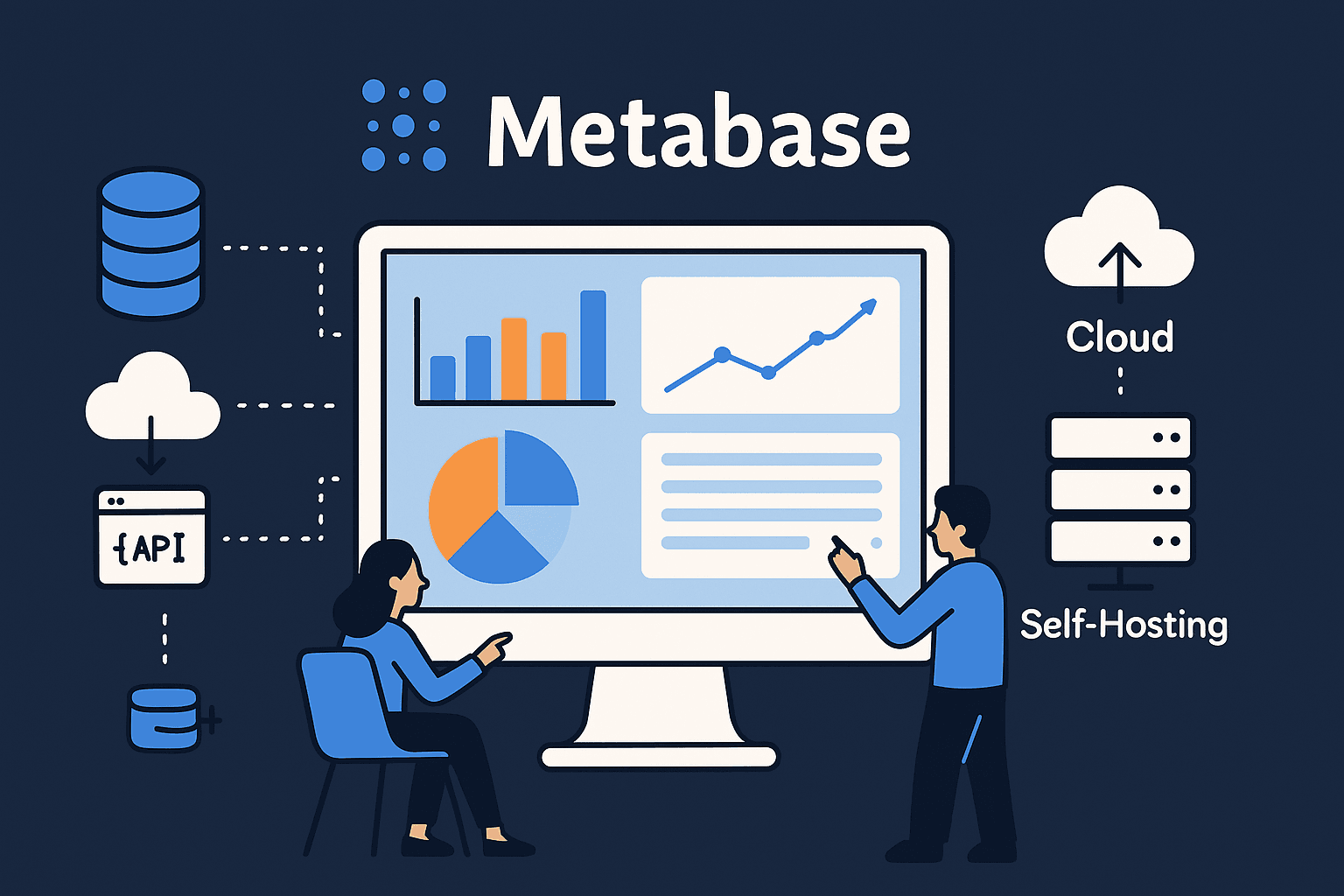
Metabase is a powerful, open-source business intelligence tool that lets you visualize and explore your data without needing to write SQL code. This guide shows you how to install Metabase on Windows using WSL2 (Windows Subsystem for Linux) with Docker, providing:
- Easy access through Windows while leveraging Linux's container optimization
- Enterprise-grade security and stability features
- Simple setup for powerful data visualization
- Persistent data storage that survives restarts
TIP: This method is perfect for data analysts who work on Windows machines but want the power of Linux containers.
Prerequisites#
Before starting, make sure you have:
- Windows 10/11 (Build 19041 or newer)
- 4GB RAM minimum (8GB recommended for smooth performance)
- Virtualization enabled in your BIOS/UEFI settings
- TIP: Most computers have this enabled by default. If not, you'll need to restart and press F2, F10, or Del during startup to enter BIOS settings.
- Administrator access on your Windows machine
- At least 10GB free disk space
- Internet connection to download packages
1. Setting Up WSL2#
Install WSL2 with Ubuntu#
wsl --set-default-version 2
wsl --install -d Ubuntu
This installs Ubuntu on WSL2. Your computer will restart automatically after installation.
TIP: If you see any error about virtualization, you need to enable it in your BIOS settings.
Verify WSL2 Installation#
wsl -l -v
You should see "Ubuntu" with "2" in the VERSION column. If it shows "1", convert it with:
wsl --set-version Ubuntu 2
HINT: If Ubuntu isn't running, type wsl in PowerShell to start it.
2. Installing Docker Engine#
Update Package Information#
sudo apt update && sudo apt install ca-certificates curl gnupg
This prepares your system with necessary certificates and tools.
TIP: When asked for your password, you won't see anything as you type - this is normal!
Set Up Docker Repository#
sudo install -m 0755 -d /etc/apt/keyrings
sudo curl -fsSL https://download.docker.com/linux/ubuntu/gpg -o /etc/apt/keyrings/docker.asc
sudo chmod a+r /etc/apt/keyrings/docker.asc
These commands download and set up Docker's security keys.
HINT: You might see a message about "Creating directory" - this is expected and means it's working correctly.
Add Docker Repository to APT Sources#
echo "deb [arch=$(dpkg --print-architecture) signed-by=/etc/apt/keyrings/docker.asc] \
https://download.docker.com/linux/ubuntu $(. /etc/os-release && echo "$VERSION_CODENAME") stable" | \
sudo tee /etc/apt/sources.list.d/docker.list > /dev/null
This adds Docker's official repository to your system.
TIP: Stick to official repositories for security and stability.
Install Docker Components#
sudo apt update && sudo apt install docker-ce docker-ce-cli containerd.io docker-buildx-plugin docker-compose-plugin
This installs Docker Engine and all necessary components.
HINT: This might take a few minutes depending on your internet speed.
Set Docker Permissions#
sudo usermod -aG docker $USER && newgrp docker
This lets you run Docker commands without typing sudo each time.
TIP: If you close your terminal, you might need to restart it for these permissions to take effect.
Test Docker Installation#
docker run --rm hello-world
You should see a "Hello from Docker!" message which confirms Docker is working correctly.
TROUBLESHOOTING: If you see "permission denied", try logging out and back in to WSL, or restart your computer.
3. Setting Up Metabase#
Create Directory Structure#
mkdir -p ~/docker_data/metabase/{data,config,postgres}
chmod -R 755 ~/docker_data
This creates folders to store your Metabase data persistently.
TIP: These directories will remain even if Metabase is uninstalled, protecting your data.
Create Docker Compose File#
cat > ~/docker_data/metabase/docker-compose.yml << 'EOF'
version: '3'

services:
  metabase:
    image: metabase/metabase:latest
    container_name: metabase
    depends_on:
      - postgres
    environment:
      - MB_DB_TYPE=postgres
      - MB_DB_DBNAME=metabase
      - MB_DB_PORT=5432
      - MB_DB_USER=metabase
      - MB_DB_PASS=SecurePass123!
      - MB_DB_HOST=postgres
      - JAVA_TIMEZONE=US/Pacific
    volumes:
      - ./data:/metabase-data
    ports:
      - 3000:3000
    restart: unless-stopped

  postgres:
    image: postgres:14
    container_name: metabase-postgres
    environment:
      - POSTGRES_USER=metabase
      - POSTGRES_PASSWORD=SecurePass123!
      - POSTGRES_DB=metabase
    volumes:
      - ./postgres:/var/lib/postgresql/data
    restart: unless-stopped
EOF
This creates the configuration file for Metabase and its database.
SECURITY TIP: Change SecurePass123! to your own password before proceeding.
Start Metabase#
cd ~/docker_data/metabase && docker compose up -d
This starts Metabase and PostgreSQL containers in the background.
TIP: The first start might take 2-3 minutes as Docker downloads the images.
Check Container Status#
docker ps
Verify both containers are running. You should see "metabase" and "metabase-postgres" listed with "Up" status.
TROUBLESHOOTING: If containers aren't running, check logs with docker logs metabase.
4. Accessing Metabase#
From WSL2 Ubuntu#
Open your browser and navigate to:
http://localhost:3000
TIP: If this doesn't work, try the Windows Host method below.
From Windows Host#
If you can't access Metabase from Windows, run this in PowerShell (as Administrator):
netsh interface portproxy add v4tov4 listenport=3000 listenaddress=0.0.0.0 connectport=3000 connectaddress=$(wsl hostname -I | awk '{print $1}')
This forwards Windows port 3000 to the WSL2 port.
HINT: You might need to run this command again if you restart your computer.
5. Initial Metabase Setup#
When you first access Metabase at http://localhost:3000, you'll need to:
- Create an admin account (remember these credentials!)
- Set your organization name
- Connect to your data sources (you can skip this and do it later)
TIP: Use a strong password for your admin account that you can remember.
6. Backing Up Your Data#
Create Backup Script#
cat > ~/docker_data/metabase/backup.sh << 'EOF'
#!/bin/bash
BACKUP_DIR=~/metabase_backups/$(date +%Y%m%d)
mkdir -p $BACKUP_DIR

# Backup PostgreSQL database
docker exec metabase-postgres pg_dump -U metabase metabase > $BACKUP_DIR/metabase.sql

# Backup H2 database files if they exist
cp ~/docker_data/metabase/data/*.db $BACKUP_DIR/ 2>/dev/null || echo "No H2 database files found"

echo "Backup completed to $BACKUP_DIR"
EOF
chmod +x ~/docker_data/metabase/backup.sh
This creates a backup script for your Metabase data.
TIP: Run this backup before any updates or changes to your system.
Run Backup Manually#
~/docker_data/metabase/backup.sh
This creates a backup in the ~/metabase_backups folder.
Schedule Automatic Backups#
(crontab -l 2>/dev/null; echo "0 2 * * * ~/docker_data/metabase/backup.sh") | crontab -
This sets up daily backups at 2:00 AM.
HINT: You can check if it's scheduled with crontab -l.
7. Updating Metabase#
Safe Update Procedure#
cd ~/docker_data/metabase && \
docker compose pull && \
docker compose down --timeout 120 && \
docker compose up -d --build
This updates Metabase to the latest version while preserving your data.
TIP: Always run a backup before updating!
8. Troubleshooting#
Check Logs#
docker logs metabase
View Metabase logs to identify issues.
TIP: Add --tail 100 to see just the last 100 lines: docker logs --tail 100 metabase.
Database Connection Issues#
If Metabase can't connect to PostgreSQL:
docker exec metabase nc -zv postgres 5432
This tests if Metabase can reach the database. You should see "Connection to postgres 5432 port succeeded!"
Reset Admin Password#
If you forget your admin password:
docker run -it --rm \
  -e MB_DB_TYPE=postgres \
  -e MB_DB_DBNAME=metabase \
  -e MB_DB_HOST=postgres \
  -e MB_DB_USER=metabase \
  -e MB_DB_PASS=SecurePass123! \
  --network container:metabase \
  metabase/metabase \
  java -jar /app/metabase.jar reset-password [email protected]
Replace "[email protected]" with your admin email. You'll get a password reset link in the console.
TIP: Copy the entire password reset URL - it's very long!
WSL2 Network Issues After Restart#
If you can't access Metabase after restarting your computer:
netsh interface portproxy delete v4tov4 listenport=3000 listenaddress=0.0.0.0
netsh interface portproxy add v4tov4 listenport=3000 listenaddress=0.0.0.0 connectport=3000 connectaddress=$(wsl hostname -I | awk '{print $1}')
This resets the port forwarding from Windows to WSL2.
9. Performance Monitoring#
Check Resource Usage#
docker stats metabase
This shows real-time CPU, memory, and network usage of your Metabase container.
TIP: Press Ctrl+C to exit the stats view.
Generate System Diagnostics#
docker exec metabase java -jar /app/metabase.jar diagnose
This creates a detailed report about Metabase's health and performance.
10. Known Issues (2025)#
- ARM64 Compatibility Issues
- Symptom: Errors on ARM-based Windows machines
- Fix: Add
--platform=linux/amd64to Docker commands
- Memory Leaks with JDK 21
- Symptom: Metabase slows down after running for several days
- Fix: Add this environment variable to the metabase service in docker-compose.yml:
- JAVA_TOOL_OPTIONS=-XX:+UseZGC
- WSL2 Port Forwarding After Sleep/Hibernate
- Symptom: Can't access Metabase after computer wakes up
- Fix: Re-run the netsh commands from section 8
TIP: Keep your Windows and WSL2 updated to minimize these issues.
11. Security Hardening (Optional)#
Run Docker Security Benchmark#
docker run -it --rm \
  -v /var/run/docker.sock:/var/run/docker.sock \
  docker/docker-bench-security
This checks your Docker installation for security best practices.
TIP: Don't worry about all warnings - focus on the "high" severity items first.
12. Uninstalling Metabase#
If you need to remove Metabase:
cd ~/docker_data/metabase && docker compose down
This stops and removes containers but keeps your data. To remove everything:
cd ~/docker_data/metabase && docker compose down -v && cd ~ && rm -rf ~/docker_data/metabase
WARNING: This permanently deletes all your Metabase data!
Conclusion#
You now have a production-ready Metabase installation running on Windows via WSL2 and Docker. This setup gives you the best of both worlds: Windows convenience with Linux's container optimization.
If you need just the basics, you can stop after section 5. For production use, we recommend completing all sections through section 7.
Remember to:
- Back up your data regularly
- Check for updates monthly
- Monitor your system resources if you notice slowdowns
For more information, visit the official Metabase documentation.