Complete Guide to Setting Up Awesome Self-Hosted Services with Docker on Ubuntu
Before you start
- 9 min read
- 54 to run in terminal
- 8 file contents
Boxes marked Run in terminal are what you type; plain text explains why. Check what you need first

This comprehensive guide will walk you through setting up a self-hosted environment on Ubuntu 20.04 or newer using Docker. You'll learn how to secure your services, access them via WSL, and configure local DNS with Pi-hole for seamless access across your network.
Before diving into the technical details, let's understand what we're building: a personal cloud infrastructure that gives you complete control over your data and services while maintaining security and ease of access.
Introduction: Self-Hosting with Docker#
Self-hosting allows you to run services on your own hardware instead of relying on third-party providers. Docker makes this process significantly easier by containerizing applications, ensuring consistency across environments, and simplifying deployment and updates.
Benefits of using Docker for self-hosting:
- Isolation: Each service runs in its own container
- Portability: Easy migration between hosts
- Consistency: Reproducible environments
- Security: Enhanced isolation compared to traditional installations
- Simplified updates: Update services with minimal downtime
- Resource efficiency: Lower overhead than virtual machines
instruction layout/flow
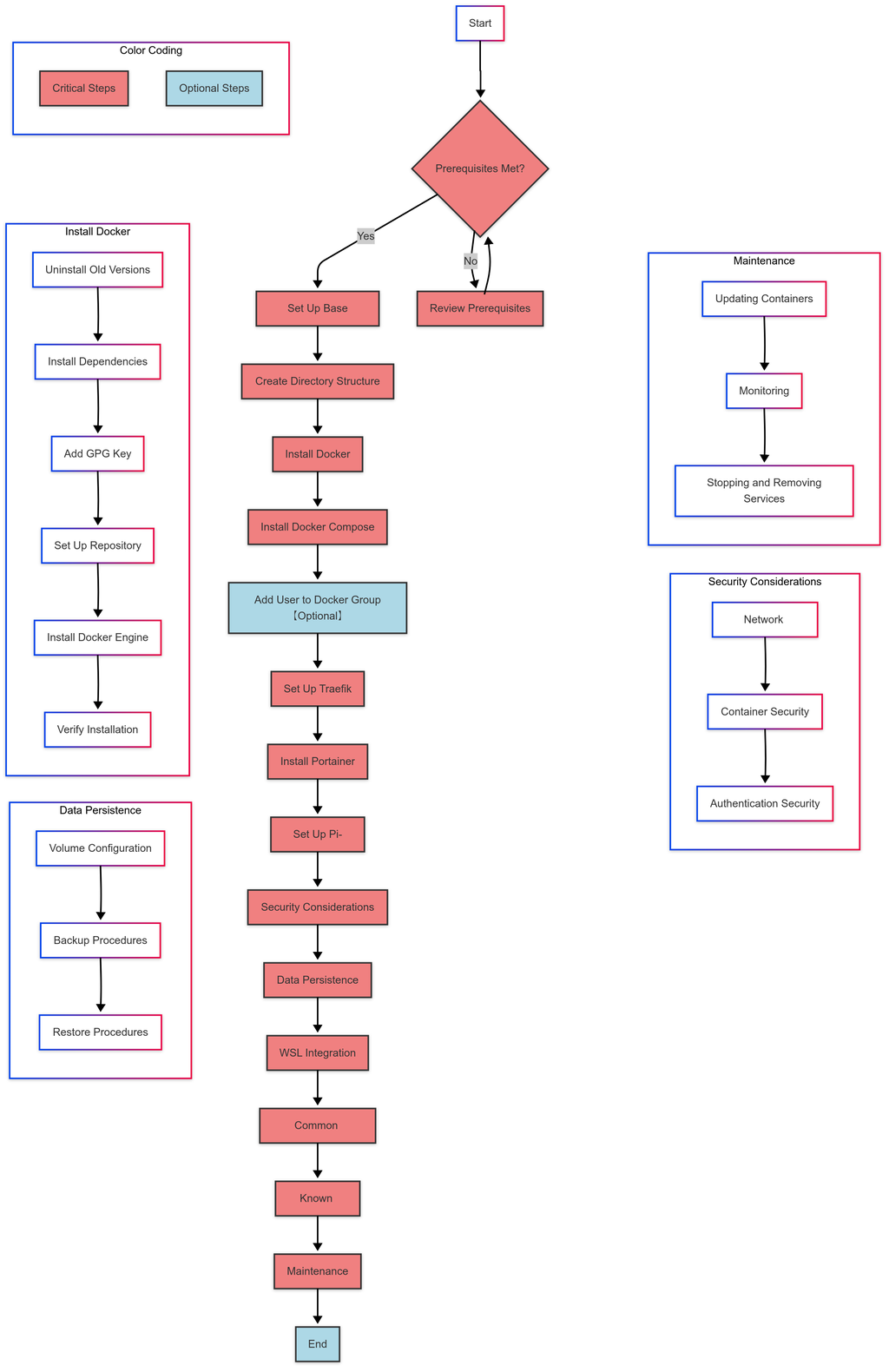
Prerequisites#
Hardware Requirements#
- A computer/server running Ubuntu 20.04 LTS or newer
- Minimum 4GB RAM (8GB+ recommended for multiple services)
- At least 50GB storage (SSD preferred)
- Stable network connection
Software/Network Requirements#
- Ubuntu 20.04 LTS or newer (server or desktop edition)
- sudo privileges
- Internet connection
- Router with port forwarding capabilities (if you want external access)
- Basic command line knowledge
Required Permissions#
- User with sudo access
- Ability to modify network settings
Installation Process#
Step 1: Set Up the Base System#
First, ensure your Ubuntu system is up-to-date:
sudo apt update && sudo apt upgrade -y
This updates your package lists and upgrades installed packages to their latest versions.
Step 2: Create Directory Structure#
We'll establish a consistent directory structure for our Docker data:
mkdir -p ~/docker_data/traefik/data ~/docker_data/traefik/config
mkdir -p ~/docker_data/portainer/data
mkdir -p ~/docker_data/pihole/data ~/docker_data/pihole/config
This creates the base directories for our core services. When adding more services later, you'll follow the same pattern of ~/docker_data/service_name/{data,config}.
Step 3: Install Docker#
Let's install Docker using the official repository:
# Uninstall old versions (if any)
sudo apt remove docker docker-engine docker.io containerd runc
Install required dependencies:
sudo apt install -y apt-transport-https ca-certificates curl software-properties-common gnupg lsb-release
Add Docker's official GPG key:
curl -fsSL https://download.docker.com/linux/ubuntu/gpg | sudo gpg --dearmor -o /usr/share/keyrings/docker-archive-keyring.gpg
Set up the stable repository:
echo "deb [arch=$(dpkg --print-architecture) signed-by=/usr/share/keyrings/docker-archive-keyring.gpg] https://download.docker.com/linux/ubuntu $(lsb_release -cs) stable" | sudo tee /etc/apt/sources.list.d/docker.list > /dev/null
Install Docker Engine:
sudo apt update
sudo apt install -y docker-ce docker-ce-cli containerd.io
Verify Docker installation:
sudo docker run hello-world
This should output a message confirming Docker is working correctly[^14][^15].
Step 4: Install Docker Compose#
Docker Compose makes managing multi-container applications easier:
sudo apt install -y docker-compose-plugin
Verify the installation:
docker compose version
Step 5: Add Your User to the Docker Group (Optional)#
This step allows you to run Docker commands without sudo:
sudo usermod -aG docker $USER
To apply this change, log out and log back in, or run:
newgrp docker
Test that you can run Docker without sudo:
docker run hello-world
Step 6: Set Up Traefik Reverse Proxy#
Traefik will route traffic to different services and handle HTTPS certificates:
cd ~/docker_data/traefik
Create a network for Traefik:
docker network create proxy
Create an .env file for configuration:
cat > .env << 'EOF'
# Your domain
DOMAIN=home.local
# Your email for Let's Encrypt
[email protected]
EOF
Create traefik.yml configuration:
cat > config/traefik.yml << 'EOF'
global:
  sendAnonymousUsage: false

api:
  dashboard: true
  insecure: false

entryPoints:
  http:
    address: ":80"
    http:
      redirections:
        entryPoint:
          to: https
          scheme: https
  https:
    address: ":443"

providers:
  docker:
    endpoint: "unix:///var/run/docker.sock"
    exposedByDefault: false
    network: proxy

certificatesResolvers:
  letsencrypt:
    acme:
      email: ${EMAIL}
      storage: /etc/traefik/acme.json
      httpChallenge:
        entryPoint: http
EOF
Create a file for basic HTTP authentication for the Traefik dashboard:
sudo apt install -y apache2-utils
mkdir -p config/auth
htpasswd -c config/auth/.htpasswd admin
Enter a strong password when prompted.
Create docker-compose.yml:
cat > docker-compose.yml << 'EOF'
version: '3.8'
services:
  traefik:
    image: traefik:v2.10
    container_name: traefik
    restart: unless-stopped
    security_opt:
      - no-new-privileges:true
    networks:
      - proxy
    ports:
      - 80:80
      - 443:443
    volumes:
      - /var/run/docker.sock:/var/run/docker.sock:ro
      - ./config/traefik.yml:/etc/traefik/traefik.yml:ro
      - ./config/auth/.htpasswd:/etc/traefik/auth/.htpasswd:ro
      - ./data/acme.json:/etc/traefik/acme.json
    labels:
      - "traefik.enable=true"
      - "traefik.http.routers.traefik.entrypoints=https"
      - "traefik.http.routers.traefik.rule=Host(`traefik.${DOMAIN}`)"
      - "traefik.http.routers.traefik.tls=true"
      - "traefik.http.routers.traefik.service=api@internal"
      - "traefik.http.routers.traefik.middlewares=traefik-auth"
      - "traefik.http.middlewares.traefik-auth.basicauth.usersfile=/etc/traefik/auth/.htpasswd"
      - "traefik.http.services.traefik.loadbalancer.server.port=8080"

networks:
  proxy:
    external: true
EOF
Create the acme.json file for storing SSL certificates:
touch data/acme.json
chmod 600 data/acme.json
Start Traefik:
docker compose up -d
Verify Traefik is running:
docker ps | grep traefik
Step 7: Install Portainer for Container Management#
Portainer provides a web UI to manage your Docker containers:
cd ~/docker_data/portainer
Create docker-compose.yml:
cat > docker-compose.yml << 'EOF'
version: '3.8'
services:
  portainer:
    image: portainer/portainer-ce:latest
    container_name: portainer
    restart: unless-stopped
    security_opt:
      - no-new-privileges:true
    networks:
      - proxy
    volumes:
      - /var/run/docker.sock:/var/run/docker.sock:ro
      - ./data:/data
    labels:
      - "traefik.enable=true"
      - "traefik.http.routers.portainer.rule=Host(`portainer.home.local`)"
      - "traefik.http.routers.portainer.entrypoints=https"
      - "traefik.http.routers.portainer.tls=true"
      - "traefik.http.services.portainer.loadbalancer.server.port=9000"

networks:
  proxy:
    external: true
EOF
Start Portainer:
docker compose up -d
Verify Portainer is running:
docker ps | grep portainer
Step 8: Set Up Pi-hole for DNS and Ad Blocking#
Pi-hole will provide local DNS resolution and network-wide ad blocking:
cd ~/docker_data/pihole
Create docker-compose.yml:
cat > docker-compose.yml << 'EOF'
version: '3.8'
services:
  pihole:
    container_name: pihole
    image: pihole/pihole:latest
    restart: unless-stopped
    hostname: pihole
    networks:
      - proxy
    ports:
      - "53:53/tcp"
      - "53:53/udp"
    environment:
      TZ: 'America/New_York'
      WEBPASSWORD: 'set-a-secure-password'
      SERVERIP: '192.168.1.x'  # Change to your server's IP address
    volumes:
      - ./config:/etc/pihole
      - ./data:/etc/dnsmasq.d
    cap_add:
      - NET_ADMIN
    labels:
      - "traefik.enable=true"
      - "traefik.http.routers.pihole.rule=Host(`pihole.home.local`)"
      - "traefik.http.routers.pihole.entrypoints=https"
      - "traefik.http.routers.pihole.tls=true"
      - "traefik.http.services.pihole.loadbalancer.server.port=80"

networks:
  proxy:
    external: true
EOF
Be sure to change the placeholder values:
- Set a secure password for WEBPASSWORD
- Update the TZ value to your timezone
- Change SERVERIP to your server's actual IP address
Start Pi-hole:
docker compose up -d
Verify Pi-hole is running:
docker ps | grep pihole
Configure your router to use Pi-hole as the DNS server, or configure individual devices to use your server's IP address for DNS.
Security Considerations#
Network Security#
- Use dedicated networks for different service types:
# Create additional networks as needed
docker network create backend
docker network create database
- Restrict container access to only necessary ports:
# Example of restricting a container to only localhost access
ports:
  - "127.0.0.1:8080:8080"
- Set up a firewall on your Ubuntu host:
sudo apt install -y ufw
sudo ufw default deny incoming
sudo ufw default allow outgoing
sudo ufw allow ssh
sudo ufw allow http
sudo ufw allow https
sudo ufw enable
Verify the firewall status:
sudo ufw status
Container Security#
- Run containers with non-root users when possible. In your docker-compose.yml files:
user: "1000:1000" # Replace with your actual UID:GID
Find your UID:GID with:
id
- Use read-only file systems where possible:
volumes:
  - ./config:/config:ro
- Limit container capabilities:
cap_drop:
  - ALL
cap_add:
  - NET_BIND_SERVICE
- Apply resource limits:
deploy:
  resources:
    limits:
      cpus: '0.5'
      memory: 512M
Authentication Security#
- Use strong passwords for all services
- Implement basic authentication for services exposed through Traefik
- For critical services, consider using 2FA where available
Data Persistence#
Volume Configuration#
All data is stored in ~/docker_data with a consistent structure:
~/docker_data/
  service_name/
    data/       # For service data
    config/     # For configuration files
    docker-compose.yml
Backup Procedures#
Set up a simple backup script:
cat > ~/backup-docker.sh << 'EOF'
#!/bin/bash
BACKUP_DIR="/path/to/backup/location"
DATE=$(date +%Y-%m-%d)
BACKUP_FILE="docker_backup_$DATE.tar.gz"

# Create backup directory if it doesn't exist
mkdir -p $BACKUP_DIR

# Compress the docker_data directory
tar -czf $BACKUP_DIR/$BACKUP_FILE ~/docker_data

# Optional: Prune old backups (keep last 7)
find $BACKUP_DIR -name "docker_backup_*" -type f -mtime +7 -delete

echo "Backup completed: $BACKUP_DIR/$BACKUP_FILE"
EOF
Make the script executable:
chmod +x ~/backup-docker.sh
Set up a cron job for automatic backups:
(crontab -l 2>/dev/null; echo "0 3 * * * ~/backup-docker.sh") | crontab -
This sets up a daily backup at 3 AM.
Restore Procedures#
To restore from a backup:
tar -xzf /path/to/backup/docker_backup_YYYY-MM-DD.tar.gz -C /
cd ~/docker_data
for d in */; do
  cd "$d"
  docker compose up -d
  cd ..
done
WSL Integration#
To access your self-hosted services from WSL:
Step 1: Install WSL on Windows#
Open PowerShell as Administrator and run:
wsl --install
Restart your computer if prompted.
Step 2: Set Up Docker Desktop for Windows#
- Download and install Docker Desktop for Windows from the official Docker website
- Enable the WSL 2 backend in Docker Desktop settings
- Enable integration with your WSL distribution in Docker Desktop settings[^4][^6]
Step 3: Access your self-hosted services from WSL#
WSL can access your host services using the host's IP address or hostname.
Add entries to your WSL hosts file:
sudo nano /etc/hosts
Add entries for your services:
192.168.1.x traefik.home.local portainer.home.local pihole.home.local
Replace 192.168.1.x with your actual server IP address.
Common Problems and Solutions#
Problem: Docker container won't start#
Diagnostic:
docker logs container_name
Solution: Check for port conflicts, missing volumes, or configuration errors.
Problem: Cannot access services through Traefik#
Diagnostic:
docker logs traefik
Solution:
- Verify Traefik is running:
docker ps | grep traefik - Check labels in docker-compose.yml for correct host rules
- Ensure DNS is properly configured to resolve your domain names
Problem: Pi-hole DNS resolution issues#
Diagnostic:
docker logs pihole
nslookup example.com your-server-ip
Solution:
- Check if Pi-hole container is running:
docker ps | grep pihole - Verify port 53 is not being used by another service:
sudo lsof -i :53 - If systemd-resolved is using port 53, disable it:
sudo systemctl disable systemd-resolved
sudo systemctl stop systemd-resolved
Problem: WSL cannot access host services#
Solution:
- Verify host IP address is correct
- Test connection with:
ping your-server-ip - Check Windows Firewall settings
Known Bugs and Workarounds#
Docker DNS Resolution Issues#
Some Docker containers may have DNS resolution problems.
Workaround: Create or modify /etc/docker/daemon.json:
sudo nano /etc/docker/daemon.json
Add the following:
{
  "dns": ["8.8.8.8", "8.8.4.4"]
}
Restart Docker:
sudo systemctl restart docker
Traefik Certificate Issues#
If Traefik has trouble obtaining certificates:
Workaround: Use a staging environment first:
certificatesResolvers:
  letsencrypt:
    acme:
      caServer: "https://acme-staging-v02.api.letsencrypt.org/directory"
Once confirmed working, remove the caServer line.
Maintenance Procedures#
Updating Containers#
Use Watchtower for automatic updates:
cd ~/docker_data
mkdir -p watchtower
cd watchtower
Create docker-compose.yml:
cat > docker-compose.yml << 'EOF'
version: '3.8'
services:
  watchtower:
    image: containrrr/watchtower
    container_name: watchtower
    restart: unless-stopped
    volumes:
      - /var/run/docker.sock:/var/run/docker.sock
    environment:
      - WATCHTOWER_CLEANUP=true
      - WATCHTOWER_SCHEDULE=0 0 4 * * *
      - TZ=America/New_York

networks:
  default:
    external: true
    name: proxy
EOF
Start Watchtower:
docker compose up -d
Monitoring#
To check container health and resource usage:
docker stats
For detailed logs:
docker logs -f container_name
Stopping and Removing Services#
To stop a service:
cd ~/docker_data/service_name
docker compose down
To completely remove a service including its data:
cd ~/docker_data
docker compose -f service_name/docker-compose.yml down -v
rm -rf service_name
Warning: This permanently deletes the service's data.
Conclusion#
You now have a complete self-hosted environment with Docker on Ubuntu, featuring:
- Traefik as a reverse proxy handling SSL certificates and routing
- Portainer for easy container management
- Pi-hole for network-wide ad blocking and DNS
- Integration with WSL for access from Windows
- Security best practices implemented
- Backup and maintenance procedures established
This solid foundation allows you to add more self-hosted services as needed. Simply follow the pattern of creating service directories in ~/docker_data with appropriate docker-compose.yml files.
Remember to check the official documentation for each service you add, as configuration options may change over time. Regularly backup your data and keep your system updated to ensure security and stability.
Happy self-hosting!