REA (Reverse Engineer Anything): Give Your AI Agent Reverse-Engineering Tools - Setup and Usage Guide
Before you start
- 12 min read
Boxes marked Run in terminal are what you type; plain text explains why. Check what you need first
What REA is, in one minute#
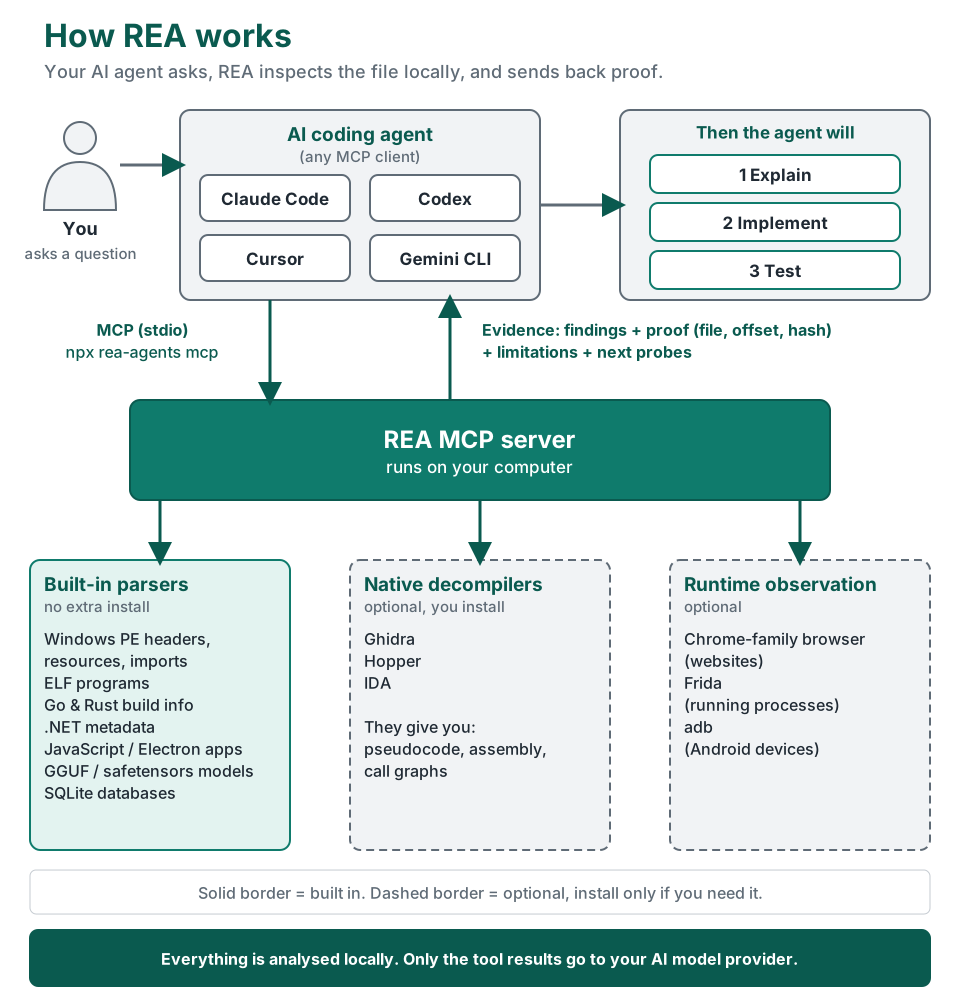
REA ("Reverse Engineer Anything") is a free, open-source MCP server that gives an AI coding agent a set of reverse-engineering tools. You ask your agent a question such as "how does search work in this app?", and the agent uses REA to look inside the finished program - without its source code - and answers with evidence: which file, which function, which byte offset, and what REA could not see.
- Who makes it: the open-source project morluto/rea (MIT licence), published on npm as
rea-agentsand listed in the official MCP Registry asio.github.morluto/rea. - Which agents: any agent that supports local MCP servers. The setup command configures Claude Code, Claude Desktop, Codex, Cursor, Gemini CLI, Windsurf, VS Code, OpenCode, GitHub Copilot CLI and more than a dozen others.
- What it can look at: Windows, Linux and macOS programs, JavaScript and Electron desktop apps, .NET assemblies, Android APKs, websites, AI model files (GGUF, safetensors), SQLite databases, firmware and network captures.
- Where it runs: on your own computer. Your files are analysed locally; only the tool results go to the AI model your agent uses.
Tested for this guide: Windows 11 Pro, Node.js 26.12.1, REA 6.7.0, Claude Code. 207 REA tools showed up in the agent after setup. Each REA command took 5-15 seconds on this PC.
How REA works#
- You ask your agent in plain words: "Find out how this app stores its settings and show me the evidence."
- The agent calls REA through the Model Context Protocol (MCP). REA runs as a small local process (
npx rea-agents mcp) that the agent starts itself. - REA picks the right analysis tool for the target:
| Tool group | Needs extra software? | What you get back |
|---|---|---|
| Built-in parsers | No | Windows PE headers, resources, imports and signatures; ELF notes; Go and Rust build info; .NET metadata; JavaScript/Electron modules, imports and IPC; GGUF/safetensors headers; SQLite tables |
| Native decompilers | Yes - Ghidra, Hopper or IDA (you install one) | Pseudocode, assembly, strings, symbols, call graphs and cross-references |
| Runtime observation | Yes - a Chrome-family browser, Frida or adb, depending on target | What a website loads and calls, what a running process does, Android device logs and screens |
- REA returns "Evidence": the finding, the proof behind it (file hash, path, offset, line), the limits of what it could see, and suggested next probes.
- The agent uses the Evidence to explain the feature, write a similar implementation for your own project, and test it.
Why this matters: an AI model guessing how a program works will often sound right and be wrong. REA makes the agent show where each claim comes from, so you can check it.
Before you start#
| You need | Version / note |
|---|---|
| Node.js + npm | 22.x (22.23.4 or newer), 24.x (24.22.1 or newer) or 26.12.1 or newer. Node.js 23, 25 and earlier 26.x are not supported. |
| An AI agent with MCP support | Claude Code, Codex, Cursor, Gemini CLI, VS Code, ... |
| Linux only | A procps-compatible ps command (package procps or procps-ng) |
| Optional, for native programs | Ghidra 12.1.x, Hopper or IDA |
| Permission | Only analyse software you own or are allowed to examine (see "Use it responsibly" below) |
Check your Node.js version first - this is the step that cost us the most time:
node --version
If it prints a version older than the ones in the table, update Node.js before going further. On Windows:
winget upgrade --id OpenJS.NodeJS --exact
Close and reopen your terminal (and your AI agent) afterwards so they pick up the new version. On Linux or macOS, use your usual installer (nodejs.org, your package manager, nvm or fnm).
Step 1: Install REA and connect your agent#
The official way is one command. It asks which agents to configure, shows every file it will change, makes backups, and only writes after you approve:
npx rea-agents setup
What happens:
- npm asks to download the
rea-agentspackage - answer yes. - REA lists the agents it found on your computer. Already-registered ones are pre-selected; new ones you tick yourself.
- REA shows the plan: config file paths, the skill (workflow instructions for the agent) it will install, and optional Hopper installation. Approve or cancel.
- Restart your agent. It only loads new MCP servers when it starts.
If you use Claude Desktop, quit it completely before approving - a running Claude Desktop can overwrite the new settings.
Option: register REA by hand (pinned version)#
We registered REA by hand in Claude Code, pinned to one exact version so it never changes on its own. Pinning is what REA's own documentation recommends for permanent registrations.
Claude Code on macOS / Linux:
claude mcp add --scope user rea -- npx -y [email protected] mcp
Claude Code on Windows (npx is a .cmd file there, so it is started through cmd):
claude mcp add --scope user rea -- cmd /d /c npx -y [email protected] mcp
Any other MCP client that uses a JSON settings file:
{
  "mcpServers": {
    "rea": {
      "command": "npx",
      "args": ["-y", "[email protected]", "mcp"]
    }
  }
}
Replace 6.7.0 with the current version from the npm page when you install.
Check it worked#
claude mcp get rea
You should see Status: ✔ Connected and Type: stdio. In a new Claude Code session, the REA tools appear under the name rea (in version 6.7.0 there are 207 of them).
For any agent, REA's own health check reads your setup without changing anything:
npx -y [email protected] doctor --client claude_code --json
Look for "healthy": true. Use the --client value for your agent: codex, cursor, gemini_cli, vscode, claude_desktop, opencode, and so on. The overall environment_healthy value can be false while your agent works fine - it is also counting optional tools such as Ghidra that you may not have installed.
Step 2: Your first analysis (built-in, no extra software)#
To show what REA really returns, we wrote a tiny Electron "notes" app with a search box - six short files - and asked REA how its search works. You can copy it and try the same.
Create a folder notes-demo with these files:
{ "name": "notes-demo", "version": "1.0.0", "main": "main.js" }
That is package.json. Next, main.js - the Node.js side that answers search requests:
const { app, BrowserWindow, ipcMain } = require('electron');
const path = require('path');
const { searchNotes } = require('./search');
ipcMain.handle('notes:search', (_e, query) => searchNotes(query));
app.whenReady().then(() => {
  const win = new BrowserWindow({ webPreferences: { preload: path.join(__dirname, 'preload.js') } });
  win.loadFile('index.html');
});
preload.js - the bridge between the web page and Node.js:
const { contextBridge, ipcRenderer } = require('electron');
contextBridge.exposeInMainWorld('notes', { search: (q) => ipcRenderer.invoke('notes:search', q) });
search.js - the search itself:
const notes = [{ title: 'Shopping', body: 'milk eggs' }, { title: 'Ideas', body: 'self-host an LLM' }];
function searchNotes(query) {
  const q = String(query).toLowerCase();
  return notes.filter((n) => (n.title + ' ' + n.body).toLowerCase().includes(q));
}
module.exports = { searchNotes };
index.html and renderer.js - the page with the search box:
<input id="q"><ul id="out"></ul>
<script src="renderer.js"></script>
document.getElementById('q').addEventListener('input', async (e) => {
  const hits = await window.notes.search(e.target.value);
  document.getElementById('out').innerHTML = hits.map((h) => '<li>' + h.title + '</li>').join('');
});
Now run REA's static JavaScript/Electron analysis on the folder (use the full path; on Windows forward slashes work, e.g. C:/Users/you/notes-demo):
npx -y [email protected] analyze-javascript-application /full/path/to/notes-demo
REA does not run the app - it only reads the files. On our PC it finished in about 12 seconds and printed a long, structured report. The parts that answer "how does search work":
kind: electron-preload
  resolved_path: preload.js
  mechanism: "BrowserWindow:webPreferences.preload"
...
namespace: electron-call-path-step
  channel: "notes:search"
  terminal: electron.ipcRenderer.invoke
  source: preload.js
...
kind: ipc-handler
  namespace: electron-ipc-handler
  key: "main:handle:notes:search:4:31-4:64"
  channel: "notes:search"
In plain words, REA found the whole path without being told anything about the app:
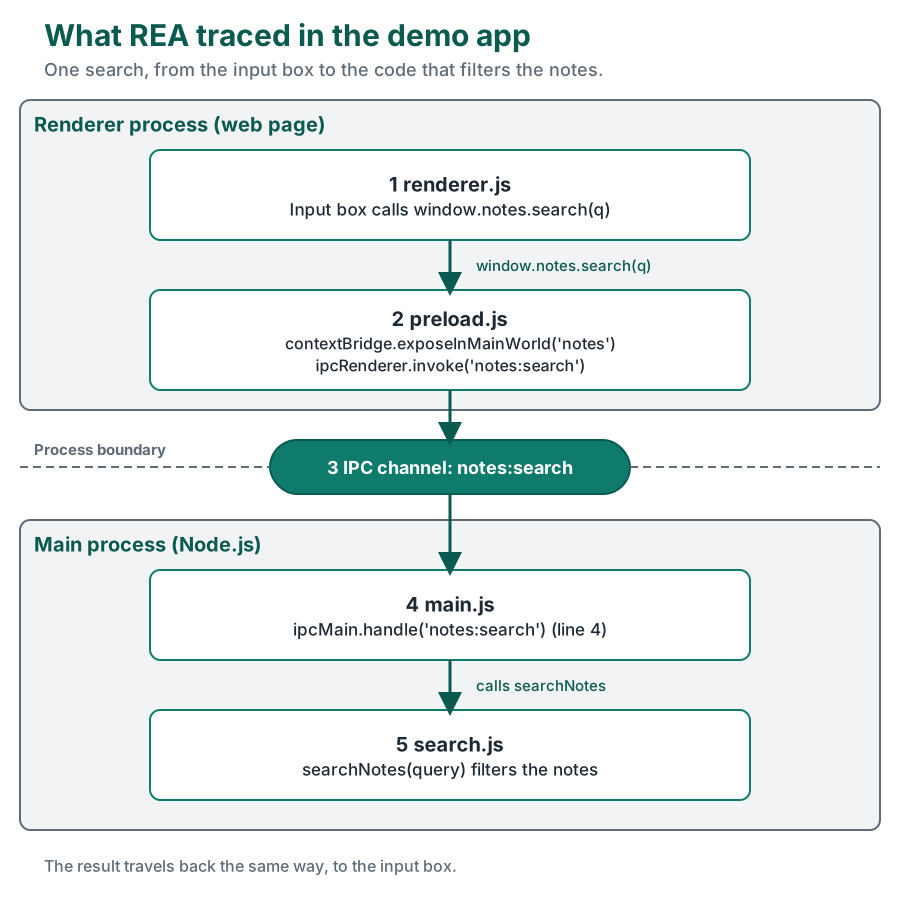
- the window loads
preload.js(found throughwebPreferences.preload), - the preload sends search requests over the IPC channel
notes:search, main.jshandles that channel at line 4, columns 31-64,- the handler calls
searchNotesfromsearch.js.
That exact chain is what your agent receives as Evidence when it calls REA through MCP.
Step 3: Ask your agent instead of typing commands#
The CLI is useful for scripts; day to day you simply ask your agent. Examples that work well:
Use REA to analyze the Electron app in C:/Users/you/notes-demo. Explain how search works,
from the search box to the code that filters the notes, and show the evidence for each step.
Use REA to inspect C:/tools/sometool.exe: what kind of file is it, what does it import,
is it signed, and what resources does it contain? List what you could not determine.
Use REA to find how the settings page of this app saves its options, then write a similar
settings module for my project and test it.
Tips from our testing:
- Name REA in the question ("use REA to ...") the first few times, so the agent picks REA's tools over guessing.
- Give full paths. REA works on local files and folders you point it at.
- Ask for the limitations. REA always records what it could not see; ask the agent to list them so you know how far to trust the answer.
- Copy the target first if it is a program in a system folder - analyse a copy in your own folder.
Step 4 (optional): Native programs need a decompiler#
Electron apps, .NET assemblies, Go and Rust build info and Windows PE headers work without anything extra. To read the code of a native program (C, C++, Swift, ...) REA needs one decompiler:
| Decompiler | Cost | Notes |
|---|---|---|
| Ghidra 12.1.x | Free (NSA, open source) | Needs Java. Point REA to it with the GHIDRA_INSTALL_DIR environment variable. Windows support in REA is marked experimental. |
| Hopper | Paid (demo available) | rea-agents setup can install it after you approve |
| IDA | Paid (free edition exists) | Uses your existing installation |
Without one, asking for a full overview of a native .exe fails with provider_unavailable (see Troubleshooting). Check a decompiler after installing it:
npx -y [email protected] doctor --provider ghidra --json
Keep REA up to date#
REA releases often and new versions fix many bugs. How you update depends on how you installed it:
| Installed with | Update |
|---|---|
npx rea-agents setup | npx rea-agents@latest setup, approve, restart the agent |
Pinned by hand ([email protected]) | Change the version number in your registration, restart the agent |
npm install --global rea-agents | rea update |
Remove REA#
With the global rea command installed (npm install --global rea-agents):
rea uninstall
This removes only REA's own agent registrations and skill files. Add --purge-data to also delete REA's cache. Your Node.js, decompilers, other MCP servers and saved Evidence files stay.
If you registered it by hand in Claude Code:
claude mcp remove rea -s user
Troubleshooting (real errors we hit)#
"Selected input changed while being read" (ESTALE)#
code: target_unavailable
message: "Cannot open artifact: target could not be read (ESTALE): Selected input changed while being read"
We got this for every file - and the same message from rea setup and rea doctor when they read the agent's settings file. The file had not changed. The cause was an old Node.js: our PC had Node.js 24.1.0, below REA's minimum of 24.22.1. After winget upgrade --id OpenJS.NodeJS --exact (to 26.12.1) the error was gone everywhere. Check node --version first.
"The selected analysis provider is unavailable" (provider_unavailable)#
code: provider_unavailable
reason: Set GHIDRA_INSTALL_DIR to an extracted Ghidra 12.1.x release directory.
This is what the general inspect command says on a native .exe when no decompiler is installed. Either install Ghidra, Hopper or IDA (Step 4), or use a built-in command that needs none, for example:
npx -y [email protected] inspect-pe-resources C:/path/to/program.exe
npx -y [email protected] inspect-artifact C:/path/to/program.exe
Each answered in about 6 seconds on our test file: inspect-pe-resources with the file's SHA-256, its format (pe32-plus, x86_64) and its resource table; inspect-artifact with a hashed inventory of the file and suggested next steps.
"supports Linux x64 only"#
message: The initial real-verified pwntools artifact profile supports Linux x64 only.
Some REA commands (here inspect-binary-layout) rely on Linux-only tools. The message is honest: run that command on Linux x64, or use another command.
Windows Git Bash turns /d /c into drive paths#
If you run claude mcp add ... cmd /d /c npx ... from Git Bash, it rewrites /d and /c into D:/ and C:/ and the registration breaks. Run the command from PowerShell or Command Prompt, or prefix it in Git Bash with MSYS_NO_PATHCONV=1.
The agent does not show REA's tools#
Restart the agent completely after setup. Then run claude mcp get rea (or rea doctor --client <your agent> --json) and fix what it reports.
Agent complains about too many or too large tool schemas#
REA uses compact tool descriptions by default to save context. If you need the full descriptions, add the environment variable REA_MCP_INPUT_SCHEMA_PROFILE=full to the REA registration.
Use it responsibly#
REA is built for lawful work: security research, malware and incident analysis, CTFs and learning, interoperability, preserving old software, and debugging software you own or are allowed to examine. The REA project explicitly does not support bypassing DRM, licence checks or anti-cheat, game cheats, getting around logins or access controls, or copying proprietary code and assets. Reverse engineering can also be restricted by law or by a program's licence where you live - check before you start.
A good rule: learn how a feature works, then write your own version. Do not copy someone else's code or artwork into your product.
FAQ#
Is REA free?#
Yes. REA is open source under the MIT licence. The optional decompilers Hopper and IDA are paid products; Ghidra is free.
Does REA upload my files?#
No. REA analyses targets on your computer. Your AI agent receives REA's results and sends them to its model provider under that provider's data policy - so treat the results like anything else you paste into an AI chat.
Do I need Ghidra, Hopper or IDA?#
Only to read the code of native programs. JavaScript/Electron apps, .NET assemblies, Windows PE headers, Go and Rust build info, model files and SQLite work without them.
Which AI agents work with REA?#
Any agent with local MCP support. npx rea-agents setup configures more than 20 of them directly, including Claude Code, Claude Desktop, Codex, Cursor, Gemini CLI, Windsurf, VS Code, OpenCode and GitHub Copilot CLI.
Can I use REA without an AI agent?#
Yes. Every workflow is also a terminal command (npx rea-agents <command>, or rea <command> after npm install --global rea-agents). Run npx rea-agents --help for the list.
Sources#
- REA on GitHub: github.com/morluto/rea - README, installation guide and disclaimer, version 6.7.0, read 2026-10-25
- REA website and guides: rea.tools
- npm package: rea-agents
- Model Context Protocol: modelcontextprotocol.io